Ever felt like your phone is a magic box hiding secret tools — tools you never knew existed? What if I told you there’s a hidden menu inside many phones, just waiting for you to unlock it? Stick around. You might soon feel like you own a supercharged gadget instead of an off‑the‑shelf device.
What Is the “secret hidden menu in your phone”
When I say the secret hidden menu in your phone, I’m not talking about some shady app or malware cloak‑and‑dagger. I’m referring to built‑in, advanced menus and diagnostic screens — features intentionally tucked away by manufacturers for developers, technicians, or power users.
Most people only see the standard Settings interface: Wi‑Fi, Display, Sound, etc. But underneath the surface lies a deeper layer: diagnostic menus, developer tools, system‑level information, hardware tests, network details and more. These hidden menus let you peer under the hood — like lifting the bonnet of a car to inspect the engine.
This hidden menu isn’t a myth. It’s real. And with a few taps or typed codes, you can unlock it — and possibly change the way you use your phone forever.
How to Unlock the Hidden Menu — Simple Steps
Unlocking the “secret hidden menu in your phone” doesn’t require hacking, rooting (in many cases), or jailbreaks. Instead, you can often do it with built‑in methods. Here are the most common:
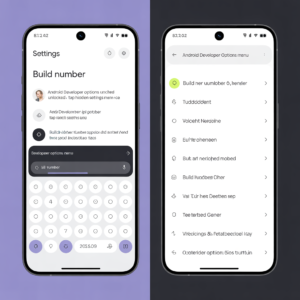
By Enabling Developer Options
- Open Settings.
- Scroll to About Phone (or About Device / About Tablet).
- Find Build Number (sometimes under Software Info).
- Tap Build Number seven times. You’ll get a message like “You are now a developer.” (AskVG)
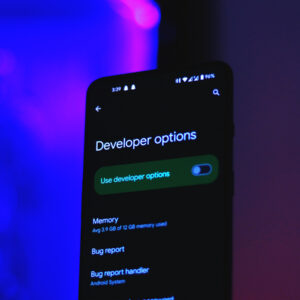
- Go back to Settings → you’ll now see a new menu: Developer Options. Inside, you’ll find advanced features like USB debugging, background process limits, visual feedback for touches, GPU rendering options, and more. (TechBloat)
This alone can unlock a treasure trove of settings that many users never touch — and never knew existed.
By Typing Dialer Codes (USSD / MMI codes)
Another method is to use special numeric codes in your phone’s dial pad — no “Call” needed; enter the code and wait. These codes trigger built‑in diagnostic or information menus. For example:
| Code | What it does / Menu opened |
|---|---|
*#*#4636#*#* |
Opens a “Testing” or Phone Information menu — network status, battery, usage stats, Wi‑Fi stats, and more. (BGR) |
*#0*# |
On certain devices, opens a hardware test or service menu (display tests, sensors, camera, etc.) (DeviceMAG) |
*#06# |
Instant display of IMEI number(s) — useful if you need device identification or tracking. (BGR) |
A quick heads-up: Not all codes work on every phone model or Android version. It’s like a secret handshake — if your phone recognizes it, the door opens; otherwise, nothing happens. (DeviceMAG)
You might discover hidden menus with diagnostic tools, detailed hardware info, and system stats. Pretty neat, right?
Via System UI Tuner (where available)
Some phones also hide a menu called System UI Tuner. On devices that support it, you can enable it by pulling down the quick settings panel and long-pressing the gear icon (settings icon) until it spins or gives a message. Once unlocked, you can access UI customization options and advanced tweaks. (AndroidProTips)
What You Can Do With the Hidden Menu — Why It Matters
Unlocking the “secret hidden menu in your phone” isn’t just a neat trick. It can be genuinely useful. Here are some benefits (and caveats) — like hidden gems waiting under the surface:
🔧 Diagnostics & Hardware Tests
- Test screen, touch response, sensors (proximity, light), camera, speakers, vibration — good if you suspect hardware issues or just want to check all sensors are functional. (Android Guías)
- Check RAM version, firmware build info, storage health, and more — helpful if you’re troubleshooting performance issues. (Gizchina)
📶 Network, Battery & System Info
- With codes like
*#*#4636#*#*, you can view detailed network, Wi‑Fi, battery stats and usage information. This can help you optimize performance or detect battery drain or connectivity issues. (BGR) - View device identifiers like IMEI — useful for warranty, anti‑theft, or carrier support. (Thinglabs.io)
⚙️ Advanced Settings & Customization
- In Developer Options: enable USB debugging, mock locations, adjust animation speed, force GPU rendering, limit background processes, etc. (AskVG)
- Customize UI, quick settings layout, notifications, maybe even unofficial features (on some phones) via System UI Tuner. (AndroidProTips)
🛠️ For Power Users & Tech‑savvy Folks
If you’re a developer, tester, or just love tinkering — hidden menus open up a playground. You can debug, gather detailed device info, try experimental features, or prep your phone for advanced tasks (like testing signal strength or hardware performance).
The Risks — Why You Should Be Cautious
Just like with anything powerful, messing around with hidden menus comes with potential pitfalls. Think of it as playing with fire — in a good way… and a risky way.
- Some codes (or menu options) may wipe data or reset your phone — for instance, factory‑reset codes are sometimes included in hidden code lists. ⚠️ (africacdc.org)
- Using advanced options incorrectly (especially via ADB or root) can lead to instability, crashes, or even bricking your device. (Site Title)
- Some hidden menus may be unavailable depending on your phone’s brand, model, firmware, or carrier restrictions. The “secret handshake” might simply not work. (Groovy Post)
- Warranty or support implications. Tweaking deep‑system settings may void manufacturer support depending on your region or device.
Bottom line: Use with care. Know what you’re doing. And treat these menus as tools — not toys.
Hidden Menu Codes & Their Functions — Quick Reference Table
| Code / Method | Purpose / Menu | Note / Warning |
|---|---|---|
*#*#4636#*#* |
Testing / Info menu — battery, network, Wi‑Fi, usage stats | Useful — read data before closing. |
*#0*# |
Hardware test / diagnostic menu | May not work on all devices. |
*#06# |
Show IMEI number(s) | Good for device identification / anti‑theft. |
| Developer Options (enable via Build Number) | Advanced settings — USB debugging, animations, background process limits, GPU rendering, etc. | Safe but tinker carefully. |
| System UI Tuner (if available) | UI tweaks, quick‑settings customization, hidden UI features | Not available on all devices. |
Think of this like a cheat sheet you can keep tucked in your pocket — ready when you want to peek under the hood.
Real People, Real Stories — Hidden Menu in Action
I came across a thread on Reddit where a user wrote:
“Testing menu can be opened by typing ##4636##. Open ‘Phone information’ and observe.” (Reddit)
But then they added a warning about a UI bug: some information (like IMEI or SIM‑related data) was hidden behind the banner at the top — basically invisible unless you scrolled just right. That’s a perfect illustration: hidden menus don’t always behave nicely across all devices or versions.
Another commenter on a different thread mentioned that after enabling “hidden settings” on their phone, they could access options they never saw — but admitted many didn’t “do much.” Sometimes hidden menus reveal features, sometimes they reveal buttons to nowhere. (Reddit)
In other words — hidden menus are real, interesting, and often useful. But also unpredictable.
Why Many Users Never See These Hidden Menus
- Default Settings Hide Them: Manufacturers and OS designers often hide these options to simplify the user experience and avoid accidental misconfiguration.
- Device / Firmware Variability: Hidden codes and menus often depend on brand, model, and Android version — so what works on one phone might not work on another.
- Risk of Doing It Wrong: Since some options can be risky (data loss, instability), many prefer not to touch them.
- Lack of Awareness: Most users simply don’t know these menus exist — or if they do, they’re unsure what benefit they’d get.
It’s a classic case — there’s a hidden toolbox under the hood, but most drivers never open the bonnet.
Should You Try It? When It Makes Sense (And When to Avoid)
✅ Good reasons to explore the secret hidden menu
- You suspect hardware issues (battery, sensors, display, etc.) and want to run diagnostics.
- You’re curious about system info — RAM, firmware, IMEI, network stats.
- You want to customize or optimize your phone (animations, background processes, dev tools).
- You’re a developer, tech‑savvy user, or enjoy tinkering — and you know what you’re doing.
🚫 When to avoid fiddling
- You’re not sure what an option does — and you don’t like surprises.
- You rely heavily on your phone for work, calls or data — and can’t risk instability.
- You care about warranty, carrier support, or fear data loss.
- Your device is critical and you don’t have backups.
Tips & Best Practices for Safe Use
- Google or research any code or menu option before using it. Don’t just enter codes at random.
- Back up your data before doing anything serious. Hidden menus can’t warn you about irreversible changes.
- Don’t change settings unless you understand them. Features like USB debugging, mock location, or system‑level testing can impact security or stability.
- Use as a tool — not a toy. Treat hidden menus as a mechanic treats the engine bench: carefully, deliberately, with respect.
- If in doubt, don’t touch. Better safe than sorry.
Final Thoughts — Why the Hidden Menu Is Like a Secret Superpower
Think of your phone as a car. For everyday driving, you only need the steering wheel, pedals, and maybe the radio. But under the bonnet? There’s an engine, sensors, wires, and nuts and bolts. If you know how to inspect and tune them — you can get more mileage, better performance, maybe even make it last longer.
That’s exactly what the secret hidden menu in your phone offers. It’s not about showing off — it’s about giving power to the user. It’s about control, insight, diagnostics — and sometimes, a bit of fun tinkering.
Sure — not everyone needs to open that bonnet. And yes — you risk messing up if you poke around blindly. But for those who dare, it’s a hidden doorway to deeper understanding and better use of your device.
If you’ve never tried it — maybe today is a good day to peek behind the scenes. Just remember: with great power comes great responsibility 😉
Call‑to‑Action
If this article opened your eyes to hidden menus you never knew existed, hit share — let your friends discover the secret hidden menu in their phone too! Want more tips on safe phone‑tuning or hidden features? Keep reading.