Disclaimer: This article is for educational and informational purposes only. The tips and techniques described are general in nature and may vary depending on your device model, operating system version, and carrier settings. Always refer to your device’s official documentation for guidance specific to your situation.
Genius Phone Tricks That Make You an Instant Tech Pro
You’ve been carrying a supercomputer in your pocket for years — and you’re still using it to scroll Instagram and set alarms.
That ends today.
Introduction
Most people use about 10% of what their smartphone can actually do. Not because the features aren’t there — they absolutely are — but because no one ever sat them down and said, “Hey, here’s what this thing is actually capable of.”
Think about it. You spent hundreds of dollars on your phone. Maybe more. And every day you’re tapping through the same five apps without realizing there’s an entire hidden layer of tools, shortcuts, and features quietly sitting underneath the surface, waiting for you to find them.
This isn’t about being “good with technology.” These phone tricks don’t require a tech background, a computer science degree, or even a particularly long attention span. They just require someone to point them out — which is exactly what we’re doing here.
We’ve pulled together more than 25 smart, genuinely useful phone tricks that span iPhone and Android, covering everything from productivity shortcuts to battery-saving moves to camera hacks that will make your photos look like you hired a photographer. Whether you use your phone for work, creative projects, staying connected, or just getting through the day more efficiently, there’s something in here that’s going to change how you use your device.
Let’s get into it.
The Phone Tricks Nobody Talks About (But Everyone Needs)
Before we dive into the deep-end, let’s start with the tricks that aren’t flashy but will immediately make your daily phone use smoother, faster, and less frustrating.
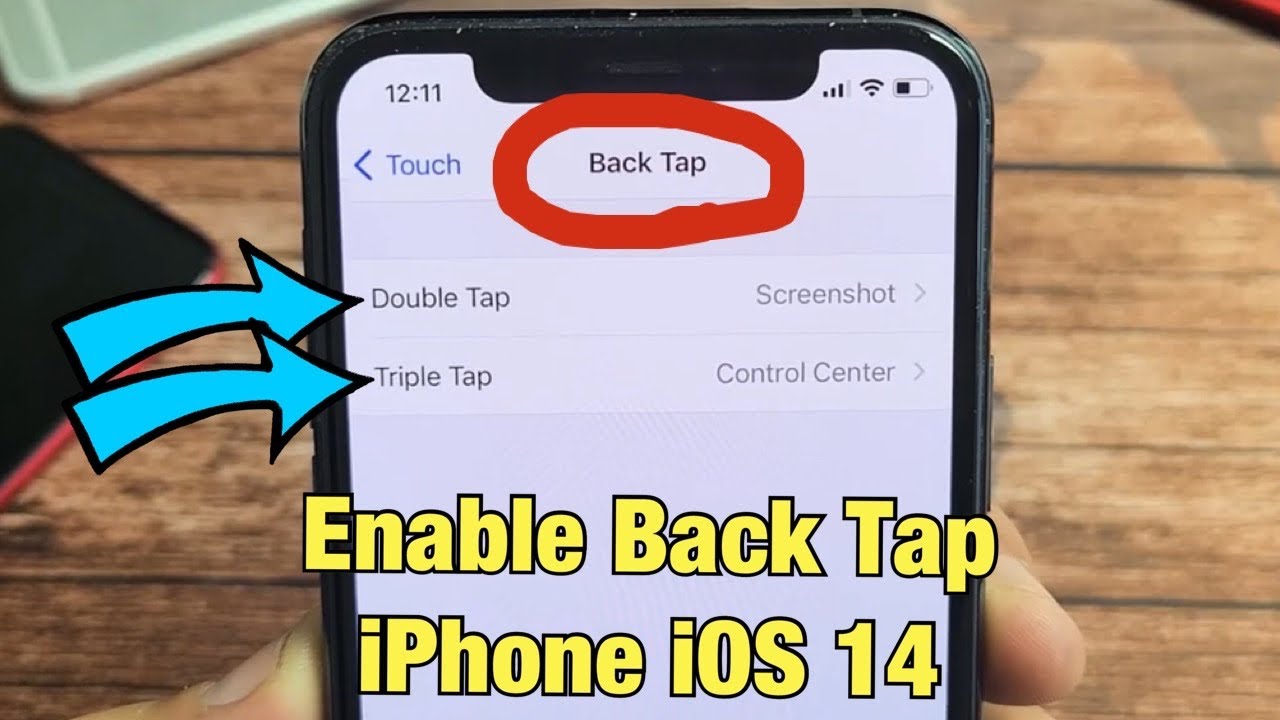
Back Tap (iPhone): If you’re on iOS 14 or later, go to Settings → Accessibility → Touch → Back Tap. You can assign actions — like taking a screenshot, opening the camera, or triggering a shortcut — to a double or triple tap on the back of your phone. It sounds gimmicky until you’ve used it for a week and can’t imagine life without it.
Quick Settings Customization (Android): Pull down your notification shade twice and hit the pencil icon. You can rearrange, add, or remove your quick settings tiles. Most people never do this and spend weeks tapping through menus to find things like “Hotspot” or “Screen recorder.” Thirty seconds of setup. Infinite convenience.
Here are a few more underrated basics worth knowing:
- Long-press the keyboard spacebar (iPhone and most Android keyboards) to turn it into a trackpad for precise cursor placement
- Shake to undo on iPhone reverses your last typed action — handy when autocorrect murders a perfectly good sentence
- Hold the period key on most keyboards to reveal a full row of punctuation
- Double-tap the side button on iPhones or the power button (on some Androids) to launch the camera instantly — before the moment disappears
These aren’t tricks for tech nerds. They’re tricks for anyone who’s tired of fumbling.
Hidden Phone Tricks That Make Your Camera Wildly Better
Your phone camera is genuinely remarkable — and most people use it at about 40% of its potential. Here’s how to close that gap.
Use the volume buttons as a shutter. On both iPhone and Android, pressing the volume down or volume up button takes a photo. This gives you a more stable grip than tapping the screen and reduces the micro-shake that makes photos slightly blurry. Simple, effective, and almost no one does it.
Grid lines are your secret weapon. Go into your camera settings and turn on the grid. This overlays a rule-of-thirds grid on your viewfinder. Place your subject at one of the four intersection points rather than dead center, and your photos will look more dynamic and professionally composed — instantly. It’s the same principle professional photographers use, and it takes about 10 seconds to turn on.
More camera tricks worth stealing:
- Burst mode — hold down the shutter button (or volume button) to fire off a rapid sequence of shots. Perfect for action shots, kids, pets, or anything that refuses to stay still
- AE/AF Lock — on iPhone, tap and hold your subject until you see the yellow square lock. This locks both focus and exposure so your scene doesn’t shift when you reframe
- Portrait mode distance — most phones need you to be 2–5 feet from your subject for Portrait mode to work properly. Step back if you’re getting an error
- Shoot RAW — if you’re even a little serious about photos, enable RAW capture in your camera settings (available on both iPhone Pro models and many Android flagships). RAW files hold more data and give you dramatically more editing flexibility
- Night mode on a tripod — Night mode on modern phones can produce stunning results, but only if the phone is completely still. Even resting it against a wall helps
One often-missed trick: use Pano mode horizontally AND vertically. Most people only go side to side for panoramas, but shooting vertically (from ground to sky) creates stunning architectural or nature shots that look nothing like a typical phone photo.
Phone Tricks for Staying Organized Without Downloading More Apps
You don’t need another productivity app. Your phone already has the tools — you just need to know where they are.
Use your Notes app as a command center. Both Apple Notes and Google Keep support checklists, tags, pinned notes, and even document scanning. Before you download a task manager, try actually using the built-in notes app to its full capacity. Pin your most important lists to the top. Use folders or tags to categorize. Scan and store physical documents directly in Notes (iPhone: tap the camera icon in a note → Scan Documents).
Reminders with location triggers are genuinely life-changing. In Apple Reminders, you can set a reminder to fire when you arrive at or leave a specific location. Heading home from work? Your phone reminds you to stop at the pharmacy the moment you leave your office. It’s the closest thing to a photographic memory most of us will ever have.
Android users have Google Tasks and Google Keep, both of which integrate deeply with Gmail and Google Calendar. Setting a task with a time trigger in Google Tasks will show up as a notification — so your to-do list and your calendar actually talk to each other.
Additional organization tricks:
- App folders by color or use case — group your apps visually, not just alphabetically. Your brain finds things faster by location and color than by name
- Screen Time / Digital Wellbeing — use the built-in usage trackers to see exactly where your time goes. Most people are surprised (and slightly horrified) by the data
- Focus Modes (iPhone) / Do Not Disturb Schedules (Android) — set up separate Focus profiles for work, sleep, and personal time. Each one filters notifications differently so you’re not getting pinged during a presentation or at 2am
- Siri Shortcuts / Google Assistant Routines — these let you automate multi-step tasks with a single phrase or tap. “Good morning” could silence your alarm, read you the weather, and open your calendar simultaneously
The goal here isn’t to add complexity. It’s to build a system that runs quietly in the background so you spend less energy managing your day.
Battery-Saving Phone Tricks That Actually Work
Battery anxiety is real. Watching that percentage tick down when you’re away from a charger creates a low-grade stress that nobody talks about but everyone feels.
The good news: a handful of simple adjustments can dramatically extend how long your phone lasts between charges — no battery pack required.
Turn off Always-On Display if you have it. This feature — available on the iPhone 14 Pro and later, and many Android flagships — keeps your screen dimly lit at all times. It’s convenient. It also eats battery faster than almost anything else when you’re not near a charger. Toggle it off when you need to stretch your charge.
Reduce your screen refresh rate. High-refresh-rate screens (90Hz, 120Hz) are buttery smooth but power-hungry. On both iPhone and many Android devices, you can lower this in Settings. For most everyday use — reading, messaging, browsing — you won’t notice the difference. Your battery will.
More battery tricks that deliver:
- Turn on Low Power Mode early — don’t wait until 20%. Turning it on at 50% or 60% when you know you’ll be away from a charger for hours is a smart move. It reduces background activity without meaningfully impacting your experience
- Check battery-draining apps — go to Settings → Battery and look at which apps are consuming the most power. Background refresh, location access, and push notifications are the usual culprits
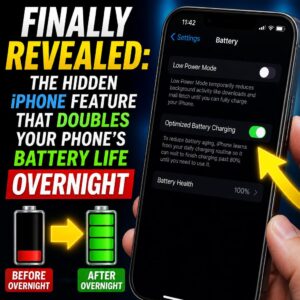
- Optimized Battery Charging (iPhone) / Adaptive Charging (Android) — both operating systems now learn your charging habits and slow down charging to 80% overnight, finishing the last 20% just before you typically wake up. This protects your battery’s long-term health significantly
- Dark mode on OLED screens — if your phone has an OLED display (most modern flagship phones do), dark mode isn’t just aesthetic. It actually saves battery because OLED pixels turn completely off to display black
One underrated trick: keep your phone out of the heat. High temperatures degrade battery chemistry faster than almost any usage pattern. Don’t leave your phone on a hot car dashboard or in direct sunlight. It’s doing real, lasting damage.
Keyboard and Typing Phone Tricks That Save Hours Per Week
You type on your phone more than you probably realize — texts, emails, search queries, notes, captions. Speeding up your typing experience has a compounding effect that adds up to real time savings.
Text Replacement is one of the most underused features on both iPhone and Android. Go to Settings → General → Keyboard → Text Replacement (iPhone) or Settings → General Management → Keyboard → Text Shortcuts (Samsung/Android). Set up shortcuts for things you type constantly:
@@→ your full email addressadr→ your home addressty→ “Thank you so much!”omw→ “On my way!”sig→ your full email signature
You set it once, and it works everywhere — in every app, forever. It’s the closest thing to a typing superpower.
Swipe typing (available on iPhone with third-party keyboards like Gboard, and natively on most Android keyboards) lets you glide your finger across letters without lifting it. With a bit of practice, it’s dramatically faster than individual taps — especially for longer words.
More keyboard tricks:
- Hold letters for accents and variants — hold “e” and you’ll get é, ê, è, ë, and more. Works across both platforms
- Double-space to period — on most keyboards, hitting the spacebar twice at the end of a sentence automatically inserts a period and a space
- Emoji keyboard shortcut — on iPhone, tap the globe/emoji icon and stay there while swiping up on frequently used emojis to add them to your Favorites panel
- Voice-to-text actually works now. The transcription accuracy on modern phones is remarkable. For longer messages, just talk. Edit the odd error. It’s still faster than typing the whole thing
A small investment in customizing your keyboard setup pays dividends every single day. Even saving three seconds per message adds up when you send 50 messages a day.
Security Phone Tricks That Protect You Without the Hassle
Most people either ignore phone security entirely or treat it like a chore — enabling one setting, forgetting about it, and moving on. But your phone holds your bank accounts, your personal photos, your health data, your passwords, and your entire communication history.
A few smart moves here are worth more than most security software.
Use a password manager. Seriously. Both iPhone (iCloud Keychain) and Android (Google Password Manager) have built-in password managers that generate, store, and auto-fill strong, unique passwords for every app and website. Using the same password across multiple sites is the number-one way people get hacked. This fix is free, built-in, and takes about five minutes to set up.
Enable two-factor authentication (2FA) on your most important accounts. Your email. Your bank. Your social media. Use an authenticator app like Google Authenticator or Apple’s built-in code generator rather than SMS codes — SMS-based 2FA can be compromised via SIM-swapping attacks. According to research from Google, adding 2FA blocks 99.9% of automated account attacks — one of the most proven digital security moves you can make.
Additional security tricks:
- App permissions audit — go through Settings → Privacy and review which apps have access to your camera, microphone, location, and contacts. Revoke anything that doesn’t need it
- Screen lock timeout — set your screen to lock after 30 seconds or 1 minute of inactivity, not 5 minutes. It’s a small inconvenience and a significant security improvement
- Stolen Device Protection (iPhone iOS 17.3+) — this feature requires Face ID or Touch ID for sensitive actions (like changing your Apple ID password) when you’re away from a familiar location. It closes a major vulnerability that thieves were actively exploiting
- Hide sensitive notifications on lock screen — go to notification settings for individual apps (banking apps, messaging apps) and change them to show only the app name, not the content. Nosy eyes in public won’t see your bank balance or private messages
You don’t need to become a cybersecurity expert. You just need these basics locked in.
Accessibility Phone Tricks That Make Your Device Smarter for Everyone
Here’s something most people don’t realize: the best features on modern smartphones are often buried in the Accessibility menu — and they’re useful for everyone, not just users with specific needs.
Magnifier (iPhone) — go to Settings → Accessibility → Magnifier and turn it on. Triple-click the side button and your phone instantly becomes a high-powered magnifying glass with a flashlight. Perfect for reading tiny text on menus, medicine bottles, or instruction manuals. This is genuinely one of the most practically useful features on the entire device.
Display & Text Size adjustments — both iPhone and Android let you scale up text size, increase contrast, and enable bold text system-wide. If you’re squinting at your phone regularly, this will change your life. Go to Settings → Display & Brightness → Text Size (iPhone) or Settings → Display → Font Size and Style (Android).
More accessibility tricks worth exploring:
- Reachability (iPhone) — swipe down on the bottom edge of the screen to pull the top of the display down within thumb reach. Incredibly useful on larger phones
- Sound Recognition (iPhone) — in Accessibility settings, your phone can listen for specific sounds (baby crying, smoke alarm, doorbell) and notify you with a visual alert. Originally designed for deaf users, but useful for anyone with headphones in
- Live Captions (Android / iPhone) — your phone can transcribe any audio playing on your device in real time, right on screen. Works for videos, phone calls, podcasts. Remarkable technology available at no extra cost
- AssistiveTouch — creates a floating on-screen menu that replicates hardware button functions. Useful when buttons wear out — but also useful as a quick shortcut launcher
The Accessibility menu on your phone is essentially a hidden features playground. Spend 10 minutes in there and you’ll find at least three things you immediately want to keep turned on.
Phone Tricks for Getting the Most Out of Your Phone’s Search Features
Search on your smartphone is vastly more powerful than most people realize — and using it well can replace a surprising number of taps and navigation steps.
Spotlight Search (iPhone) is the closest thing your phone has to a universal remote control. Swipe down from the middle of your home screen to open it. From there, you can:
- Search for any app (and open it)
- Search for contacts
- Convert units and currency
- Do math calculations
- Look up words
- Search inside apps like Messages, Mail, and Notes
- Even search the web — without opening a browser first
Most iPhone users open Spotlight maybe twice a week. Power users live in it.
Google Search integration on Android goes even deeper. With Google Assistant or the Google app, you can search your files, emails, photos, contacts, and the web simultaneously. Asking “find the email Sarah sent me last Tuesday about the contract” actually works — and it pulls results across Gmail, Drive, and Calendar at once.
Search tricks to build into your daily routine:
- Search for settings directly — on both iPhone and Android, you can type what you’re looking for in the Settings search bar instead of navigating through menus. “Hotspot,” “font size,” “screen record” — just search for it
- Photo search by content — on both Google Photos and iPhone Photos, you can search photos by what’s in them: “beach,” “birthday cake,” “dog,” “receipt.” The AI-powered recognition is surprisingly accurate
- Search within apps — most apps have internal search that people ignore. Your iMessage search can find a specific word someone texted you three years ago. Your Instagram search remembers your browse history. Use these before scrolling endlessly
A 2023 study by IDC found that mobile workers spend an average of 2.5 hours per day searching for information — and that’s largely because most people don’t know how to search effectively. These tricks cut that time dramatically.
Comparing Old Habits vs. Smart Phone Tricks: What Actually Changes
Here’s a side-by-side look at what life looks like before and after using these phone tricks intentionally:
| Situation | Old Habit | Smarter Phone Trick | Time/Energy Saved |
|---|---|---|---|
| Taking a quick photo | Tap screen button, blurry result | Volume button shutter + grid lines | Better photos, faster |
| Typing your email address | Type it out every time | Text Replacement shortcut @@ |
10+ seconds per instance |
| Finding an app | Scroll through pages of apps | Spotlight Search / swipe down | 5–15 seconds every time |
| Remembering a task | Mental note (forgotten by evening) | Location-triggered reminder | Mental load eliminated |
| Charging overnight | Plug in, full charge all night | Optimized Charging enabled | Long-term battery health protected |
| Reading tiny text | Squinting, zooming manually | Magnifier with triple-click | Instant, comfortable reading |
| Securing accounts | Same password everywhere | Password manager + 2FA | Near-total hack protection |
| Battery running low | Panic at 20%, scramble for charger | Low Power Mode at 50% | 2–3 additional hours of use |
| Customizing quick actions | Not done (didn’t know it existed) | Back Tap or Quick Settings setup | Faster access to key functions |
| Searching old messages | Scrolling back through hundreds of texts | In-app search by keyword | Minutes saved per search |
None of these require new hardware. None of them cost money. They’re all sitting there in your current phone right now, waiting to be activated.
Phone Tricks for Making Calls and Meetings Less Painful
Nobody talks about this one enough: your phone’s native calling and meeting features have gotten genuinely good, and most people still treat them like it’s 2012.
Phone call recording (Android) — on Pixel phones and some other Android devices, you can record phone calls natively through the Phone app. Check your dialer settings. This is useful for interviews, important conversations, or anything you might need to reference later. (Check your local laws on call recording consent requirements before using this one.)
Live Voicemail (iPhone iOS 17+) — your iPhone now transcribes voicemails in real time as they’re being left. You can read the voicemail before it’s finished — and if it’s important, pick up mid-message. It’s one of the most underappreciated features of recent iOS updates.
More call and meeting tricks:
- Silence Unknown Callers — go to Settings → Phone → Silence Unknown Callers. Any number not in your contacts goes straight to voicemail. Spam calls: eliminated
- FaceTime SharePlay — you can watch movies, listen to music, or share your screen with someone on a FaceTime call. The shared listening feature alone is great for long-distance relationships or collaborative work sessions
- Speakerphone at a distance — hold your phone flat (face-up) during speakerphone calls instead of holding it up to your ear. The microphone picks up better, and the speaker volume is more evenly distributed
- Haptic Feedback for calls — some Android phones let you feel a haptic pulse when a call connects, so you’re not awkwardly waiting to see if the call went through
One simple tip: always check your cellular and WiFi calling settings. WiFi Calling (available on most modern phones) routes your calls over your internet connection when cellular signal is weak. In low-signal areas — basements, rural locations, older buildings — this can be the difference between a dropped call and a clear one.
Phone Tricks for Smarter Photo Management
Taking good photos is one thing. Managing thousands of them without losing your mind is something else entirely.
Albums and Memories in both iPhone Photos and Google Photos do a lot of the heavy lifting for you automatically — but you can take it further by creating your own albums, shared albums with family, and smart albums based on people, places, or events.
Duplicate photo detection is now built into iPhone Photos (iOS 16+). Go to Photos → Albums → scroll down to Utilities → Duplicates. It’ll show you identical or near-identical shots and let you merge them with a tap. Most people are sitting on hundreds of duplicates they don’t know about.
Photo management tricks that make a real difference:
- Mark favorites on the spot — tap the heart icon immediately after taking a shot you love. This makes your Favorites album actually curated and useful rather than a chaotic highlight reel
- Hide photos from main library — long-press any photo and select “Hide” to move it to the Hidden album (protected by Face ID on iPhone). Use this for private images you don’t want appearing in slideshows or shared screens
- Edit and revert — all edits in both iPhone Photos and Google Photos are non-destructive. You can revert any edited photo back to its original at any time, even years later
- Live Photos / Motion Photos — that photo you took of a moment? It’s probably also a short video clip. Long-press a Live Photo (iPhone) or Motion Photo (Google Pixel/Samsung) to see it animate. These can be stunning when you catch the right moment
For serious photo organization, setting up a Google Photos account synced across devices (with 15GB free, and paid storage beyond that) gives you a searchable, cross-platform archive of your entire photo history. The facial recognition and content search alone are worth it.
Advanced Phone Tricks: Automation and Shortcuts That Feel Like Magic
Once you’ve got the basics down, this is where things get genuinely interesting. Your phone can automate repetitive tasks in ways that feel almost science-fiction-adjacent.
Shortcuts app (iPhone) is one of the most powerful tools Apple has ever shipped, and most people have never opened it. It lets you build automated workflows that run with a tap, a voice command, or a trigger. Examples:
- Tap a shortcut → your phone turns on Do Not Disturb, opens Spotify, and starts navigation to work simultaneously
- Say “Hey Siri, I’m driving” → your phone reads incoming texts aloud and sends auto-replies
- Every morning at 7am → your phone runs a routine that shows you the weather, your calendar, and your top reminder for the day
Routines on Android (Google Assistant / Samsung Bixby) work similarly. You can set up morning routines, bedtime routines, and location-based automations without writing a single line of code.
More automation tricks:
- Automatic Wi-Fi switching — set your phone to auto-connect to trusted networks and auto-disconnect from unknown ones using your network settings or a simple shortcut
- Low battery automation — set an automation that triggers Low Power Mode automatically when your battery hits 30%, without you having to do anything
- Focus Filters — iPhone’s Focus modes can now filter which calendars, contacts, and apps are visible during specific modes. Work Focus = only work calendar shows. Personal Focus = only personal contacts get through
- NFC Shortcuts (Android) — program cheap NFC stickers and place them around your home or car. Tap your phone on the sticker and it triggers an action: turn on bedroom lights, start a playlist, launch navigation. Each sticker costs about $1
This is the level where your phone stops being a tool you manage and starts being a system that works for you.
Conclusion
Here’s the honest truth: your phone is already extraordinary. It always has been. The only thing standing between you and a dramatically better experience with it has been knowing where to look.
None of these phone tricks require you to be a tech enthusiast. They don’t require you to read developer documentation or watch three-hour YouTube tutorials. They require about five minutes of setup each — and most of them start paying dividends immediately.
Pick three from this list. Just three. Set them up today. A week from now, you’ll barely remember what using your phone was like before.
And once those feel natural — come back. There are always more to explore.
What To Do Next
Share this with someone who’s always asking you for tech help — this guide will answer most of their questions in one read.
Save it for reference — bookmark this page or share it to your Notes app so you can come back to specific sections when you’re ready to tackle the next batch of tricks.
Try one right now — seriously. Before you close this tab, pick one trick from the list and set it up. Text Replacement for your email address takes 45 seconds. Back Tap takes a minute. One small win is all it takes to build the habit.
Drop a comment below — which of these phone tricks did you not know about? And which one are you trying first? We read every response.