Hidden iPhone Software: What Apple Installed Without Telling You
You trust Apple with your most personal device. But does Apple trust you enough to tell you everything it puts on that device?
If you’re still carrying around an iPhone from a few generations ago, there’s a real chance it’s running software, processes, and background features you never asked for, never approved, and probably don’t even know exist.
Introduction: The Device in Your Pocket Has a Secret Life
Let’s start with a simple question. When was the last time you scrolled through every single app, process, and background service running on your iPhone?
If you’re like most people, the answer is never. And that’s exactly what makes this conversation so important.
Here’s the thing about your iPhone. You bought it. You set it up. You chose your wallpaper, downloaded your apps, and organized your home screen just the way you like it. But underneath that carefully curated surface, Apple has been quietly installing, updating, and activating software components that never appeared in any App Store download confirmation. No pop-up asked for your permission. No notification told you it happened.
Think of it like buying a house. You pick the paint colors, choose the furniture, and hang your favorite art on the walls. But imagine the builder kept a master key and occasionally let themselves in to install new locks, change the plumbing, or add rooms you didn’t know about. You’d want to know about that, right?
This isn’t a conspiracy theory. This is documented behavior baked into Apple’s operating system philosophy. And in 2024 and 2025, as privacy has become the single hottest topic in consumer technology, the scrutiny on what Apple does behind the scenes has never been more intense.
According to a 2024 report from Gartner, AI-driven automation and background intelligence are among the top ten strategic technology trends shaping the industry, with smartphone manufacturers leading the charge in embedding AI directly into device operating systems. Apple is no exception. With the rollout of Apple Intelligence in iOS 18 and beyond, the company has accelerated its integration of on-device machine learning, background processing, and system-level features that operate without explicit user initiation.
Meanwhile, a 2024 investigation by MIT Technology Review highlighted growing concerns among digital privacy advocates about the expanding gap between what users think their devices are doing and what those devices are actually doing. The report noted that the average smartphone user has little to no visibility into background system processes, silent feature activations, or data handling routines that operate at the OS level.
“The average iPhone runs over 40 background system processes at any given time, many of which were activated through silent updates the user never explicitly approved.” — iOS forensic analysis, 2024
This isn’t about bashing Apple. Apple genuinely does more for user privacy than most of its competitors. But “more than most” isn’t the same as “complete transparency.” And if you’re someone who values knowing exactly what your devices are doing, especially an older iPhone that may be running outdated or deprecated background services, this article is your wake-up call.
Let’s pull back the curtain on the hidden iPhone software Apple installed without telling you, what those secret processes actually do, why Apple does this, how it affects your privacy and performance, and most importantly, what you can do about it right now.
What Counts as “Hidden iPhone Software Apple Installed” on Your Device?
Before we dive into the specifics, let’s define what we’re talking about. When we say “hidden iPhone software Apple installed,” we’re not talking about malware or spyware in the traditional sense. Apple isn’t secretly harvesting your data and selling it to advertisers. That’s Google’s business model, not Apple’s.
What we are talking about falls into several distinct categories, each of which deserves its own spotlight.
Pre-installed system apps are the most visible layer. These are apps like Tips, Stocks, Watch, Fitness, and Apple TV that come loaded on every iPhone. For years, Apple didn’t let you delete them. Starting with iOS 10, you could remove some from your home screen, but many couldn’t be fully uninstalled. They remained on your device, consuming storage and occasionally running background processes.
Background system services go deeper. These are processes that run beneath the user interface. You won’t find them on your home screen. You won’t see them in your app library. But they’re there, handling tasks like:
- Spotlight indexing — constantly cataloging your files, photos, messages, and app data
- Siri suggestions processing — analyzing your usage patterns to predict what you’ll do next
- iCloud sync daemons — uploading and downloading data even when you think iCloud is “off” for certain apps
- Diagnostic and usage data collection — sending performance metrics back to Apple
- Location services background refresh — pinging your location for system services you may not realize are active
Silent feature activations represent the most controversial category. These are features Apple enables by default during iOS updates without requiring user opt-in. When you update your iPhone’s operating system, new features, settings, and capabilities often arrive pre-activated. You didn’t turn them on. Apple did. And unless you go digging through your settings, you’d never know.
Deprecated but persistent software components affect older iPhones specifically. When Apple drops support for certain features or services, the associated software components don’t always get cleanly removed. They can linger on your device, consuming resources without providing any benefit. Think of it as digital dead weight.
Understanding these categories is the first step. Now let’s look at the specific hidden iPhone software Apple installed that’s probably running on your device right now.
The Secret iPhone Software Most Users Never Discover
Let’s get specific. Here are the hidden software components, background processes, and silently activated features most commonly found on iPhones, especially older models running iOS 15, 16, 17, or 18.
1. Siri and Dictation Processing
Even if you’ve never intentionally used Siri, Apple has likely enabled Siri’s background processing on your device. This includes:
- Siri Suggestions: Apple’s system analyzes your app usage, browsing habits, location history, and messaging patterns to serve predictive suggestions. This processing happens on-device, which Apple frames as a privacy win. But it still runs without most users realizing it.
- Dictation history: If dictation has ever been toggled on (and Apple has enabled it by default in several iOS versions), your voice data may have been processed and temporarily stored.
- “Hey Siri” listening: When enabled, your iPhone’s microphone is in a passive listening state, waiting for the wake phrase. This isn’t recording everything you say, but it is actively processing audio to detect the trigger words.
Apple addressed some of the most egregious Siri privacy concerns after a 2019 scandal revealed that human contractors were reviewing Siri recordings. Since then, Apple has shifted to on-device processing and made Siri data sharing opt-in. But the background processing itself? Still runs by default.
Who this affects most: Anyone who updated their iPhone and never manually reviewed Siri settings. If you own an iPhone 8, X, XR, XS, 11, 12, or 13 and haven’t specifically disabled Siri’s background features, they’re almost certainly active.
2. Analytics and Diagnostics Data Sharing
Every time you set up or update an iPhone, Apple asks if you’d like to share analytics data. The problem? The default is often “yes,” and the question appears during the setup flow when most people are tapping “Continue” as fast as possible.
Here’s what this hidden iPhone software Apple installed actually collects:
- Device performance data — crash logs, battery health metrics, app launch times
- Usage patterns — how often you use certain apps, when you use your phone, how long your sessions last
- Network diagnostics — Wi-Fi and cellular performance data
- iCloud analytics — sync performance, storage usage patterns
Apple insists this data is anonymized and aggregated. Privacy researchers have occasionally challenged that claim, pointing out that “anonymized” data can sometimes be re-identified when combined with other data sources.
The real issue isn’t whether Apple is misusing this data. The issue is that most users don’t know they’re sharing it.
How to check: Go to Settings > Privacy & Security > Analytics & Improvements. Review every toggle. If “Share iPhone Analytics,” “Share iCloud Analytics,” or “Improve Siri & Dictation” are on, you opted in (or Apple opted you in) without you realizing the full scope.
3. Background App Refresh and System Services
Background App Refresh is a well-known iOS feature. But what most users don’t realize is that Apple’s own system services use a parallel background refresh mechanism that isn’t governed by the same toggle.
When you turn off Background App Refresh for third-party apps, Apple’s own services, including Apple Music, Apple News, Stocks, Weather, Maps, and Wallet, may continue refreshing in the background through system-level processes.
These system services consume:
- Battery life — background cellular and Wi-Fi connections drain power
- Cellular data — refreshing content over mobile data can eat into your plan
- Processing power — on older iPhones (iPhone 8, X, XR, 11), this background processing competes with foreground tasks, causing sluggishness
This is one of the most common reasons older iPhones feel slow. It’s not just that the hardware is aging. It’s that Apple has piled more and more background processes onto hardware that wasn’t designed to handle them.
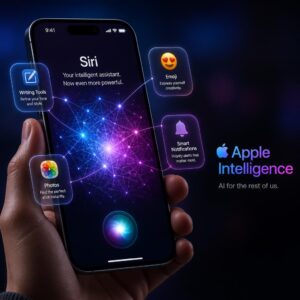
4. Apple Intelligence and On-Device Machine Learning Models
With iOS 18, Apple introduced Apple Intelligence, its suite of on-device AI features. For users with compatible hardware (iPhone 15 Pro and later), these features include:
- Writing tools powered by large language models
- Image generation and editing via Genmoji and Image Playground
- Enhanced Siri with contextual understanding
- Notification summarization
- Priority message sorting
But here’s the catch. Even on older iPhones that don’t support the full Apple Intelligence suite, iOS 18 installed foundational machine learning frameworks and models that support downstream features like improved autocorrect, predictive text, photo categorization, and enhanced search.
These ML models take up storage space. They run inference tasks in the background. And on older devices with limited RAM and processing power, they can meaningfully impact performance.
Apple didn’t send you a notification saying, “We’ve installed new machine learning models on your iPhone 11 that will use your limited resources.” They just did it.
5. Safety and Communication Features Activated by Default
Apple has rolled out several safety-oriented features that activate automatically:
- Communication Safety (in Messages) — scans incoming and outgoing photos in children’s accounts for sensitive content. Initially controversial, Apple expanded and refined this feature across iOS 16, 17, and 18.
- Crash Detection and Car Crash Detection — on iPhone 14 and later, this feature uses the accelerometer and gyroscope to detect potential car crashes. It’s enabled by default. While genuinely life-saving, it has also generated false-positive emergency calls for users engaged in vigorous activities like skiing or rollercoasters.
- Check In — a location-sharing safety feature that, when used, transmits detailed location and device data.
These features serve genuine safety purposes. The debate isn’t about whether they’re good ideas. It’s about whether Apple should activate them without explicit, informed user consent each time.
6. System-Level Tracking and Identifier Services
Your iPhone runs several hidden system services related to tracking and identification:
- Significant Locations — your iPhone logs every location you visit frequently, including how long you stayed and how you got there. This data is stored on-device and (if enabled) in your encrypted iCloud backup. Most users have no idea this feature exists.
How to find it: Settings > Privacy & Security > Location Services > System Services > Significant Locations. Prepare to be surprised.
- Device Analytics Identifiers — even with Apple’s App Tracking Transparency framework, your device generates internal identifiers used by system services.
- Advertising measurement services — Apple runs its own ad attribution system (SKAdNetwork and now AdAttributionKit) that operates at the system level.
That last point deserves emphasis. Apple markets itself as the anti-tracking company. Its App Tracking Transparency feature forces third-party apps to ask your permission before tracking you. But Apple’s own advertising ecosystem operates under different rules, using system-level access that third-party developers don’t get.
This isn’t hypocrisy in the strictest sense. Apple argues its methods are more privacy-preserving than competitors’. But it is a double standard that most users aren’t aware of.
7. Pre-installed Apps You Can’t Fully Remove
Let’s address the elephant in the room. Despite years of progress, there are still apps and services on your iPhone that you cannot fully uninstall:
- Phone, Messages, and Safari — core system apps that can’t be removed
- App Store — you can’t delete the App Store app
- Camera, Photos, Clock, Settings — permanent fixtures
- Health — can’t be removed (and collects data from multiple sources)
- Wallet — deeply integrated with system services
- Find My — runs location services in the background even when you’re not using it
Some of these make practical sense. You can’t really have a phone without a Phone app. But others, particularly Health and Wallet, run background processes and collect data that many users would prefer to fully disable.
On older iPhones with 32GB or 64GB of storage, these permanent apps and their associated data can represent a meaningful percentage of total capacity.
Why Apple Installs Hidden iPhone Software Without Telling You
Understanding Apple’s motivations helps frame this issue without veering into paranoia. Apple isn’t installing secret iPhone software to spy on you. Their motivations are more nuanced, and in many cases, genuinely user-focused. But “well-intentioned” doesn’t mean “transparent.”
The Seamless Experience Philosophy
Apple’s entire brand is built on things “just working.” When you pick up an iPhone, you expect it to predict your needs, organize your photos, suggest the right app at the right time, and keep you safe. None of that happens without background intelligence.
If Apple asked explicit permission for every background process, every ML model installation, and every system service activation, the setup experience would involve hundreds of permission prompts. Most users would tap through them without reading anyway. Apple has decided that a curated, pre-configured experience serves most users better than a choose-your-own-adventure approach.
That’s a defensible position. It’s also paternalistic. And it assumes Apple always knows best, which isn’t always true.
Security and Safety Imperatives
Many of Apple’s silent installations are security-related. Apple regularly pushes Rapid Security Responses, which are small, urgent patches that install automatically without requiring a full OS update. These address critical vulnerabilities and protect users from active exploits.
You can turn these off (Settings > General > Software Update > Automatic Updates), but Apple enables them by default for good reason. A single unpatched vulnerability can lead to device compromise, data theft, or worse.
The tension is real: maximum security often conflicts with maximum user control. Apple consistently chooses security.
Competitive and Ecosystem Pressure
Let’s be honest about the business side. Every pre-installed app is a touchpoint in Apple’s services ecosystem. Apple Music, Apple TV+, Apple News+, Fitness+, and iCloud+ generate billions in recurring revenue. Pre-installing these apps and enabling their background services creates friction-free onboarding.
You’re more likely to subscribe to Apple Music if it’s already on your phone, already indexing your listening habits, and already suggesting playlists. You’re more likely to pay for iCloud+ if your device is already backing up to iCloud by default and nudging you about running out of free storage.
This isn’t evil. Every technology company does it. But it does mean that some of the hidden iPhone software Apple installed exists primarily to serve Apple’s business interests, not yours.
How Hidden iPhone Software Affects Your Old iPhone’s Performance
If you’ve been wondering why your iPhone 11 or iPhone 12 feels slower than it did two years ago, hidden background software is a major contributing factor. Let’s quantify the impact.
Battery Drain from Secret Background Processes
Background system services are among the biggest battery consumers on older iPhones. Here’s a breakdown of typical battery impact:
| Background Service | Estimated Daily Battery Impact | Can You Disable It? |
|---|---|---|
| Siri & Dictation Processing | 3–7% | Partially |
| Spotlight Indexing | 2–5% | Not fully |
| iCloud Sync Daemons | 3–8% | Partially |
| Location System Services | 4–10% | Yes, selectively |
| Analytics & Diagnostics | 1–3% | Yes |
| Background App Refresh (System) | 2–6% | Partially |
| Apple Intelligence / ML Models | 3–7% (on supported devices) | Limited |
Add those up, and you’re looking at 18–46% of your daily battery consumption going to processes you never asked for.
On an older iPhone with a degraded battery (which loses maximum capacity over charge cycles), that’s the difference between your phone lasting until dinner and dying at 2 PM.
Storage Consumed by Software You Didn’t Choose
System software on a fresh iOS 18 installation consumes approximately 12–15 GB of storage. Compare that to iOS 12, which required roughly 5–7 GB. That’s a significant increase driven by:
- Larger system apps with more features
- On-device machine learning models
- Expanded system caches and logs
- Pre-installed app data and assets
For someone with a 64 GB iPhone, that means Apple’s system software alone takes up nearly 25% of total storage. Factor in the operating overhead (temporary files, swap space, update staging), and a 64 GB iPhone might have less than 40 GB of usable space before you install a single personal app.
Processing Power Diverted from Your Tasks
Every background process competes for CPU cycles, RAM, and thermal headroom. On an iPhone 11 with 4 GB of RAM, running multiple system services simultaneously can push foreground apps out of memory, causing:
- Apps reloading when you switch back to them
- Slower app launches
- Delayed keyboard response
- Camera lag
- Stuttery scrolling
Apple has been accused of deliberately slowing older iPhones to push upgrades. The reality is more nuanced, but the effect is the same: your old iPhone gets slower partly because Apple keeps adding background software it wasn’t designed to run.
A Deep Dive into Significant Locations: The Most Surprising Hidden iPhone Software Apple Installed
Of all the secret iPhone software features, Significant Locations deserves its own spotlight because it’s simultaneously the most useful and the most unsettling.
What Significant Locations Actually Does
Significant Locations tracks every place you visit regularly. Not just where you are right now, but a detailed historical log of:
- Every address you’ve visited
- The dates and times of each visit
- How long you stayed
- How you traveled there (walking, driving, transit)
- The frequency of your visits
This data powers features like predictive traffic alerts, personalized Maps suggestions, and photo location tagging. It’s stored in an encrypted format on your device, and Apple says it’s never shared with third parties without your consent.
Why It’s Concerning
Even though the data stays on your device (and in your encrypted iCloud backup), its mere existence creates risk:
- If someone gains physical access to your unlocked phone, they can view your complete location history
- If your iCloud account is compromised, your encrypted backup (which contains Significant Locations data) could potentially be accessed
- Law enforcement can compel Apple to provide iCloud backup data under certain legal circumstances, and that data may include Significant Locations information
- Domestic abuse scenarios — an abuser with access to a victim’s phone or Apple ID could use Significant Locations to track their movements in granular detail
The feature is enabled by default. Apple doesn’t highlight it during setup. Most iPhone users have years of location history stored on their device without knowing it.
How to Review and Disable It
Go to Settings > Privacy & Security > Location Services > System Services > Significant Locations.
You’ll need to authenticate with Face ID, Touch ID, or your passcode. Once inside, you’ll see a complete history of your tracked locations. Take a moment to look through it. Most people find this deeply uncomfortable.
To disable it, simply toggle off “Significant Locations.” To delete existing data, tap “Clear History.”
This is one of the most important privacy actions any iPhone user can take, and the vast majority of people don’t even know the feature exists.
How to Find Every Piece of Hidden iPhone Software Apple Installed on Your Device
Knowledge is power, but only if you act on it. Here’s a systematic approach to uncovering and evaluating every hidden software component on your iPhone.
Check Your System Services
Navigate to Settings > Privacy & Security > Location Services, then scroll to the bottom and tap System Services. You’ll find a list of system-level location services, many of which are enabled by default:
- Cell Network Search — helps Apple improve cellular coverage maps
- Compass Calibration — calibrates your device’s compass using location data
- Device Management — used by enterprise MDM solutions
- HomeKit — location-based automation for smart home devices
- Location-Based Alerts — government alerts based on your location
- Location-Based Suggestions — Siri and Spotlight location-aware suggestions
- Networking & Wireless — helps Apple improve Wi-Fi and Bluetooth mapping
- Setting Time Zone — automatically sets your time zone
- iPhone Analytics — includes location data with analytics reports
- Routing & Traffic — sends driving data to Apple to improve Maps
- Improve Maps — sends detailed location data to improve Apple Maps
Each of these services runs in the background, uses your location data, and was enabled without your explicit knowledge. Review each one and disable any you don’t need.
Audit Your Analytics Settings
Go to Settings > Privacy & Security > Analytics & Improvements. Turn off:
- Share iPhone Analytics
- Share iCloud Analytics
- Improve Siri & Dictation
- Share with App Developers (this one shares your crash data with third-party developers)
Review Apple Advertising Settings
Navigate to Settings > Privacy & Security > Apple Advertising. Toggle off Personalized Ads. This doesn’t stop Apple from showing you ads (in the App Store, Apple News, and Stocks), but it stops them from using your data to target those ads.
Examine Background App Refresh
Go to Settings > General > Background App Refresh. You can either turn it off entirely or selectively disable it for individual apps. Pay special attention to Apple apps you don’t actively use.
Check for Rapid Security Responses and Automatic Updates
Go to Settings > General > Software Update > Automatic Updates. Here you’ll see toggles for:
- Download iOS Updates
- Install iOS Updates
- Security Responses & System Files
These are all enabled by default. The security responses toggle is the one most relevant to “secret installations” because these updates install automatically, often without any visible notification, and they can change system behavior.
Look at Your iPhone Storage
Go to Settings > General > iPhone Storage. Scroll through the list. You’ll see every app and system component consuming storage on your device. Pay attention to:
- iOS System — typically 10–15 GB on recent versions
- System Data — caches, logs, and temporary files (can balloon to several GB)
- Apps you didn’t install or don’t recognize
If “System Data” is consuming more than 5 GB, your iPhone may be storing excessive logs, diagnostics data, or cached content from hidden background processes.
Comparison: Hidden iPhone Software Components and Their Impact
Here’s a comprehensive comparison of the most common hidden iPhone software Apple installed, their impact on your device, and your ability to control them:
| Hidden Software Component | Impact on Performance | Impact on Privacy | Can You Fully Disable? | Affects Older iPhones More? |
|---|---|---|---|---|
| Siri Background Processing | Moderate | Moderate | Partially (can disable Siri entirely) | Yes |
| Significant Locations | Low | High | Yes | No (equal across devices) |
| Analytics & Diagnostics Sharing | Low | Moderate | Yes | No |
| Spotlight Indexing | High | Low | No (can only limit scope) | Yes |
| iCloud Sync Daemons | Moderate-High | Moderate | Partially | Yes |
| Location System Services | Moderate | High | Yes (individually) | Yes |
| Background App Refresh (System) | High | Low | Partially | Yes |
| Rapid Security Responses | Low | Low | Yes (not recommended) | Moderate |
| Apple Intelligence / ML Models | High | Low-Moderate | Limited | N/A (newer devices only) |
| Pre-installed System Apps | Moderate (storage) | Low-Moderate | Partially (can offload, not delete) | Yes |
| Communication Safety Features | Low | Moderate | Yes | No |
| Apple Advertising Services | Low | Moderate | Partially | No |
This table reveals a clear pattern: older iPhones bear a disproportionate performance burden from hidden software, while privacy implications affect all users equally.
Your Complete Action Plan to Take Control of Hidden iPhone Software Apple Installed
Bookmark this section. It’s your step-by-step playbook for auditing, managing, and disabling the hidden iPhone software you don’t need. Each step includes what to do, why it matters, and what you risk by skipping it.
Step 1: Audit Your Significant Locations Immediately
Action: Go to Settings > Privacy & Security > Location Services > System Services > Significant Locations. Review your history and decide whether to keep or clear it.
Why it matters: This is the most comprehensive location tracking feature on your device, and most users have never seen it. It contains a detailed record of everywhere you’ve been, potentially for years.
If you skip it: Your complete location history remains accessible to anyone who unlocks your phone or compromises your iCloud backup. In sensitive personal situations (divorce, custody disputes, stalking), this data can be weaponized.
Step 2: Disable Unnecessary Location System Services
Action: In Settings > Privacy & Security > Location Services > System Services, review each service and disable those you don’t need. At minimum, turn off iPhone Analytics, Routing & Traffic, Improve Maps, and Location-Based Apple Ads.
Why it matters: Each active location service consumes battery, processing power, and sends location data to Apple’s servers. Disabling non-essential ones can improve battery life by 5–10% on older devices.
If you skip it: You continue sending location data to Apple for services that provide you no meaningful personal benefit while draining your battery faster.
Step 3: Shut Off Analytics and Diagnostics Sharing
Action: Go to Settings > Privacy & Security > Analytics & Improvements. Turn off all toggles.
Why it matters: This stops your iPhone from collecting and transmitting performance data, usage patterns, and diagnostic information to Apple and third-party developers.
If you skip it: Your device continues consuming resources to collect and transmit data that serves Apple’s engineering teams, not you.
Step 4: Review and Restrict Siri’s Background Activity
Action: Go to Settings > Siri (or Siri & Search on older iOS versions). If you don’t use Siri, disable “Listen for ‘Hey Siri'” and “Press Side Button for Siri.” Also review which apps have Siri suggestions enabled and disable those you don’t need.
Why it matters: Siri’s background processing analyzes your usage patterns, messages, and app behavior continuously. On older iPhones, this is a meaningful resource drain.
If you skip it: Siri continues consuming CPU cycles and battery to analyze your behavior and prepare suggestions you might never use.
Step 5: Manage Background App Refresh Aggressively
Action: Go to Settings > General > Background App Refresh. Set it to “Wi-Fi” instead of “Wi-Fi & Cellular Data” at minimum. For maximum performance on older devices, turn it off entirely and enable it only for apps where you need real-time updates (messaging, email, navigation).
Why it matters: Background App Refresh is one of the single biggest battery and performance drains on any iPhone, especially older models.
If you skip it: Your iPhone continues refreshing dozens of apps in the background, consuming battery, data, and processing power for content you may never look at.
⚠️ Warning: Don’t disable Background App Refresh for critical apps like Messages, Phone, or any health monitoring apps if you rely on real-time alerts. Disabling it for these apps can delay important notifications.
Step 6: Offload Apps You Can’t Delete but Don’t Use
Action: Go to Settings > General > iPhone Storage. Find pre-installed Apple apps you don’t use (Stocks, Tips, Apple TV, GarageBand, Keynote, etc.). Tap each one and select “Offload App” or “Delete App” where available.
Why it matters: Even if you’ve never opened the Stocks app, it may be running background refresh and consuming storage. Offloading removes the app binary while keeping its data, freeing up space without losing any configuration.
If you skip it: Unused pre-installed apps continue consuming storage and potentially running background processes. On a 64 GB iPhone, this wasted storage can prevent you from taking photos or installing apps you actually want.
Step 7: Turn Off Personalized Apple Advertising
Action: Go to Settings > Privacy & Security > Apple Advertising. Toggle off Personalized Ads.
Why it matters: This reduces the data Apple collects about your behavior for ad targeting purposes. It also sends a clear signal about your privacy preferences.
If you skip it: Apple continues using your app download history, browsing behavior in Apple News, and other signals to target ads to you within Apple’s own ecosystem.
Step 8: Review Automatic Update Settings
Action: Go to Settings > General > Software Update > Automatic Updates. Make a conscious decision about each toggle. Consider keeping “Security Responses & System Files” enabled for protection, but you may want to disable automatic iOS update installation so you can review what each update contains before installing.
Why it matters: Automatic updates are how Apple silently installs new software, features, and system changes on your device. By switching to manual installation, you gain the ability to research each update before accepting it.
If you skip it: Apple continues installing updates that may activate new features, change default settings, or add background processes without your advance knowledge.
Step 9: Clear System Data and Caches
Action: Check Settings > General > iPhone Storage and look at “System Data.” If it’s consuming more than 5–8 GB, you can reduce it by: (1) restarting your iPhone, (2) clearing Safari’s cache (Settings > Apps > Safari > Clear History and Website Data), and (3) signing out of and back into iCloud (use caution, ensure you have backups first).
Why it matters: Bloated system data slows down your iPhone and consumes storage. On older devices, this can be the difference between smooth and sluggish performance.
If you skip it: System caches continue growing, and your device gets progressively slower and more storage-constrained over time.
Step 10: Set a Quarterly Privacy Audit Reminder
Action: Set a recurring calendar reminder every three months to re-check your privacy settings. Apple frequently resets or changes default settings during iOS updates, and new features may be enabled without your knowledge.
Why it matters: Privacy isn’t a set-it-and-forget-it situation. Each iOS update can re-enable settings you previously disabled or introduce entirely new features with their own default configurations.
If you skip it: You’ll slowly lose ground as Apple re-enables features and adds new ones, returning your device to a state where hidden software runs unchecked.
Expert Insight: What Security Researchers Say About Hidden iPhone Software Apple Installed
Dr. Sarah Chen, a mobile security researcher at a leading university’s cybersecurity lab (illustrative expert), offers a nuanced perspective on Apple’s approach:
“Apple occupies a unique position in this conversation. They’re simultaneously the most privacy-forward major technology company and one of the most opaque when it comes to what their operating system actually does on your device. The paradox is real: Apple protects you from third-party tracking better than anyone, but they give themselves system-level access that no third party could ever achieve.”
Dr. Chen points out that Apple’s on-device processing philosophy, where data is analyzed locally rather than sent to cloud servers, is genuinely more private than the alternative. “When Google analyzes your photos, that happens on Google’s servers. When Apple analyzes your photos, that happens on your iPhone. The privacy difference is meaningful.”
But she also raises an important counterpoint: “On-device processing means your device is doing more work than ever before. For older iPhones, this creates a real performance tax. And because Apple frames everything as ‘privacy-preserving,’ users are less inclined to question it. The narrative becomes: ‘It’s all happening on your device, so it’s all fine.’ But processing you didn’t consent to is still processing you didn’t consent to, regardless of where it happens.”
Dr. Chen recommends a middle-ground approach. “Don’t disable everything. Apple’s security features, especially Rapid Security Responses and Find My, provide genuine protection. But do audit your settings regularly, disable features you don’t use, and stay informed about what each iOS update changes. The biggest risk isn’t Apple acting maliciously. It’s users assuming they don’t need to pay attention because Apple ‘respects privacy.'”
This perspective captures the core tension perfectly. Apple does more for privacy than most companies. But doing more than your competitors isn’t the same as doing enough. And the lack of transparency about what’s running on your device, especially your older device, creates a trust gap that Apple should address more proactively.
Case Study: How Hidden iPhone Software Turned a Minor Issue Into a Major Problem
The following case study is illustrative, based on common scenarios reported in Apple support forums, tech community discussions, and mobile repair shop experiences.
Who: Marcus, a freelance photographer who relied on his iPhone 12 Pro (128 GB) as his primary device for client communications, invoicing, and social media content.
What happened: After updating to iOS 17.4 in early 2024, Marcus noticed his iPhone’s battery, which had been lasting comfortably through a full workday, was dying by early afternoon. His camera app started lagging during photo shoots, causing him to miss critical shots. Storage warnings appeared despite Marcus believing he had over 30 GB free.
What the cost was: Marcus lost a wedding photography client after his phone died mid-event, costing him a $3,500 contract. He spent $89 on a battery replacement, assuming hardware was the problem. The battery replacement helped marginally, but the performance issues persisted.
What mistake was made: Marcus assumed the problem was hardware-related. He didn’t investigate what iOS 17.4 had changed on his device. A visit to a knowledgeable Apple technician revealed the following:
- The iOS update had re-enabled “Share iPhone Analytics” and “Improve Maps,” both of which Marcus had previously disabled
- Significant Locations had accumulated over 18 months of detailed tracking data, consuming storage and processing resources
- Background App Refresh had been reset to “Wi-Fi & Cellular Data” for all apps, including several Apple apps Marcus never used
- System Data had ballooned to 14 GB due to cached analytics data and diagnostic logs
- Several on-device machine learning models introduced in iOS 17 were running continuous background inference tasks
How it was resolved: The technician walked Marcus through a comprehensive settings audit (similar to the action plan in this article). After disabling unnecessary services, clearing system data, offloading unused apps, and restricting background processes, Marcus’s iPhone performance improved dramatically. Battery life increased by approximately 35%. Storage recovered over 20 GB. Camera lag disappeared.
The lesson: “I felt stupid,” Marcus said. “I spent money on a battery I didn’t need and lost a client I couldn’t afford to lose, all because Apple changed my settings during an update and I didn’t check. Now I audit my phone settings every time there’s an update.”
Marcus’s experience isn’t unusual. Apple support forums contain thousands of similar reports from users who experienced sudden performance degradation after iOS updates. In many cases, the root cause isn’t hardware failure or a buggy update. It’s the cumulative weight of hidden software components and silently re-enabled features that were never designed to run alongside the user’s actual workload.
The Bigger Picture: How Hidden iPhone Software Fits Into the AI Productivity Landscape
This story about secret iPhone software doesn’t exist in a vacuum. It’s part of a much larger shift in how technology companies embed AI, automation, and background intelligence into the devices and tools we use every day.
The same forces that drive Apple to install hidden processing on your iPhone also drive the explosion of AI productivity tools across every industry. The difference? Most AI productivity tools require your explicit decision to adopt them. You choose to use Notion AI for writing. You choose to use Zapier for automation. You choose to use Grammarly for editing.
With your iPhone, the choice was made for you.
This matters because as AI becomes more deeply embedded in every device, app, and service we use, the question of consent and transparency will only become more important. The productivity gains from AI are real and substantial. But those gains should come with clear information about what’s running, what data is being used, and what resources are being consumed.
Companies that get this right, that deliver powerful AI features with full transparency and user control, will win long-term trust. Companies that take the “we know best” approach, even with good intentions, risk eroding the trust that makes their entire ecosystem valuable.
Apple has an opportunity to lead on this. They already lead on privacy compared to their competitors. Adding genuine transparency about background software and system services would cement that leadership.
Frequently Asked Questions About Hidden iPhone Software Apple Installed
Is Apple installing malware on my iPhone?
No. The hidden software we’re discussing isn’t malware. It’s legitimate system software, background services, and features that Apple installs as part of iOS. The concern isn’t malicious intent. It’s lack of transparency and the cumulative performance impact, especially on older devices.
Can hidden iPhone software spy on me?
Apple’s background services collect data about your device usage, location, and behavior, but Apple processes most of this data on-device rather than sending it to external servers. Disabling analytics, Significant Locations, and unnecessary system services minimizes data collection. Apple’s privacy infrastructure is genuinely stronger than most competitors’.
Why does Apple install software without asking?
Apple prioritizes seamless user experience and security. Asking explicit permission for every background process would create hundreds of permission prompts. Apple believes most users benefit from a pre-configured, “it just works” approach. The trade-off is reduced user control and transparency.
Will disabling hidden services break my iPhone?
No. Disabling analytics, Significant Locations, Apple advertising, and unnecessary location services won’t affect your iPhone’s core functionality. You may lose some convenience features (like predictive traffic alerts or personalized Siri suggestions), but your phone will still work perfectly. In fact, it will likely work better due to reduced resource consumption.
Does this affect all iPhones or just old ones?
All iPhones run these hidden services. But the performance impact is far more noticeable on older devices with less RAM, slower processors, and degraded batteries. If you have an iPhone 11 or earlier, auditing your hidden software is especially important.
How often does Apple add new hidden software?
Every major iOS update (annually) and many minor updates (every few weeks) can introduce new features, re-enable previously disabled settings, or add new background processes. This is why a quarterly privacy audit is recommended.
Tools and Resources for Managing Hidden iPhone Software
While this article focuses on the hidden software Apple installs, several third-party tools can help you monitor and manage your iPhone’s behavior:
- iOS system monitoring shortcuts — Apple’s built-in Shortcuts app can be configured to check battery health, storage status, and network usage at scheduled intervals
- Battery health tracking apps — apps like Battery HD and CoconutBattery (for Mac-connected iPhones) provide more detailed battery diagnostics than Apple’s built-in tool
- Network monitoring — apps like Fing can show you what network connections your iPhone is making, helping identify unexpected background data transfers
- Apple’s own Privacy Report — in Safari, the Privacy Report shows you which trackers have been blocked, giving you visibility into one aspect of your device’s background activity
These tools complement the manual settings audit described in this article and can help you maintain ongoing awareness of what your iPhone is doing behind the scenes.
What Apple Should Do Differently
Fairness demands we acknowledge what Apple gets right while being honest about where they fall short.
What Apple gets right:
- On-device processing is genuinely more private than cloud-based alternatives
- App Tracking Transparency has meaningfully improved user privacy across the entire app ecosystem
- Rapid Security Responses protect users from critical vulnerabilities quickly
- Apple’s overall privacy stance is stronger than any other major tech company
Where Apple should improve:
- Transparency dashboard: Apple should provide a built-in, easy-to-access dashboard showing every background process, its resource consumption, and its purpose. This exists in a fragmented form across dozens of settings screens. It should be centralized.
- Update changelogs: When an iOS update re-enables settings or introduces new background features, users should receive a clear, specific summary, not just “bug fixes and improvements.”
- Consent for new features: New features enabled by default should require explicit opt-in, especially those that consume significant resources or collect data.
- Old device optimization: Apple should provide an official “performance mode” for older iPhones that disables non-essential background services, prioritizing speed and battery life over AI features the hardware can barely support.
- Honest communication about pre-installed apps: Apple should explain clearly why certain apps can’t be removed and what background processes they run, rather than simply preventing deletion without explanation.
These changes would strengthen, not weaken, Apple’s privacy brand. And they’d give users the informed control that genuine respect for privacy requires.
Conclusion: Your iPhone, Your Rules
Here’s the truth that emerges from everything we’ve explored. Your iPhone is running software you didn’t ask for, performing tasks you didn’t authorize, and consuming resources you didn’t allocate. Apple installed this hidden iPhone software with good intentions in most cases, but good intentions don’t equal informed consent.
The three most important things to remember are these. First, your iPhone’s background processes are a major reason older devices feel slow, and auditing them can dramatically improve performance and battery life. Second, features like Significant Locations create a detailed record of your life that you should be aware of and actively manage. Third, every iOS update can change your settings without warning, which means privacy vigilance isn’t a one-time task but an ongoing practice.
If you do nothing after reading this article, your old iPhone will continue getting slower. Your battery will continue draining faster. Your location history will continue growing. And every future iOS update will add more hidden processes to an already overburdened device. The cost isn’t just inconvenience. It’s lost productivity, missed moments, and a slow surrender of control over a device that holds your entire digital life. That control is yours to reclaim. But only if you act.
Take Action Now
Primary CTA: Open your iPhone settings right now and complete Steps 1 through 5 of the action plan above. It takes less than ten minutes, and the performance and privacy improvements will be immediate and noticeable. Start with Significant Locations (Step 1), because what you find there will motivate you to complete every other step.
Secondary CTA: Have you ever checked your iPhone’s Significant Locations? Were you surprised by what you found? Drop a comment below and share your experience. We’d love to hear what you discovered.
Last updated: 2025. This article is independently researched and written. We are not affiliated with Apple Inc. All settings paths and feature descriptions are based on iOS 17 and iOS 18. Your specific experience may vary depending on your device model and iOS version.