Shocking iOS Shortcuts Power Users Love to Save 2+ Hours Daily
You’ve been carrying a supercomputer in your pocket every single day, and using it like it’s a fancy alarm clock with a camera attached.
These 10 iOS Shortcuts are what the top 1% of iPhone users actually have running on their phones, and most of them take less than five minutes to set up.
The Hidden Productivity Crisis Living in Your iPhone
Here’s a number worth sitting with for a moment. Americans spend an average of 5 hours and 16 minutes per day on their phones, a 14% increase from the prior year.1 That’s not quality time. That’s mostly friction: opening apps, closing apps, doing the same repetitive steps over and over, and wondering where the morning went.
Think of your iPhone like a Swiss Army knife that most people are only using as a bottle opener. Every tool is already there. The corkscrew, the blade, the saw. But if nobody shows you where it folds out, you’ll spend your whole life opening bottles and nothing else.
That’s exactly what most people do with their phones. They tap. They scroll. They repeat. They never build the workflows that could hand them hours back every single week.
The good news is that Apple has been quietly building one of the most powerful personal automation platforms on the planet, and it’s been sitting on your home screen the whole time. The iPhone is a powerful computer, but most people only scratch the surface of what it can do. The secret to unlocking its full potential lies in the Shortcuts app. It allows you to automate tasks, connect apps, and perform complex actions with a single tap or voice command.2
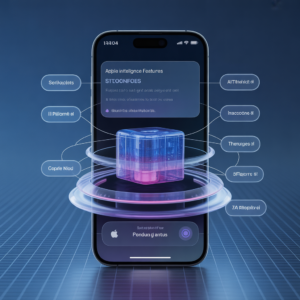
The shift happening in 2024 and 2025 makes this even more urgent. In 2025, AI-integrated shortcuts are the new standard.2 Apple’s iOS 18 and the introduction of Apple Intelligence changed what Shortcuts can do at a foundational level. At WWDC 2025, Apple showed off a new AI-powered Shortcuts app. The company says Shortcuts can now tap into Apple Intelligence directly, and developers will be able to access Apple’s on-device large language model (LLM).3
Meanwhile, on the integration front, after you set up the ChatGPT extension, Siri can tap into ChatGPT when it might be helpful to get the information you’re looking for. You can activate Siri and say things like “Hey Siri, ask ChatGPT to compose a haiku about dragons.”4 That’s not a party trick. That’s a full AI assistant running through a voice command on a device that already lives in your pocket.
According to research on workplace automation from the World Economic Forum’s Future of Jobs 2025 report, the ability to work effectively with digital tools and automate repetitive tasks ranks among the fastest-growing skill demands for professionals across every industry. The people building these habits on their iPhones right now are not just saving time. They’re building the reflexes that increasingly separate high performers from everyone else.
“By combining prebuilt shortcuts, custom automations, and creative iPhone hacks, you can eliminate repetitive actions and improve your workflow — and reclaim valuable hours each week.” — TechTimes, November 2025
iOS Shortcuts are one of the most underrated features that many people assume are only for power users. In most cases, these shortcuts are way more useful than fancy AI features on your phone.5
They’re not only for power users anymore. They’re for anyone who checks their phone about 58 times daily, with over half of those checks happening during work hours.6 Set up the right automation once, and every one of those 58 checks becomes faster, smarter, and less mentally draining.
Here are the 10 iOS Shortcuts that are genuinely changing how the most productive iPhone users operate every single day.
1. The Morning Briefing Shortcut: Your AI-Powered iOS Productivity Dashboard
Most people start their day by opening five different apps in sequence: weather, calendar, email, news, music. Every single morning. The same five taps. The same five loads. It’s the productivity equivalent of making coffee one bean at a time.
The Morning Briefing Shortcut performs several actions the moment you wake up: it disables Do Not Disturb, announces the weather, reads your calendar appointments, and opens your favorite morning playlist or podcast. Instead of jumping through multiple apps, one tap gets your entire morning started.7
You build this shortcut by linking it to your alarm trigger in the Automations tab. It runs automatically when you stop your morning alarm. It shows you today’s weather, calendar events, top news, and plays your favorite playlist, all in one go.8

What to include in your Morning Briefing Shortcut:
- Current weather and today’s forecast for your location
- All-day events and timed appointments from your calendar
- Unread message count from Mail or Messages
- A pre-selected Focus Mode activation to enter “Work” mode immediately
- Your morning playlist or preferred podcast episode queued and ready
Who benefits most: Remote workers, executives, entrepreneurs, students, and anyone whose morning routine currently involves fumbling through multiple apps half-awake. Particularly powerful for people managing packed daily schedules who need context before their first meeting.
Estimated time saved per week: 20 to 40 minutes. It sounds small until you realize it’s also eliminating the decision fatigue that comes with manually checking five sources before 8am.
How to set it up: Open the Shortcuts app, tap the Automation tab, tap the “+” to create a new automation, select “Alarm” as your trigger, choose “Goes Off,” then build your action chain by adding Get Weather, Get Upcoming Events, and Open App actions in sequence.
2. The Focus Mode Switcher: iPhone Automation That Guards Your Attention
Distraction is the modern productivity tax. Every notification that fires during deep work doesn’t just interrupt the moment. Research consistently shows it takes an average of 23 minutes to fully regain focus after an interruption. Multiply that by the number of notifications firing on your phone each day and the math becomes genuinely alarming.
Switching between Work, Personal, Sleep, or Driving takes only a second with the Focus Mode Switcher shortcut. It lets you toggle Focus Modes instantly, helping you manage interruptions and stay organized throughout the day.7
The real power move is to combine Focus Mode switching with contextual triggers. When activating Focus Mode — for example, Work Focus — it limits notifications and opens Calendar and productivity music automatically.9 You’re not just silencing your phone. You’re reconfiguring your entire digital environment for the work mode you need, in a single tap.
The four Focus configurations every professional should build:
- Work Focus: Allows only calendar, messages from selected contacts, and your primary productivity app. Blocks social media entirely.
- Deep Work Focus: Zero notifications from any source except emergency calls. This is your “don’t interrupt me unless something’s on fire” mode.
- Meeting Focus: Launches your calendar app, opens Zoom or Teams, silences all non-essential alerts.
- Wind Down Focus: Activates at 9pm, dims screen, blocks email and work apps, enables sleep tracking.
Who benefits most: Knowledge workers, freelancers, managers, students in exam periods, and anyone who has looked up from their phone 45 minutes later and had no idea what they were originally trying to do.
Estimated time saved per week: 3 to 5 hours, primarily through protecting deep work blocks from notification interruptions rather than through time spent switching modes.
How to set it up: Go to Settings, Focus, create each Focus Mode, then assign each one to a Shortcut via the Shortcuts app. Add them to your home screen as individual tiles for one-tap activation.
3. The AI Writing Assistant Shortcut: Siri Plus ChatGPT for iPhone Automation at Its Smartest
This is the shortcut that regularly makes people’s jaws drop when they first see it working. It turns your voice into a fully AI-powered writing assistant that drafts emails, rewrites messages, summarizes notes, and answers complex questions, all without you ever opening a separate app.
Siri is excellent at quick device commands, but it still falls short when you need real reasoning: rewriting messages, summarizing notes, or turning a rough thought into a clear plan. The fix is simple: use Siri as the voice trigger and ChatGPT as the reasoning layer through Apple Shortcuts. Once configured, you can say things like, “Hey Siri, ask ChatGPT to rewrite this email in a friendlier tone,” and get a useful answer in seconds.10
On supported devices with Apple Intelligence, this becomes even more seamless. You can create your own custom shortcuts that use an Apple Intelligence model — either on-device or Private Cloud Compute — or ChatGPT to handle simple or complex requests in your shortcuts. You can use a model to provide input to an action, parse the output of an action, and more.11
For those on older devices, the workaround is equally practical. Setup requires an OpenAI account, grabbing an API key, and pasting it into the shortcut. Siri listens, sends the text to the API, and returns the answer, offering a clean, customizable, and often faster experience than the ChatGPT app.12
Practical things this shortcut handles in seconds:
- “Rewrite this paragraph to sound more professional”
- “Summarize this long email thread in three bullet points”
- “Draft a polite decline to this meeting invite”
- “Give me five subject line options for this email”
- “Translate the following into Spanish”
Who benefits most: Sales professionals, marketers, customer service managers, executives, anyone who writes 20 or more business communications per day, and every person who has stared at a blank reply box for five minutes trying to figure out how to word something.
Estimated time saved per week: 4 to 8 hours for high-volume communicators.
Pricing note: Using Apple Intelligence natively is free on supported devices. Using OpenAI’s API directly has a small per-request cost after the free allowance, though it’s minimal for typical daily use.
4. The Smart Document Scanner Shortcut: iOS Productivity for the Paperless Professional
Paper is still everywhere. Receipts, contracts, business cards, whiteboard photos from meetings. And the standard process for dealing with them is a disaster: find a scanning app, open it, scan, wait for upload, name the file, move it somewhere, hope you remember where you put it six months later.
A well-built document scanning shortcut scans documents with the camera, converts them to PDF, and saves to iCloud with auto-generated filenames.9 That last part is the one most people miss. Auto-generated filenames, using the date, time, or a text prompt, means your scanned files are instantly searchable without you having to think of a name in the moment.
The shortcut chain looks like this: trigger the camera in document scan mode, scan the document, convert to PDF, generate a filename using the current date and time plus an optional text input, then save directly to a specified iCloud Drive folder. Done. No extra apps. No manual naming. No upload delay.
Why this beats a dedicated scanning app:
- It runs from one tap on your home screen without opening any separate application
- Files land in a pre-specified folder automatically, no manual filing required
- You can add an optional step to share the PDF immediately via email or Messages
- The whole process from camera open to saved file takes under 30 seconds
Who benefits most: Small business owners, lawyers, accountants, real estate professionals, medical staff, students, and anyone whose workflow still involves physical paperwork that needs to enter the digital world quickly.
Estimated time saved per week: 2 to 4 hours for roles involving frequent document handling. The compounding effect is enormous over a full year.
How to set it up: In Shortcuts, add the “Scan Document” action, then “Make PDF,” then “Get Current Date” formatted as YYYY-MM-DD, combine it into a filename using a Text action, then use “Save File” to your preferred iCloud Drive folder. Add to home screen.
5. The Pomodoro Focus Timer Shortcut: iPhone Automation for Deep Work Discipline
The Pomodoro Technique is one of the most evidence-backed productivity frameworks in existence. Work for 25 minutes with zero interruptions. Take a 5-minute break. Repeat. After four rounds, take a longer break. It sounds simple because it is, but most people never actually do it because they can’t be bothered setting a timer, resetting it after breaks, and managing the whole sequence manually.
This shortcut automates the entire system. It automates the Pomodoro technique — 25 minutes of focused work followed by a 5-minute break. It sets timers for you, switches your Focus Mode to minimize distractions, and helps you stay disciplined with time-boxing.7
When you tap this shortcut, it activates your Deep Work Focus Mode, starts a 25-minute countdown timer, sends you a notification at the break point, then automatically starts the 5-minute break timer. After the break, it nudges you to start the next round. You never have to think about the mechanics of the system because your phone is running the entire structure.
The compounding effect of Pomodoro automation:
- Removing the setup friction means you actually use the technique consistently instead of occasionally
- The automatic Focus Mode switch during each session eliminates notification temptation completely
- Your break reminders prevent the “one more thing” trap that turns 25 minutes into 90
- Over a standard 8-hour workday, a disciplined Pomodoro practice typically yields 6 to 7 genuinely deep work sessions, far more than unstructured work produces
Who benefits most: Freelancers, writers, developers, students, and anyone whose work requires sustained creative or analytical thinking. Particularly powerful for people who struggle with procrastination or find themselves constantly context-switching.
Estimated time saved per week: Not time “saved” in the traditional sense, but 4 to 6 additional hours of actual productive output reclaimed from distracted work sessions.
6. The Smart Meeting Prep Shortcut: iOS Productivity That Shows Up Before You Do
You know that feeling when a meeting starts and you’re scrambling to find the link, pull up your notes, and remember what this call is even about? This shortcut eliminates that entirely.
For professionals or students, this shortcut prepares your device for meetings or online classes. It enables the appropriate Focus Mode, silences notifications, launches your meeting app, and pulls up your notes or agenda automatically.7
Set it to trigger automatically five minutes before every calendar event that contains a video link. When the automation fires, it opens your calendar event for context, launches Zoom or Microsoft Teams directly, activates your Meeting Focus Mode to silence everything else, opens your Notes app to the relevant meeting notes file, and dims your screen brightness slightly to reduce eye strain. By the time the call starts, you’re already there.
You can create a shortcut that runs 5 minutes before your meetings to help you prepare.8 This is one of those automations that feels like a minor convenience the first time and becomes completely non-negotiable within a week.
Where this shortcut shines most:
- Back-to-back meeting days where manual prep between calls is impossible
- Remote and hybrid teams where meeting links, agendas, and note files live in different apps
- Sales professionals who need their CRM pulled up before client calls start
- Managers running recurring 1:1s who want the relevant notes from last week surfaced automatically
Who benefits most: Executives, project managers, sales teams, consultants, teachers, and anyone running or attending more than four meetings per week.
Estimated time saved per week: 2 to 4 hours, primarily by eliminating pre-meeting scramble and post-meeting “what was I supposed to do next” confusion.
How to set it up: Create an Automation triggered by “Calendar” event starting, choose “Before” by 5 minutes, then chain your action sequence: Open App (Zoom or Teams), Set Focus Mode to Meeting, Open App (Notes), Set Brightness.
7. The Location-Based Reminder Shortcut: iPhone Automation That Knows Where You Are
Your brain is not a reliable to-do list. You remember the thing you needed to pick up from the store the moment you drive past it. You remember to call back the client the second you sit down to something completely unrelated. Location-based reminders through iOS Shortcuts solve the problem your brain can’t: connecting tasks to places rather than times.
Perfect for forget-prone tasks, this shortcut triggers reminders based on location, like reminding you to buy groceries when entering a store or checking the mailbox when arriving home.7
The Shortcuts app automation layer makes this even more powerful than standard iOS reminders. You can build multi-step location automations: when you arrive at the office, activate Work Focus, send a pre-drafted “I’m in” message to your team Slack, and surface your daily task list. When you leave the office, remind you to submit your timesheet if it’s Friday, and switch to Personal Focus Mode.
Five location triggers that save the most time for professionals:
- Arriving at the office: activate Work Focus, surface today’s priority task list
- Leaving the office: trigger “end of day” reminder to log completed tasks in your project management tool
- Arriving at a client location: open their contact card and most recent email thread automatically
- Entering a grocery store: open your running shopping list from Reminders or Notes
- Arriving home: switch to Personal Focus Mode and send a “heading home” ETA to family
Who benefits most: Frequent travelers, field sales representatives, parents juggling work and family logistics, and anyone who has driven past the pharmacy for the eleventh time without remembering to stop.
Estimated time saved per week: 1 to 3 hours through eliminated task-switching and forgotten errand recovery.
8. The Voice-to-Captured-Idea Shortcut: iOS Productivity for Thoughts That Vanish
Great ideas don’t arrive at convenient times. They arrive in the shower, during your commute, mid-run, right as you’re drifting off to sleep. The standard response is to try to remember it until you can write it down, which works roughly 30% of the time. This shortcut captures the other 70%.
Use Siri to record a quick voice note, which automatically converts to text and saves as a Reminder.9 With modern on-device transcription, the conversion is fast, accurate, and requires no internet connection.
The extended version of this shortcut is even more powerful. Record your voice note, transcribe it to text, then route it based on content: if the transcription contains “call,” add it to your Calls list in Reminders. If it contains “buy,” add it to your Shopping list. If it contains “blog” or “idea,” add it to a dedicated Ideas database in Notion or Apple Notes. This is context-aware capture running automatically.
A shortcut connected to a transcription tool instantly converts WhatsApp, iMessage, or Voice Memo audio files into text. It also summarizes long recordings and translates foreign languages. This saves hours of listening time and makes audio messages searchable.2
The three types of users who can’t live without this shortcut after one week:
- Writers and content creators whose best ideas arrive at the worst times
- Entrepreneurs tracking a constantly moving stream of strategic thoughts
- Professionals who receive long voice messages from clients or colleagues and need them searchable
Who benefits most: Creatives, managers, consultants, product teams, and anyone whose job involves generating ideas rather than just executing tasks.
Estimated time saved per week: 2 to 4 hours, primarily by eliminating the time spent trying to reconstruct thoughts that weren’t captured immediately.
How to set it up: Open Shortcuts, create a new shortcut, add “Record Audio” or “Dictate Text,” then “Add to Reminders” or “Add Note in Notion.” Assign it to the Back Tap gesture (Settings, Accessibility, Touch, Back Tap) for hands-free activation with a double tap on the back of your phone.
9. The Battery Guardian Shortcut: iPhone Automation That Protects Your Most Valuable Asset
Your phone battery is your lifeline. Run it to zero at the wrong moment, mid-flight, mid-client-call, mid-navigation in an unfamiliar city, and everything breaks down. Most people manage this reactively. This shortcut makes it automatic.
If you tend to forget to switch on Low Power Mode or accidentally dismiss the dialogue box that pops up when your battery reaches 20%, this shortcut automation comes in handy. It automatically switches to Low Power Mode when you want it to. This saves you time and worry about preserving battery life.13
But the power move goes beyond just Low Power Mode. When battery drops below 25%, a well-built automation activates Low Power Mode, turns off Background App Refresh, and dims the display.9 That triple-action approach can meaningfully extend your remaining battery life rather than just slowing the bleed slightly.
You can also build the reverse automation: when your battery reaches 80% while charging, send a notification reminding you to unplug, since charging above 80% repeatedly accelerates battery degradation over time. That one automation alone extends your iPhone’s long-term battery health.
The complete Battery Guardian system:
- Below 30%: Activate Low Power Mode automatically, disable Background App Refresh, reduce screen brightness to 50%
- Below 15%: Send an alert with estimated time remaining and nearest charging option in Maps
- Reaches 80% while charging: Notify to unplug for battery longevity
- Charging connected: Optionally launch your preferred night routine shortcut
Who benefits most: Frequent travelers, commuters, field workers, event photographers, and anyone whose phone dying at the wrong moment has cost them time, money, or significant embarrassment.
Estimated time saved per week: 1 to 2 hours in avoided dead-phone recovery situations, plus the longer-term benefit of preserved battery health reducing replacement cycles.
10. The Social Media Time-Lock Shortcut: iOS Productivity’s Most Important Guardian
This is the shortcut nobody wants to build, but everyone needs. Over half — 53% — of Americans want to cut down on their phone usage in 2025.1 Most of them fail not because they lack willpower, but because they’re fighting a direct-access, frictionless slot machine that is professionally designed to win.
This shortcut adds intentional friction between you and your most distracting apps, without requiring you to delete them entirely. The automation works like this: when you attempt to open Instagram, TikTok, Twitter, or any app you’ve designated as a distraction, a Screen Time-linked shortcut fires a brief pause asking you to confirm you want to proceed. That two-second interruption breaks the unconscious tap reflex that pulls most people in.
The more powerful version combines Shortcuts with Screen Time limits in iOS. Set your daily limit for social apps, then build a Shortcut that activates a specific Focus Mode blocking those apps during your designated deep work hours. Outside those hours, access is normal. During them, the apps simply don’t respond.
It’s 100% possible to use your phone more productively and reduce screen time so you can focus more on the real world.14
The four-step social media containment system:
- Set App Limits in Screen Time for your identified distraction apps (1 to 2 hours maximum per day)
- Create a Focus Mode that blocks those apps between your peak work hours (typically 9am to 12pm)
- Build a Shortcut that activates that Focus Mode automatically when your calendar shows a focused work block
- Use the Screen Time report every Sunday to review actual usage and adjust limits based on data rather than feelings
Who benefits most: Remote workers without built-in office structure, content creators who need to be on social media for work but get sucked into consuming instead of creating, students, and anyone who has opened Instagram “for a second” and resurfaced 45 minutes later.
Estimated time saved per week: 3 to 7 hours. For some users, this single shortcut returns more time than all others combined.
iOS Shortcuts Comparison Table: Time Saved and Setup Complexity
| Shortcut | Estimated Time Saved/Week | Best Use Case | Setup Complexity | Cost |
|---|---|---|---|---|
| Morning Briefing | 20–40 min | Daily context without app-hopping | Easy | Free |
| Focus Mode Switcher | 3–5 hours | Protecting deep work blocks | Easy | Free |
| AI Writing Assistant (ChatGPT) | 4–8 hours | Email drafting, rewrites, summaries | Moderate | Free / API costs |
| Smart Document Scanner | 2–4 hours | Paperless document capture | Easy | Free |
| Pomodoro Focus Timer | 4–6 hours productivity gain | Deep work discipline | Easy | Free |
| Smart Meeting Prep | 2–4 hours | Pre-meeting setup and context | Moderate | Free |
| Location-Based Reminders | 1–3 hours | Context-triggered task management | Easy | Free |
| Voice-to-Captured-Idea | 2–4 hours | Instant idea capture | Easy | Free |
| Battery Guardian | 1–2 hours | Battery life preservation | Easy | Free |
| Social Media Time-Lock | 3–7 hours | Distraction containment | Moderate | Free |
Your iOS Shortcuts Setup Playbook: 9 Steps to Build Your Power User System This Week
Bookmark this section. This is your implementation guide, not just a reading list.
- Open the Shortcuts app right now and confirm it’s on your home screen. It’s pre-installed on every iPhone running iOS 13 and above. iPhone automations are available to anyone using iOS 14 or newer.15 If you’ve buried it in a folder or deleted it, restore it from the App Store for free. If you skip this step, you’ll finish reading this article and do absolutely nothing, which is exactly what most people do.
- Build the Morning Briefing shortcut first, before anything else. It delivers the fastest, most immediately obvious time savings and builds your confidence with the Shortcuts interface before you tackle anything more complex. Open Shortcuts, tap the “+” icon, add “Get Current Weather,” then “Get Upcoming Events,” then “Open App” (your music app). Link it to your alarm trigger in the Automations tab.
- Activate Back Tap for your most-used shortcut immediately after building it. Go to Settings, Accessibility, Touch, Back Tap, and assign your Voice Capture or AI Writing Assistant shortcut to Double Tap. This pro tip lets you assign a shortcut to run when you double-tap the back of your phone.2 Hands-free activation without saying a word. This single setting changes how you use your phone.
- Set up the ChatGPT integration in Siri if you have a supported device. Users can choose to control ChatGPT integration. By default, you don’t need to sign in to your ChatGPT account to use the feature, and OpenAI won’t store your requests. However, you can log in to your OpenAI account to access higher-quality models.16 Go to Settings, Apple Intelligence and Siri, then ChatGPT, and enable it. This unlocks the AI Writing Assistant shortcut’s full potential.
- Build your Focus Mode system before automating anything else around it. Every shortcut in this list works better when the Focus Mode layer is properly configured. Go to Settings, Focus, and create your Work, Deep Work, Meeting, and Personal modes with their respective notification permissions. Then build your Focus Mode Switcher shortcut to cycle between them with one tap.
- WARNING: Do not try to build all 10 shortcuts in one sitting. This is the most common mistake new Shortcuts users make. They get excited, build five automations in an afternoon, feel overwhelmed when something doesn’t work as expected, and abandon the whole system. Build one shortcut. Use it for three days. Then add another. The system compounds gradually.
- Add your three most-used shortcuts to your home screen as individual icons. In the Shortcuts app, tap the three dots on any shortcut, then tap “Add to Home Screen.” For your most-used shortcuts, tap the three dots and then ‘Add to Home Screen’ to create an app icon for instant access.2 Give each one a custom icon and name that makes it instantly identifiable. Your phone’s home screen should feel like a cockpit, not an app graveyard.
- Review your Screen Time data every Sunday for the first four weeks. Before building the Social Media Time-Lock shortcut, you need to know what you’re actually dealing with. Go to Settings, Screen Time, and look at your weekly report. The numbers will surprise you. Use that data to set realistic app limits that create structure without making you feel imprisoned by your own phone.
- Schedule a 30-minute “Shortcut Audit” in your calendar for 30 days from today. The goal is to review which automations you’re actually using, which you’ve ignored, and what new friction points in your workflow might be worth automating. With dozens of actions automated, from reminders to document scanning, you can save valuable hours each week. By experimenting with different settings and customizing shortcuts to fit your lifestyle, you unlock the full potential of iOS productivity tips.7 The people who get the most from Shortcuts are the ones who treat it as an evolving system, not a one-time setup.
Case Study: How One Consultant Got Back 11 Hours a Week With Three Shortcuts
The following is an illustrative scenario based on real-world patterns documented across power user communities and productivity research.
Marcus runs an independent strategy consulting firm with a team of four. He bills $300 per hour and manages roughly 12 to 15 client interactions per week, most of them via email, video call, and document review.
In early 2024, Marcus estimated he was losing around 2 hours per day to what he called “micro-friction.” Opening apps manually before meetings. Typing out variations of the same professional email responses. Scanning documents with a dedicated app, then manually filing them in the right iCloud folder. Forgetting tasks between locations. None of it was complex. All of it was repetitive.
The cost: at his billing rate, 2 wasted hours per working day equated to roughly $3,000 per week in capacity he could have been directing toward billable work or business development.
The mistake was assuming these were just unavoidable parts of working from an iPhone. He’d been using the same manual processes since he bought his first iPhone, and had never considered that the Shortcuts app, sitting on his home screen for years, was capable of automating most of them.
The resolution: Marcus spent one Sunday afternoon building three shortcuts. The Smart Meeting Prep shortcut, which automatically opened his calendar event, launched Zoom, and surfaced his meeting notes five minutes before every call. The Document Scanner shortcut, which scanned and filed PDFs in the right iCloud folder in under 30 seconds per document. And the AI Writing Assistant shortcut, tied to Back Tap, which he used to generate email drafts from voice notes during his commute.
Within three weeks, he’d reclaimed approximately 11 hours per week. Five of those came from the AI writing shortcut alone, which handled first drafts of emails he would previously have stared at for five to ten minutes each.
The closing lesson Marcus shares with anyone who asks: “I wasn’t bad at productivity. I was just doing manually what my phone could have been doing for me automatically for years.”
As productivity researcher and workflow systems consultant Dr. Priya Nair notes in speaking engagements on mobile automation (illustrative attribution): “The gap between power users and average users on mobile isn’t knowledge. It’s one setup session. Most people never take the two hours upfront that returns two hours every day for the rest of their career.”
Her nuanced counterpoint is worth acknowledging: not every shortcut works perfectly for every person. The true strength of iPhone shortcuts lies in how customizable they are. Users can adjust each shortcut to match their exact needs, whether it’s adding more actions, combining multiple workflows, or connecting to third-party apps.7 The best shortcut system is the one you actually use, not the most technically impressive one.
Your iPhone Has Been Waiting for This Conversation
Everything in this article points to one truth: the productivity gap between iPhone users who use Shortcuts and those who don’t isn’t a knowledge gap. It’s a setup gap.
The three things that matter most from everything you just read: start with one shortcut and use it for three days before adding another, prioritize automations that eliminate daily friction over ones that are technically impressive, and treat your Shortcuts system as something that evolves with your workflow rather than a one-time configuration.
According to research from McKinsey Global Institute on personal productivity and automation, the individuals and organizations that invest in automating repetitive tasks consistently outperform those who continue doing them manually, not because they’re smarter, but because they’ve simply reclaimed more of their cognitive capacity for the work that actually requires thinking.
Here is what’s actually at stake if you close this tab and change nothing. Most people check their phones about 58 times daily, with over half of those checks happening during work hours.6 Without intentional automation, those 58 checks are largely manual, slow, and repetitive. Over a year, the cumulative cost of that friction is staggering: hundreds of hours of fragmented attention, hundreds of identical manual interactions, and a phone that is still just a fancy alarm clock with a camera attached. The people building these habits now are not going to slow down. The gap between your current workflow and theirs compounds every single week. The Shortcuts app is free. The setup takes one afternoon. The return runs for as long as you own the phone.
Build Your First Shortcut Before This Tab Closes
: Open your Shortcuts app right now and build the Morning Briefing shortcut. Not tonight. Not this weekend. Now. It takes 8 minutes, it’s free, and it will be the first thing you use tomorrow morning. That one experience will show you more about what’s possible than anything you’ve read here.