You’ve probably heard the buzz: the iPhone 17 is nearly as capable as its Pro sibling. But here’s what most people don’t realize—you’re sitting on a goldmine of features that Apple barely advertised. From dual-camera recording to 3D wallpapers that’ll make your friends jealous, this phone is packed with pro-level functionality that costs you nothing extra. Let’s unlock what you’ve been missing.
Introduction: Why the iPhone 17 Changes the Game
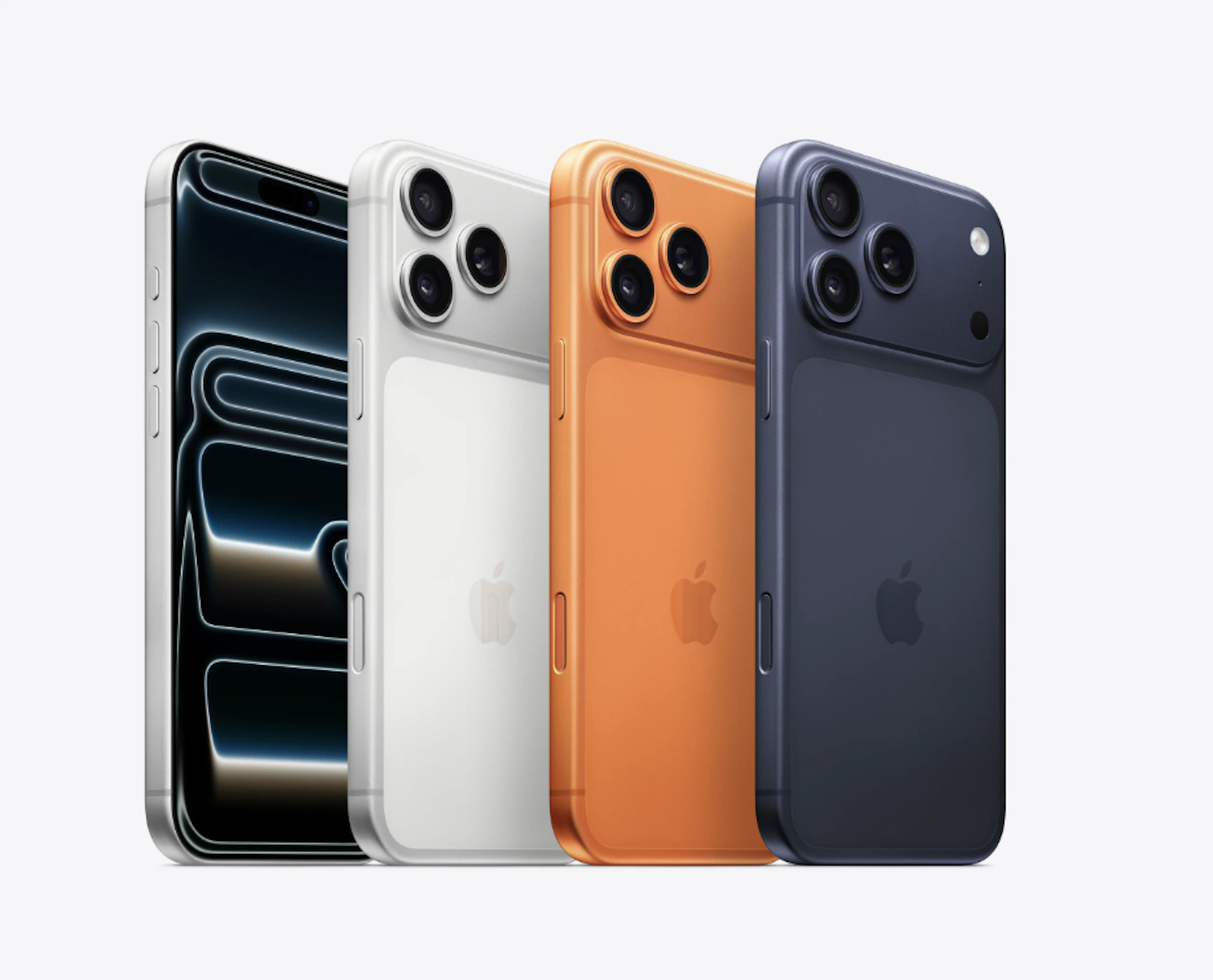
The gap between standard and Pro iPhones has always felt like a chasm. You’d pay hundreds more for features that seemed exclusive to the premium tier. But Apple just flipped the script. The iPhone 17 now includes the same pro-grade camera, display technology, and intelligent features as the iPhone 17 Pro—minus the astronomical price tag.
This isn’t just another incremental update. This is about democratizing technology. Whether you’re a content creator, photography enthusiast, or someone who simply wants their phone to work smarter, the iPhone 17 delivers. The question isn’t whether it’s good enough anymore. The question is: do you know how to use it?
Master Dual Camera Capture: Film Your Reaction and the Moment
How to Access Dual Capture
One of the coolest features nobody’s talking about is dual capture. This lets you record from both your front and back cameras simultaneously—meaning you can film what you’re seeing while capturing your reaction in real-time.
Here’s how to activate it:
- Open the Camera app
- Switch to Selfie mode
- Tap Video mode
- Look for the icon in the top-right corner
- Select “Dual Capture”
When you hit record, your iPhone captures both perspectives. You’ll see two camera windows playing side-by-side in your Photos app, just like a professional split-screen video. It’s the kind of feature that transforms casual videos into engaging content.
Why This Matters for Content Creators
If you’re making TikToks, YouTube Shorts, or Instagram Reels, dual capture eliminates the need for multiple devices or complicated editing. You’re capturing the moment and your authentic reaction in one take. No more awkward voiceovers or reshoots. This is the kind of pro-level efficiency that used to require expensive equipment.
Revolutionize Your Photography: High-Resolution Capture and Spatial Photos
Enable Resolution Control for 48MP Photography
The iPhone 17’s camera received a serious upgrade, but you need to unlock it manually. Here’s the secret: your phone can shoot at 48 megapixels instead of the default 24MP—essentially doubling your image quality and file size.
To enable this:
- Go to Settings → Camera
- Scroll to “Format”
- Toggle on “Resolution Control”
- Return to your Camera app and tap the new resolution button
- Switch from 24MP to 48MP
When you capture at 48MP, you’re getting double the detail. This means you can crop photos more aggressively without losing quality, print larger formats, and have more flexibility in post-processing. For anyone serious about photography, this is a game-changer.
Capture 3D Photos That Actually Look Professional
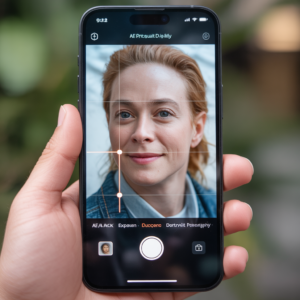
This feature sounds gimmicky until you try it. Spatial photos create genuine 3D images that respond to device movement—it’s like looking through a window into the scene.
To take spatial photos:
- Open Camera and swipe to “Spatial Photo” mode
- Rotate your iPhone to landscape
- Frame your shot and tap the shutter button
- Tap the icon in the top-right corner to convert to a spatial scene
The magic happens when you view it back. Tilt your phone and the image responds—objects appear to have depth. You can share these with anyone on iOS 18 or later via AirDrop, and they’ll see the 3D effect too.
Pro tip: Even downloaded photos can become spatial images, though they won’t have the same depth as native spatial captures.
Transform Your Display: Pro Screen Features That Actually Matter
Activate Always-On Display with Custom Wallpaper Integration
The iPhone 17 now includes the same pro-grade display technology as the Pro models. The always-on display feature shows time and widgets even when your phone is locked—but there’s more customization available than most people realize.
Here’s what to enable:
- Settings → Display & Brightness
- Toggle on “Always On”
- Within Always On settings, explore:
- Show Wallpaper: Subtly displays your wallpaper behind the time and widgets
- Blur Wallpaper: Blurs the background so time and widgets remain crystal clear
This transforms your lock screen from a boring black rectangle into something genuinely useful and visually interesting.
Create Dynamic 3D Wallpapers That Adapt to Every Photo
This is where things get really creative. You can set up wallpapers that shuffle through your photos while maintaining a 3D effect—and the clock automatically resizes to look perfect on every image.
To set this up:
- Long-press your lock screen
- Tap “Edit” → “Customize”
- Select “Add New Wallpaper”
- Choose “Photo Shuffle”
- Select “Nature” or choose your own album
- Tap the 3D icon to enable spatial effect
- Tap the clock and select the first font option for auto-resizing
Now your lock screen becomes a dynamic gallery that changes throughout the day while maintaining that premium 3D effect. It’s the kind of personalization that makes your phone feel genuinely yours.
Customize Your Home Screen: Icon Matching That Responds to Your Case
The Clear Liquid Glass and Tinted Icon Revolution
Apple introduced new icon customization options that go beyond simple color changes. The “Clear Liquid Glass” option makes all icons transparent with a glossy effect—it’s sleek and modern.
But the real magic is in the “Tinted” option, which offers two game-changing features:
Color and Transparency Sliders:
- Adjust the color to match your aesthetic
- Control transparency to create depth
Automatic Case Color Matching:
- One option matches your icon colors to your iPhone’s color
- Another matches icons to your physical case color
- When you remove the case, icons update automatically
- Put the case back on, and they change back instantly
(Note: This feature works best with Apple cases, though some third-party manufacturers are starting to support it.)
The Hidden MP3 Ringtone Hack
Here’s a trick buried so deep most people never find it: you can use any MP3 file as a ringtone without paying iTunes prices.
Here’s how:
- Open Files app
- Navigate to Downloads
- Find any MP3 file
- Tap Share button and swipe up
- Select “Use as Ringtone”
Boom. Free custom ringtones. This works with literally any audio file—your favorite song, a funny sound clip, whatever. It’s the kind of feature that feels like it shouldn’t exist, but it does.
Elevate Your Messaging: Animated Backgrounds and Genoji Creation
Set Animated Chat Backgrounds That Actually Move
Messaging got a visual upgrade with customizable chat backgrounds. But here’s what makes it pro-level: some backgrounds actually animate.
To customize your chat:
- Open Messages
- Select a conversation
- Tap the person’s profile icon
- Choose “Backgrounds”
You have two options:
Static Backgrounds: Choose any image with various filters and color overlays
Animated Backgrounds: Select from Color, Sky, Water, or Aurora options
- These backgrounds gently move and shift
- Each comes in multiple color variations
- They create genuine ambiance in your conversations
The animated options are particularly impressive—they feel premium without being distracting.
Create Custom Emojis by Combining Existing Ones
Inside any chat, you can now blend two emojis together to create entirely new ones. It’s surprisingly fun and weirdly creative.
To create genoji:
- Tap the plus icon in a chat
- Select “Genoji”
- Choose two emojis to combine
- Watch the magic happen
You can create combinations like a smiley face wearing sunglasses or a heart with wings. It’s the kind of feature that seems frivolous until you realize how much personality it adds to your conversations.
Maximize Battery Life: Smart Power Management and MagSafe Accessories
Understand Your Charging Speed with the New Battery Bar
Apple added a hidden battery feature that shows exactly how long your phone needs to reach 80% or 100% charge. The time varies depending on your charging method.
To access this:
- Settings → Battery
- Plug your iPhone into charge
- Check the battery bar for estimated charge time
This helps you understand which charging method is fastest:
- Power brick and cable: Fastest
- Wireless charging: Moderate speed
- Power banks: Variable, depending on capacity
Enable Adaptive Power for Extended Battery Life
Adaptive Power intelligently manages your phone’s features to extend battery life. Your iPhone decides when to reduce haptics, disable Wi-Fi scanning, limit app refresh, and adjust screen brightness.
To enable it:
- Settings → Battery
- Scroll to Power Mode
- Toggle on “Adaptive Power”
This can add several hours to your battery life without you noticing any significant performance reduction.
Invest in a MagSafe Power Bank for All-Day Power
A magnetic power bank that snaps to your iPhone’s back provides an entire extra charge. Quality options like those from Taurus are incredibly thin and charge through most cases thanks to embedded metal rings.
| Feature | Benefit |
|---|---|
| MagSafe Attachment | Instant connection without fumbling |
| Thin Design | Barely noticeable in your pocket |
| Through-Case Charging | Works with most protective cases |
| Metal Ring Grip | Prevents accidental drops |
| Rotatable Design | Switches between portrait and landscape |
| Magnetic Surface Mounting | Sticks to any metal surface |
| Drop Protection | Corner airbags absorb impact |
Pro Calling Features: Hold Assist and Caller Information
Never Waste Time on Hold Again with Hold Assist
When someone puts you on hold, you no longer need to waste time listening to hold music. Hold Assist lets you put your phone down and get notified when the person returns.
To use Hold Assist:
- During a call, tap the three dots
- Select “Hold Assist”
- Put your phone down and do whatever you want
- Your iPhone rings when the other person starts talking
This is a small feature with massive practical value—especially if you’re dealing with customer service calls or business lines.
Ask for Caller Information Automatically
You can set your phone to ask unknown callers for their name and reason for calling before you decide whether to answer.
To enable this:
- Settings → Apps → Phone
- Scroll down to “Ask Reason for Calling”
- Toggle it on
Now when unknown callers reach you, they’ll be prompted to record their name and reason for calling. You’ll see this information before deciding whether to pick up. It’s a simple feature that saves you from unwanted calls and spam.
Hidden Tricks That Change Everything
The Standby Display That Never Turns Off
Most people don’t know about the Standby feature, which transforms your iPhone into a bedside clock or desk display.
To set it up:
- Settings → Standby
- Toggle it on
- Set display to “Never” (so it stays on continuously)
- Plug your phone into charge and rotate it to landscape
Your iPhone becomes a permanent clock display that never turns off while charging. It’s perfect for your nightstand or desk.
Screenshot Recognition: Identify Anything and Find Where to Buy It
Take a screenshot of literally anything—a product, a landmark, a piece of art—and your iPhone will identify it and show you where to buy it.
How it works:
- Take a screenshot
- Draw around the object you want to identify
- Your iPhone analyzes the image
- Get results with shopping links
This transforms your phone into a visual search engine that’s surprisingly accurate.
Add Sleep and Ambient Music Controls
Apple Music subscribers (and even non-subscribers) can access sleep and ambient music directly from Control Center.
To add these controls:
- Swipe down to Control Center
- Tap the plus icon
- Find “Ambient Music” section
- Add one or all available controls
Now you can access sleep tunes and chilled ambient music without opening Apple Music. Perfect for winding down before bed.
Comparison: iPhone 17 vs iPhone 17 Pro Features
| Feature | iPhone 17 | iPhone 17 Pro |
|---|---|---|
| Dual Camera Capture | ✓ | ✓ |
| 48MP Resolution Control | ✓ | ✓ |
| Spatial Photos | ✓ | ✓ |
| Pro Display Technology | ✓ | ✓ |
| Always-On Display | ✓ | ✓ |
| 3D Wallpapers | ✓ | ✓ |
| Animated Chat Backgrounds | ✓ | ✓ |
| Genoji Creation | ✓ | ✓ |
| Hold Assist | ✓ | ✓ |
| Caller Information Request | ✓ | ✓ |
| Standby Display | ✓ | ✓ |
| Screenshot Recognition | ✓ | ✓ |
| Price Point | $799 | $1,099 |
The gap between standard and Pro has genuinely narrowed. You’re getting nearly identical core features at a significantly lower price.
Why These Features Matter: The Real-World Impact
These aren’t just gimmicks. They represent a fundamental shift in how Apple distributes technology. Dual camera capture changes how content creators work. High-resolution photography options give photographers more flexibility. Battery optimization features extend your device’s usability throughout the day.
The 3D wallpaper and customization options might seem cosmetic, but they transform how you interact with your phone. When your device feels personalized and responsive to your needs, you use it more effectively and enjoy it more.
These features prove that “pro” doesn’t always mean “expensive.” Sometimes it means smart engineering that puts powerful tools in everyone’s hands.
Getting Started: Your Action Plan
This week, try:
- Enable dual camera capture and film one video
- Switch to 48MP resolution and take some photos
- Create a 3D wallpaper for your lock screen
- Enable Hold Assist for your next customer service call
Next week, explore:
- Spatial photo mode and share one with a friend
- Custom icon matching with your iPhone case
- Animated chat backgrounds with your favorite contacts
- The screenshot recognition feature
Start with one or two features. Master them. Then move to the next. You don’t need to use everything—just the features that fit your lifestyle.
Conclusion: Your iPhone 17 Is More Pro Than You Think
The iPhone 17 represents a turning point. Apple finally acknowledged that professional features shouldn’t be gatekept behind premium pricing. You’ve got a genuinely capable device that rivals the Pro model in almost every meaningful way.
The features in this guide aren’t hidden because they’re unimportant. They’re hidden because Apple assumes you’ll discover them naturally. But now you know. You can dual-capture videos, shoot at 48MP, create 3D wallpapers, and access features that used to feel exclusive.
Your iPhone 17 isn’t just a phone. It’s a creative tool, a productivity device, and a genuinely smart piece of technology. Use it like one.