Disclaimer: This article is for educational and informational purposes only. Camera features and settings may vary depending on your iPhone model and iOS version. Always refer to Apple’s official documentation for device-specific guidance.
Proven iPhone Camera Secrets That Beat DSLRs in 2025
Your $5,000 DSLR is sitting on a shelf collecting dust. Meanwhile, your iPhone is taking blurry, flat photos you’re too embarrassed to post.
Here’s the truth nobody tells you: the gap between a jaw-dropping photograph and a forgettable snapshot has almost nothing to do with your equipment. It has everything to do with knowing the 11 settings hiding inside your iPhone camera app right now.
Introduction
Let’s be real. You’ve watched photographers post stunning landscape shots, buttery-smooth portraits, and cinematic street photography, and you assumed they spent thousands on gear. Some of them did. But the ones who make your jaw drop on Instagram? A surprising number are shooting on an iPhone, the exact same device sitting in your pocket.
Apple has quietly packed more photographic intelligence into the iPhone camera system than most people realize. We’re talking about RAW capture, computational photography, manual exposure controls, ProRAW, ProRes video, and a Photonic Engine processor that’s doing the work of an entire camera crew in milliseconds.
The problem isn’t your phone. The problem is that Apple buries most of the good stuff inside menus you’ve never touched.
This guide exists to fix that. We’re going through 11 secret iPhone camera settings, the ones that professional photographers actually use, step by step. By the time you finish reading, you’ll understand why some iPhone photos look like they came out of a medium-format studio rig and yours currently look like a 2009 Motorola Razr captured them.
No photography degree required. No expensive lenses. No excuses.
1. The iPhone Camera Setting That Changes Everything: RAW Format Capture
If there’s one iPhone camera setting that separates serious photographers from casual snappers, it’s shooting in Apple ProRAW or RAW format. Most people shoot JPEGs without realizing it. That’s a compressed file format, meaning your iPhone throws away image data before you even see the photo.
RAW files keep every pixel of data the sensor captures. Colors are richer. Shadows retain detail. Highlights don’t blow out. And when you edit in Lightroom or Apple’s own editing tools, you have an enormous amount of room to push the image without it falling apart.
To enable it on iPhone 12 Pro and later:
- Go to Settings > Camera > Formats
- Toggle on Apple ProRAW
- In the camera app, tap the RAW button in the top-right corner to activate it per shot
Why this matters:
- JPEG editing headroom is roughly 1 to 2 stops of exposure correction
- ProRAW editing headroom is 4 to 6 stops, comparable to a mid-range mirrorless camera
- ProRAW files average 25MB vs. JPEG’s 3–5MB, so you’ll want to manage your storage
This single setting alone can make your iPhone photos look like they came from a camera that costs 10 times more. A photographer once said editing a JPEG is like trying to sculpt with concrete. Editing a RAW file is like working with clay. Both get you to the same destination, but one gives you a fighting chance.

2. Secret iPhone Camera Settings for Exposure: Lock It Like a Pro
Automatic exposure is your iPhone’s default mode and its biggest creative limitation. The camera constantly adjusts brightness as you move, which sounds helpful until you’re trying to nail a specific mood, a moody silhouette, a golden-hour portrait, or a dramatic storm sky.
Most people don’t know that iPhone lets you separate exposure control from focus control. Tap and hold your subject until you see the AE/AF Lock banner appear at the top. Now your focus point is locked. But here’s the secret layer: after locking, you can slide your finger up or down on the sun icon to manually brighten or darken the image.
How to use this like a pro:
- Tap your subject to set focus
- Slide the sun icon down to underexpose and create dramatic, moody lighting
- Slide it up to brighten a backlit scene without blowing out your subject
- Tap and hold to lock both so your settings don’t change mid-shoot
This is especially powerful for golden hour photography. When the sun is low, your iPhone’s auto mode will either blow out the sky or black out your subject. Manually lowering exposure keeps the sunset drama intact. Then in editing, lift the shadows slightly to bring back your subject’s face.
3. iPhone Photography Tips: Why Grid Lines Are a Non-Negotiable Setting
This sounds stupidly simple. It is. And almost nobody uses it.
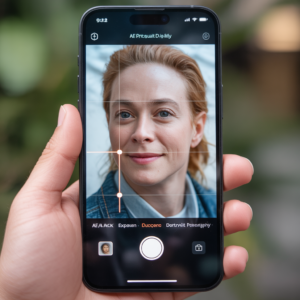
The rule of thirds is the first composition principle every photographer learns. You divide your frame into a 3×3 grid and place your subject at one of the four intersection points rather than dead center. The result is instantly more dynamic, more interesting, and more professional-looking.
To enable the grid in iPhone camera settings:
- Go to Settings > Camera
- Toggle on Grid
Now every time you open your camera, a subtle guide grid overlays your viewfinder. Your brain will start using it automatically within a week. Horizons stop being crooked. Portraits stop being claustrophobic. Landscapes start having breathing room.
Quick composition rules to pair with this setting:
- Place the horizon on the bottom third line for dramatic sky shots
- Place your subject’s eyes on the top third line in portraits
- Use the left or right vertical lines for street photography subjects
- Let paths, roads, or rivers cut diagonally across the grid for depth
Professionals who switch from DSLR to iPhone often say the grid is the setting that makes mobile photography feel legitimate. It’s that effective.
4. The Cinematic iPhone Camera Setting Nobody Talks About: Photographic Styles
Photographic Styles launched with iPhone 13 and got significantly more powerful with iPhone 16. Unlike filters, which are applied after the shot and degrade image quality, Photographic Styles are baked into the computational photography pipeline. They influence how your iPhone processes the image as it captures, not after.
Think of them as personalized film stocks. A photographer who shoots with Fujifilm might swear by Classic Chrome film simulation. iPhone’s Photographic Styles work the same way, tuning warmth, contrast, and tone rendering at a fundamental level without removing the flexibility to edit later.
Available styles on iPhone 15 and earlier include:
- Standard – Apple’s default balanced processing
- Rich Contrast – deeper blacks, punchier midtones
- Vibrant – more saturated colors, great for travel and nature
- Warm – golden tone, flattering for portraits
- Cool – cinematic, blue-toned for moody architecture or street photography
iPhone 16 added the ability to fine-tune these at a much more granular level, adjusting tone curve and skin rendering separately. According to Apple’s own photography documentation on its best iPhone camera features, Photographic Styles were designed specifically to give photographers consistent creative control without sacrificing the flexibility that RAW capture provides.
Pro tip: Pair Photographic Styles with ProRAW for maximum creative flexibility. The style influences the JPEG preview and the default rendering, but the RAW file still contains all the original data.
5. iPhone Camera Masterclass Move: Manual Focus with Focus Peaking
Autofocus is a miracle of engineering. It’s also wrong about 10% of the time in the exact moments that matter most. A subject blinks, you get a sharp ear. A pet moves, you get a sharp background. A portrait session turns into an exercise in frustration.
iPhone doesn’t offer true manual focus the way a cinema camera does, but it offers something close: focus lock with a precise tap. And for videographers, apps like Halide or Filmic Pro unlock a feature called focus peaking, where the edges of in-focus objects are highlighted in real time, exactly the way professional cinema cameras show focus.
For native camera users, here’s the technique:
- Tap precisely on your subject’s eye in portrait mode
- Tap and hold to lock focus before the subject moves
- For macro shots under the built-in Macro toggle (iPhone 13 Pro and later), tap the flower icon and lock focus on the closest element
Why this beats relying on autofocus:
- Autofocus hunts and racks in video, ruining smooth footage
- Locked manual focus stays consistent across a burst of images
- For product photography, locking focus prevents the camera from shifting to the background mid-shoot
The difference between an amateur food photo and a professional one is often just the focus plane. Professionals focus on the front edge of a dish and let the background melt away softly. That’s achievable on iPhone when you control where the focus lands.
6. Secret iPhone Camera Settings for Video: Log Format and ProRes
If you shoot video, this is the setting that will genuinely change your life. Or at least your footage.
iPhone 15 Pro and iPhone 16 models can shoot in Apple Log format, a logarithmic color profile that captures vastly more dynamic range than standard video. Log footage looks flat and desaturated straight from the camera, which confuses people into turning it off. That’s the wrong move.
That flat footage is an editor’s dream. You apply a LUT (Look-Up Table, essentially a color grading preset) in post and transform the footage into something that looks like it was shot on a $50,000 cinema camera. This is the same workflow used by professional cinematographers on Hollywood productions.
To enable Log video on iPhone 15 Pro or iPhone 16:
- Go to Settings > Camera > Video
- Enable Apple ProRes recording
- Set format to Log
- Connect to external storage for files this large (ProRes Log can hit 6GB per minute at 4K)
What Log video unlocks:
- 14+ stops of dynamic range, matching or exceeding many professional cinema cameras
- Footage that holds up in extreme editing without breaking apart
- The ability to match iPhone footage to other cameras in professional multicam productions
MIT Technology Review’s top analysis of computational photography breakthroughs noted that the gap between smartphone and professional cinema cameras has narrowed dramatically since 2022, and Log capture on mobile devices is a primary reason why.
7. iPhone Photography Tips for Low Light: Night Mode Controls You’re Ignoring
Night Mode is one of Apple’s most impressive computational photography achievements. It combines multiple exposures taken in rapid succession and uses machine learning to align and merge them, producing a sharp, bright image in conditions where a basic camera would produce visual noise and blur.
What most people don’t know is that Night Mode is adjustable. By default, iPhone decides how long to expose the shot, anywhere from 1 to 30 seconds depending on conditions. You can override this.
When Night Mode activates (the yellow moon icon):
- Tap the moon icon to expand the slider
- Slide it to MAX for a long, dreamy exposure that turns moving water into silk
- Slide it toward OFF for a shorter exposure that keeps moving subjects sharper
- Use a tripod or brace against a surface for anything over 3 seconds
Night Mode use cases professionals swear by:
- Light trails from cars on a city street (use max exposure)
- Astrophotography and star shots (use max exposure + tripod)
- Indoor ambient light portraits without harsh flash (use 1–3 second exposure, subject still)
- Candlelit scenes that feel impossibly romantic (medium exposure)
One common mistake: people assume Night Mode is always better at maximum exposure. It’s not. For any scene with movement, a shorter exposure gives you sharper results with less ghosting. Learn to read what your scene needs.
8. iPhone Camera Settings for Portraits: Understanding Lens Selection
iPhone’s camera system now includes up to four optical lenses depending on your model. Most people tap the 1x button occasionally and call it a day. That’s leaving serious image quality on the table.
Here’s what the lens selection actually means for portrait photography:
| Lens | Focal Length Equivalent | Best Use |
|---|---|---|
| 0.5x Ultrawide | 13mm | Architecture, landscapes, environmental portraits |
| 1x Main | 24mm | Street, candid, everyday |
| 2x Telephoto (iPhone 15+) | 48mm | Flattering portrait compression |
| 3x Telephoto (Pro models) | 77mm | Professional portrait compression, events |
| 5x Telephoto (iPhone 15 Pro Max, 16 Pro) | 120mm | Distant subjects, compressed backgrounds |
The 3x lens at 77mm produces portrait compression that’s genuinely comparable to a professional 85mm portrait lens, the gold standard in the photography industry. If you’re shooting a portrait and using the 1x lens, you’re working against yourself. The face will look slightly distorted, the background won’t compress beautifully, and you’ll need to get uncomfortably close to your subject.
Switch to 3x. Back up a step. Take the same portrait. The difference is immediate and dramatic.
Comparison Table: iPhone Camera Settings vs. Shooting on Auto
| Setting | Auto Mode Result | Manual/Pro Setting Result | Difficulty Level |
|---|---|---|---|
| File Format | JPEG (compressed, limited edit room) | ProRAW (full data, 4-6 stop flexibility) | Easy |
| Exposure | Auto-adjusting, unpredictable | Locked, consistent, intentional | Easy |
| Video Format | HEVC/H.264, limited color | ProRes Log, cinematic color range | Medium |
| Portrait Lens | 1x wide (distortion at close range) | 3x telephoto (flattering compression) | Easy |
| Night Mode | Default auto duration | Manual duration control | Easy |
| White Balance | Auto (can shift mid-shot) | Locked in third-party apps | Medium |
| Focus | Auto (hunts, shifts) | Tapped and locked | Easy |
| Composition | No guides | Grid overlay enabled | Easy |
| Style/Look | Standard processing | Photographic Style selected | Easy |
| Shutter Speed | Auto | Manual via third-party app | Medium |
| Color Profile | Standard SDR | HDR / Log for video | Medium |
9. iPhone Camera Masterclass Essential: Use Histogram for Perfect Exposure
A histogram is a graph that shows the distribution of brightness in your image, from pure black on the left to pure white on the right. Professional photographers and cinematographers use histograms instead of trusting their eyes because screens lie. A bright outdoor screen makes an image look dark. A dim indoor screen makes it look bright.
iPhone doesn’t show a histogram natively in the standard camera app, but Halide Mark II (one of the best third-party camera apps available) shows a live histogram in real time as you frame your shot.
Reading a histogram:
- Data piled on the left = underexposed, dark image
- Data piled on the right = overexposed, blown highlights
- Data spread across the middle = balanced exposure
- Two peaks, one on each side = high contrast scene (intentional or a problem depending on your goal)
For landscape photographers especially, learning to expose using a histogram rather than the screen preview is a level-up that takes maybe two hours to internalize and changes your photography permanently.
The goal isn’t always a perfectly centered histogram. A moody night scene should lean left. A high-key portrait can lean slightly right. The histogram just tells you where you are so you can be intentional.
10. Secret iPhone Camera Settings for Sharper Photos: Burst Mode and Timer
Camera shake is responsible for more ruined photos than bad lighting, bad lenses, and bad composition combined. It’s the invisible enemy.
Burst mode fires multiple frames per second, giving you the best single frame to choose from. Use it:
- For moving subjects (kids, pets, sports, street)
- For candid portraits where expressions shift quickly
- For anything where timing matters more than controlled composition
To activate burst mode on iPhone 11 and later, swipe the shutter button to the left and hold. On older iPhones, simply hold the shutter button.
The self-timer (available in the camera app top-right menu) eliminates shake entirely for tripod shots. Set 3 seconds for quick setups. Set 10 seconds when you need to run and get in the frame yourself.
Additional sharpness tips in iPhone camera settings:
- Enable Lens Correction in Settings > Camera to remove ultrawide distortion
- Enable Scene Detection so the Photonic Engine applies the most appropriate processing
- Shoot at ISO 64 (the base ISO on iPhone 16 Pro) whenever possible for cleanest files
11. The iPhone Photography Setting Professionals Keep Secret: Third-Party Apps
The native Camera app is excellent. It’s also holding you back in specific ways.
Apple locks certain controls out of the native app to keep it accessible for everyday users. Shutter speed, ISO, white balance lock, anamorphic aspect ratios, focus peaking, waveforms, and audio level monitoring are all either absent or heavily restricted.
Third-party apps unlock all of it:
Halide Mark II
- Manual controls for shutter, ISO, white balance
- Live histogram and focus peaking
- The best RAW capture pipeline on iPhone
- Stellar for still photography
Filmic Pro
- Full manual video controls
- Log shooting, anamorphic support, frame guide overlays
- Preferred by professional filmmakers for iPhone video work
- Used in commercially released films and documentaries
Moment Pro Camera
- Clean interface with manual controls
- Excellent for Moment lens attachment users
- Good for photographers crossing over from mirrorless systems
Adobe Lightroom Camera
- Shoots straight to Lightroom’s ecosystem
- Manual controls plus AI-assisted editing in one app
- Ideal for photographers already in the Adobe workflow
Each of these apps costs between $5 and $20, or a monthly subscription. That’s a fraction of a lens filter, and the creative control they return is worth far more.
How iPhone Camera Settings Stack Up Against DSLR Features
Let’s address the question everyone’s actually asking: can iPhone settings genuinely compete with a DSLR or mirrorless camera?
Here’s an honest look:
| Feature | iPhone (Pro Models 2024–2025) | Entry DSLR ($500–$800) | Pro Mirrorless ($2,500+) |
|---|---|---|---|
| Sensor Size | Small 1/1.28″ | APS-C | Full Frame |
| Dynamic Range | ~14 stops (ProRAW) | ~12 stops | ~14–15 stops |
| Low Light | Exceptional (computational) | Good | Excellent |
| Portability | Backpack required | Backpack required | |
| Video | 4K ProRes Log | 4K H.264 | 4K–8K Raw |
| Autofocus | Best in class (AI tracking) | Good phase detect | Exceptional |
| Lens Options | Fixed (3-5 primes) | Interchangeable | Interchangeable |
| Depth of Field Control | Limited physically | Full control | Full control |
| Price | $999–$1,599 (device you already own) | $500–$800 (plus lenses) | $2,500+ (plus lenses) |
| Editing Flexibility (RAW) | Excellent (ProRAW) | Excellent | Excellent |
The honest answer: for 90% of photography situations, an iPhone Pro with the settings in this guide will produce photos indistinguishable from a DSLR at web resolution. The remaining 10%: extremely shallow depth of field, very large prints, or extreme low-light without computational assistance, still favor dedicated cameras.
But that 90% covers almost every photo you’ve ever wanted to take.
Common iPhone Photography Mistakes That Undo All Your Settings
Knowing the settings is half the battle. Avoiding these mistakes seals the deal.
1. Cleaning your lens never. A smudged lens is the single most common reason iPhone photos look soft and hazy. Wipe it before you shoot. Every time.
2. Shooting portrait mode in bad light and wondering why it looks weird. Portrait mode uses depth mapping that struggles in low light. The background separation gets inconsistent and edges look cut out. Use it in good light or switch it off.
3. Maxing out digital zoom. Digital zoom is just cropping. It doesn’t add detail, it removes it. On an iPhone 16 Pro with a 5x optical lens, anything beyond 5x is degraded digitally. Know your optical limit and stay at or below it.
4. Never cleaning your storage. ProRAW and ProRes files are large. A full phone throttles performance and stops you from shooting. Keep 10% of your storage clear minimum.
5. Ignoring the lock screen camera shortcut. The fastest camera is the one you open before the moment disappears. The lock screen camera swipe is faster than unlocking and finding the app. Practice it until it’s muscle memory.
6. Assuming more megapixels means more quality. The iPhone 16 Pro’s 48MP main sensor uses pixel binning by default, combining four pixels into one for better low-light performance. That’s why a 12MP ProRAW output from a 48MP sensor often outperforms a straight 48MP JPEG. Resolution isn’t everything.
Building Your iPhone Photography Workflow
Settings alone don’t make photographs. Workflow does.
Here’s a simple, repeatable process that combines everything in this guide:
- Clean the lens before opening the camera
- Select your lens (1x for environment, 3x for portraits, 0.5x for architecture)
- Enable ProRAW if shooting stills worth editing later
- Set your Photographic Style for consistent color tone
- Tap to focus on your subject, lock with long press
- Adjust exposure with the sun slider for the mood you want
- Check your grid for composition before shooting
- Shoot in burst for anything that moves
- Review on screen, edit in Lightroom with the headroom your ProRAW file provides
- Export at full resolution and never over-compress for social
This workflow takes about 15 seconds to run through once you’ve internalized it. Within a month, it’ll be automatic.
Conclusion
Here’s the thing about photography that nobody in the gear community wants to admit: the camera is usually the least important variable.
The light, the moment, the composition, the decision of when to press the shutter and where to stand when you do it, these are what separate a photograph from a snapshot. And your iPhone, properly configured, is a genuinely remarkable tool for capturing all of those things.
The 11 settings in this guide aren’t tricks or workarounds. They’re the same principles professional photographers apply to every camera they pick up, adapted for the device in your pocket. ProRAW gives you editing room. Log video gives you cinematic range. Exposure lock gives you creative control. Lens selection gives you flattering perspective. The histogram tells you the truth when your screen lies.
None of this requires a photography degree or a second mortgage on a lens. It requires curiosity and about 20 minutes of experimenting.
Put the camera guides down. Go outside. Try these settings on something boring, a coffee cup, a tree, a friend who’s tired of you pointing your phone at them. See what happens.
The best camera is still the one in your pocket. You just weren’t using it right.
Share This and Read Next
Found a setting here that actually changed your photos? Share this with the person in your life who refuses to buy a DSLR but keeps complaining their phone photos look bad. That’s the person this was written for.
Drop a comment below: Which of these 11 settings are you trying first? And if you’ve already been shooting ProRAW or Log video, what was the moment it clicked for you?
This article is for educational purposes only. Camera features referenced apply to iPhone 12 Pro and later unless otherwise noted. Features vary by iPhone model and iOS version. Always verify settings in your specific device before shooting professionally.