Disclaimer: This article is for educational and informational purposes only. Features described may vary depending on your Android version, device manufacturer, or carrier. Always back up your data before enabling developer or experimental settings. The author is not responsible for any changes made to your device.
Shocking Android Hidden Features You Never Knew Existed
You have been carrying a supercomputer in your pocket for years, and you are probably using about 10% of what it can do.
Most Android users tap, scroll, and swipe their way through life without ever knowing their phone is quietly hiding dozens of powerful features beneath the surface. Samsung and Google do not exactly put these on the box.
Why Android Hidden Features Stay Hidden
Android is built for everyone, from your tech-obsessed cousin to your grandmother who still calls it “the Google phone.” So to avoid overwhelming most users, the good stuff gets buried.
Some features are tucked inside settings menus with cryptic names. Others require a specific number of taps to activate. A few are so powerful that manufacturers decided most people should not stumble on them by accident.
That is where this guide comes in. These are not party tricks. These are genuinely useful Android hidden features that can change how you use your phone every single day.
1. Android Hidden Features Start With Developer Options
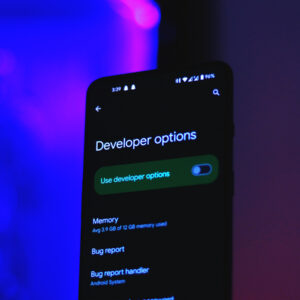
If you have never heard of Developer Options, you are not alone. Google hides this entire menu by default, and it is packed with tools that change how your phone behaves at a deep level.
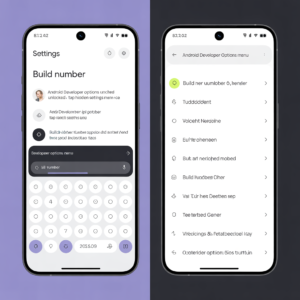
To unlock it, go to Settings > About Phone > Software Information, then tap Build Number exactly seven times. You will feel a vibration and see a message that says “You are now a developer.” Congratulations. You just unlocked a secret lab.
Inside Developer Options, you can:
- Speed up or slow down animations so your phone feels faster or smoother
- Force 4x MSAA for better graphics in apps and games
- Enable USB debugging for connecting to computers and sideloading apps
- Limit background processes to dramatically improve battery life
- See running services to find apps secretly eating your RAM
One of the most useful tweaks in here is the animation scale settings. Set all three animation scales to 0.5x and your phone will feel noticeably snappier. It is one of the simplest Android hidden features, and the difference is immediate.
2. The Secret Gesture That Puts Any App in a Floating Window
Samsung users on One UI have access to a feature called Multi Window, but most people only know the split-screen version. The floating window mode is the one nobody talks about.
When you open the recent apps screen, long-press on any app’s icon at the top of the card. A small menu pops up. Tap Open in pop-up view and the app shrinks into a draggable, resizable floating window you can position anywhere on your screen.
This means you can:
- Watch a YouTube video while replying to emails
- Keep a calculator open over a shopping site
- Read a recipe while messaging someone who is asking what you are cooking
- Browse notes while on a video call
You can minimize the floating window into a small bubble by tapping the tiny circle at the top. It sits there patiently until you need it again. This is one of those Android hidden features that feels like a completely different operating system once you start using it.
3. Android Hidden Features Inside the Clock App You Are Missing
Most people use their phone’s clock to set alarms and occasionally check the time zone for a meeting. That is it. But there are genuinely useful Android hidden features buried inside the stock Clock app that most people completely overlook.
On both stock Android and Samsung’s One UI, the Clock app has a Bedtime Mode (sometimes labeled Sleep Mode) that does far more than dim the screen. When enabled, it can:
- Automatically switch your phone to Do Not Disturb
- Turn the screen grayscale so it is less stimulating
- Silence all notifications except from starred contacts
- Show a gentle sunrise alarm that fades in slowly instead of blasting you awake
The grayscale feature alone is something researchers have found reduces screen time because the phone simply becomes less visually appealing. It is a sneaky way to break a scrolling habit without deleting any apps.
The Hidden Timer Trick
Here is a bonus feature inside the Clock app: if you set a timer for music or a podcast using the timer’s “Stop playing” action, your phone will automatically pause all media when the countdown ends. It is the perfect sleep timer, and it lives right inside the Clock app with zero third-party downloads required.
4. Google’s Secret One-Handed Mode Nobody Activates
Phones keep getting bigger. Hands have not. Google and Samsung both know this, which is why they each built one-handed modes into Android that almost nobody turns on because almost nobody knows they exist.
On stock Android, go to Settings > System > Gestures > One-Handed Mode. Once enabled, swipe down on the bottom of your screen and the entire interface shrinks to the lower half, putting every corner within thumb reach.
Samsung’s version is equally good. Find it under Settings > Advanced Features > One-Handed Mode. You can trigger it with a swipe gesture or a double-tap on the home button.
This is one of those Android hidden features that feels almost embarrassingly obvious once you try it. Your thumb was not too short. Your phone just needed a setting.
5. The Android Hidden Feature That Reads Everything Aloud
Android has a built-in screen reader that goes far beyond accessibility. It is called Select to Speak, and it lets you tap any text on your screen and have it read aloud instantly.
You will find it under Settings > Accessibility > Select to Speak. Once active, you tap the small accessibility button that appears on screen, then tap any text or drag to select a region and Android reads it to you.
This is legitimately useful for:
- Reading long articles while cooking or driving
- Listening to text messages without pulling your phone out
- Processing documents and PDFs without staring at a screen
- Catching up on emails during a commute
Combined with Google’s Text-to-Natural-Speech engine, the voice sounds remarkably human. You can adjust the speed and pitch under Settings > Accessibility > Text-to-Speech Output. It is one of the most powerful Android hidden features and it is completely free, already installed, and waiting.
6. Hidden Android Network Tools That Diagnose Problems Instantly
When your Wi-Fi is being unreliable, most people do the same thing: turn it off and on again. But Android actually has built-in network diagnostic tools that can tell you exactly what is going wrong.
Go to your Wi-Fi settings, tap your connected network, and look for Advanced or the small info icon. On many Android devices you will find:
- Signal strength measured in dBm (closer to 0 is better)
- Link speed showing your actual connection rate
- IP address and gateway info for troubleshooting
- DNS settings you can manually override for faster browsing
On Samsung devices specifically, there is a hidden network diagnostic tool. Dial *#0011# in your phone app and you get a full ServiceMode menu showing your current network signal, band, and connection quality at a technical level.
The Hidden DNS Trick
Here is one of the best Android hidden features for faster internet: Android has a built-in Private DNS setting under Settings > More Connection Settings (Samsung) or Settings > Network & Internet > Advanced > Private DNS (stock Android).
Type dns.google or one.one.one.one (Cloudflare) into the custom DNS field and your phone will use faster, more private DNS resolution for every connection. Many users report noticeably faster page loading after this single change.
7. Samsung’s Hidden Maintenance Mode Protects Your Privacy
This is an Android hidden feature that Samsung built specifically for one situation: when you have to hand your phone to a repair shop or let someone else use it temporarily.
Go to Settings > Battery and Device Care > Maintenance Mode. When you enable it, your phone creates a temporary guest profile. The repair technician or temporary user can use the device normally, but they cannot access your photos, messages, accounts, contacts, or any personal data.
When you get your phone back, you disable Maintenance Mode and everything returns exactly as you left it. Your personal data was never visible, never accessible, and never at risk.
This is the kind of Android hidden feature that most Samsung users discover only after something bad already happened. Now you know before that moment arrives.
8. The Android Clipboard History Nobody Told You About
On Samsung devices running One UI, there is a clipboard manager that stores everything you have copied for up to an hour. It is genuinely one of the most useful Android hidden features for anyone who copies and pastes regularly.
Access it by long-pressing any text input field and tapping Clipboard. You will see a history of your recent copies and can tap any item to paste it instantly.
You can also pin items to your clipboard so they stay there indefinitely, making it a quick-paste shortcut for things like your email address, home address, account numbers, or any text you type constantly.
Google Keyboard (Gboard) has a similar feature. Tap the small clipboard icon in the keyboard toolbar to access your clipboard history and pin items there too. If you have never used this, you are going to wonder how you lived without it.
9. Android Hidden Features for Gamers: Game Booster and Lab Settings
Samsung users have a hidden suite of gaming tools called Game Booster that kicks in automatically when you launch a game, and most Galaxy owners have no idea what it actually does.
During any game, swipe from the edge of the screen to access the Game Booster panel. From here you can:
- Block notifications so nothing interrupts your session
- Lock the navigation bar to prevent accidental presses
- Record your screen and gameplay
- Monitor CPU and RAM usage in real time
- Adjust touch sensitivity for your specific screen
Buried deeper inside is a Labs section (find it in Game Booster settings) where Samsung tests experimental features before official release. You can enable things like increased touch polling rate for faster response, or adaptive resolution settings that boost performance at the cost of slight visual quality.
Stock Android users are not left out. Under Settings > Developer Options, the Force hardware overlays and Disable HW overlays settings can noticeably affect gaming performance depending on your device. These are Android hidden features that competitive mobile gamers swear by.
10. The One Setting That Makes Android Photos Look Dramatically Better
Most people shoot photos in whatever mode their camera opens in by default. But Samsung and Google both hide their most powerful camera formats behind settings that require a few taps to unlock.
On Samsung, the default camera saves JPEGs. But buried in Camera Settings > Picture Formats is the option to shoot in RAW format or High Efficiency HEIF. RAW files contain far more data, giving you room to fix exposure, color, and detail in editing apps that basic JPEGs simply cannot recover.
On Google Pixel phones, go to Camera Settings and enable RAW + JPEG control if you are using a third-party camera app, or simply use Google Photos’ editing tools which access the phone’s computational photography data in ways most users do not realize.
Here is another hidden camera feature on Samsung: the Pro Video mode hides a full manual video control panel. You can manually set ISO, shutter speed, white balance, and audio levels, giving you near-DSLR control from a phone camera.
According to McKinsey’s top analysis of mobile technology adoption, mobile users who learn to use advanced device features spend significantly more time with their devices in productive rather than passive ways, which tracks with the kind of depth these camera tools offer.
11. Android’s Secret Second Screen Feature
Samsung DeX is well-known among power users, but here is the Android hidden feature version: on many mid-range and flagship Android phones, you can use your phone as a second display for your laptop without any extra hardware.
On Samsung devices, DeX Wireless lets you mirror or extend your desktop to a compatible smart TV or monitor. But the less-known trick is that apps like Spacedesk or Splashtop can turn your Android phone into a second monitor for Windows or Mac. Combined with Android’s native wireless display feature (found under Settings > Connected Devices > More Connection Settings > Wireless Display), you get a second screen setup for zero dollars.
For Samsung specifically, plugging your phone into a monitor via USB-C cable while holding the DeX icon that appears in the notification shade launches a full desktop mode. Your phone becomes a computer. Most Galaxy users have the hardware to do this right now and simply do not know it.
12. The Hidden Android Feature That Rescues Accidentally Deleted Files
Here is one that can genuinely save your day. Android does not have a recycle bin like a computer does. When you delete a photo or file, most people assume it is gone. But Samsung’s Gallery app and Google Photos both have a hidden trash folder that keeps deleted items for 30 days.
In Samsung Gallery, tap the three-line menu and find Trash. In Google Photos, go to Library > Trash. Everything you deleted in the last 30 days is sitting there, waiting for you to change your mind.
But here is the Android hidden feature most people miss: Samsung’s My Files app also has its own recycle bin. Open My Files > Trash and you will find deleted documents, downloads, and other files that are not photos. Two separate trash systems, both hidden, both incredibly useful.
13. Android’s Built-In Screen Magnifier Nobody Uses
This sounds like a pure accessibility feature, but it is genuinely useful for anyone. Android’s Magnification tool lets you instantly zoom in on any part of your screen, any app, any text, any image, with a triple-tap or dedicated button.
Find it under Settings > Accessibility > Magnification (stock Android) or Settings > Accessibility > Visibility Enhancements > Magnification (Samsung).
You can set it to:
- Triple-tap to zoom anywhere on screen
- Zoom with a shortcut button that stays on screen
- Temporarily magnify by holding the shortcut and dragging around
Photographers use this to check image sharpness. Designers use it to examine UI details. Anyone with small-print menus, maps, or documents uses it to read without squinting. It is one of those Android hidden features that sounds boring until you need it and then it becomes essential.
14. The Android Feature That Lets Your Phone Run Two Accounts Simultaneously
If you have ever wanted to run two Instagram accounts, two WhatsApp numbers, or two Google accounts on one phone without constantly logging in and out, Android has a built-in solution that most people never discover.
Samsung calls it Dual Messenger. Find it under Settings > Advanced Features > Dual Messenger. It creates a complete second instance of supported apps (WhatsApp, Instagram, Facebook, Telegram, and more) that runs completely independently with its own login.
Stock Android and many other manufacturers have a similar feature called Work Profile or Parallel Space depending on the build. Google’s Digital Wellbeing also allows separate profile management.
The practical uses here are enormous:
- Separate work and personal WhatsApp on one phone
- Two Instagram accounts for personal and business use
- Multiple Telegram accounts for different communities
- Different Google accounts for different areas of your life
This is the kind of Android hidden feature that small business owners, freelancers, and anyone juggling multiple roles genuinely needs. And it has been sitting in the settings menu the entire time.
15. Android’s Emergency SOS and Crash Detection Nobody Activates
This is the most important Android hidden feature on this entire list, and it is the one most people should set up today and never have to think about again.
Emergency SOS is built into Android and Samsung phones. Go to Settings > Safety and Emergency (stock Android) or Settings > Advanced Features > Send SOS Messages (Samsung).
Once configured, pressing your power button rapidly five times (or holding it on some models) will:
- Automatically call emergency services
- Send your GPS location to emergency contacts
- Record audio or take a front/rear camera photo automatically
- Send an emergency text to contacts you designate
Google Pixel phones (from Pixel 4 onward) also have Car Crash Detection built in. Under Settings > Safety & Emergency > Car Crash Detection, your phone uses its accelerometer, microphone, and location data to detect if you have been in a collision and automatically calls 911 if you do not respond.
According to the World Economic Forum’s proven research on digital safety technology, passive safety features on smartphones have already contributed to lives saved in documented emergency cases. This is not a gimmick. It is a tool that could matter in the worst moment of your life.
Setting this up takes under three minutes and requires zero ongoing effort. Do it now.
Android Hidden Features vs. Default Settings: What You Are Missing
Here is a quick comparison of the default Android experience versus what you unlock once you know where to look.
| Feature Area | Default Android Experience | With Hidden Features Unlocked |
|---|---|---|
| Performance | Standard animation speed, background apps unlimited | 0.5x animations, limited background processes, noticeably faster |
| Privacy | All app data accessible when loaned | Maintenance Mode isolates personal data completely |
| Camera | JPEG shooting, auto settings only | RAW format, Pro Video mode, manual ISO and shutter |
| Multitasking | One app at a time or basic split screen | Floating windows, clipboard history, dual app instances |
| Internet Speed | Default carrier DNS (often slow) | Custom DNS via Cloudflare or Google for faster browsing |
| Safety | Manual emergency calls only | Automated SOS, crash detection, location sharing |
| File Recovery | Deleted means gone (perceived) | 30-day trash in Gallery, Google Photos, and My Files |
| Gaming | Standard touch response, notifications interrupt | Game Booster, blocked notifications, touch polling control |
| Accessibility | Screen reader for visually impaired only | Select to Speak, Magnification for anyone |
| Second Display | Requires purchasing hardware | Wireless DeX or third-party apps, zero hardware cost |
The gap between these two columns is why Android power users treat their phones as completely different tools than casual users do. None of this requires any downloads, subscriptions, or technical skill. Just knowing where to look.
The Bigger Picture: Why Android Hides Its Best Features
Here is something worth thinking about. Google and Samsung are not hiding these features to frustrate you. They are hiding them because the average user finds too many options paralyzing.
UX research has consistently shown that reducing visible options increases satisfaction for most users. So manufacturers bury the advanced tools beneath layers of menus, waiting for the curious ones to dig.
The result is a two-tier phone experience: most people use 10% of their device’s capability, while a smaller group uses 80%. Both groups paid the same price for the hardware.
Every feature on this list was built by engineers who thought it was valuable enough to ship. None of it requires rooting your phone, installing sketchy apps, or voiding your warranty. It all lives in your settings menu right now.
The only difference between you and someone who knew all of this before reading this article is one article.
The Android Hidden Feature You Should Turn On First
If you are going to take one thing from this article and do it today, make it Emergency SOS and Crash Detection.
Everything else here improves your productivity, convenience, or enjoyment. Emergency SOS could save your life or someone else’s. It takes three minutes to configure and sits quietly in the background forever after.
After that? Developer Options animation speed. Your phone will feel like you just bought a new one.
Then Dual Messenger, because running two accounts from one phone is genuinely life-changing for anyone managing a business or a busy personal life.
Work your way down the list. You do not have to do it all at once. But every one of these features is waiting for you, already installed, already paid for, already on your phone.
Wrapping Up
Your phone is not the problem. The default settings are.
Every feature on this list shipped with your device. Samsung and Google built them, tested them, and included them in your phone. They just did not put them on a billboard.
The gap between a frustrating phone experience and a genuinely powerful one is almost never about buying new hardware. It is almost always about understanding the hardware you already have.
You now know where 15 of those hidden doors are. Go open them.
Drop a Comment Below
Which Android hidden feature surprised you the most? Have you been using any of these already, or did something here genuinely catch you off guard?
Share this article with someone who always complains that their phone is “too slow” or “not doing what they want.” Chances are, they just need to tap Build Number seven times.
Read Next: How to Extend Android Battery Life by 40% Without Buying a New Phone
Last updated: March 2026. Feature availability varies by Android version (10 and above recommended), device manufacturer, and carrier. Screenshots and menu paths may differ slightly between One UI 6, One UI 7, and stock Android 14/15.