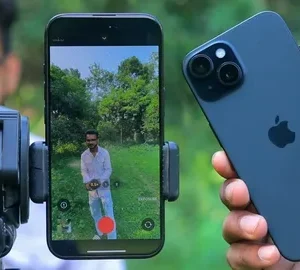
Unbelievable: How to Turn Any Old Android Phone into a Professional Security Camera
That old Android phone sitting in your drawer right now? It is already a professional security camera. You just haven’t set it up yet.
Home security systems cost hundreds of dollars upfront and then bleed you dry with monthly subscription fees. Ring, Nest, Arlo — they all follow the same playbook: hook you with affordable hardware, then charge you every month just to access your own recorded footage. It is a racket, and millions of people keep paying for it because they do not know there is a better option.
Here is the thing: your old Android phone has a high-resolution camera, a microphone, Wi-Fi connectivity, and a processor powerful enough to stream live video. That is literally all a commercial security camera is. The only difference is the price tag and the marketing.
In this guide, you will learn exactly how to transform any old Android device into a fully functional home security camera — with motion detection, live streaming, two-way audio, and cloud storage — completely free. You will also learn which apps to use for different setups, how to mount and position your device for maximum coverage, and how to avoid the common mistakes that turn a great DIY project into a frustrating mess.
By the end of this post, you will have everything you need to set up your own DIY surveillance system today, using hardware you already own.
Why Your Old Android Phone Is Already a Security Camera Waiting to Happen
Think about what a dedicated security camera actually does. It captures video, streams it to a server or a viewer device, detects motion, and alerts you when something happens. That is it. There is no magic inside a $150 Blink camera that your 2019 Samsung Galaxy cannot replicate.
Any phone running Android 5.0 or newer will work — that covers basically every Android device from the last eight-plus years. The camera does not need to be perfect. If you can open the camera app and take a reasonably sharp picture, the device is good enough.
Here is why this matters right now. According to a 2024 report from Statista, over 50 million old smartphones are replaced globally every year, with the majority sitting unused in drawers and closets. Most of those devices still work fine. Their batteries may have degraded and their screens may be scratched, but the cameras — often the most durable component — remain functional for years after people stop carrying the phone.
Meanwhile, home break-ins remain a persistent problem. The FBI’s Uniform Crime Report consistently shows that visible security cameras are among the most effective burglary deterrents available to homeowners. You do not need an expensive system. You need a camera in a visible location, a motion alert on your phone, and a recording you can hand to police if something happens. Your old Android covers all three.
“The best security camera is the one you actually have installed. A $0 setup that works beats a $500 system still in the box.”
The subscription security camera industry is also undergoing a pricing squeeze. Companies like Ring have raised cloud storage fees multiple times in recent years, pushing more users toward DIY alternatives. Searches for “free home security camera app” have grown sharply since 2023, according to Google Trends data. People are ready for a better option, and this guide is it.

What You Need Before You Start (Spoiler: You Already Have Most of It)
Getting this set up requires almost nothing you do not already own. Here is the complete list:
The old Android phone (the camera):
- Android 5.0 or newer (any phone from roughly 2014 onward)
- A working front or rear camera
- Wi-Fi capability (you do not even need a SIM card)
- A charging cable and a wall adapter
Your current phone or computer (the viewer):
- Any smartphone, tablet, or computer
- The same security camera app you install on the camera device
Optional but recommended:
- A phone mount, mini tripod, or adjustable stand ($5–$15 on most e-commerce platforms)
- A longer charging cable if your ideal camera spot is away from an outlet
- A window suction mount if you want to monitor outdoors from inside
That is the entire list. Total additional cost is around $10 if you need to buy a phone stand. Compare that to a $99 camera plus $10 a month in subscription fees, and the math becomes obvious very quickly.
One thing worth checking before you dive in: disable automatic screen lock on the camera device. If the Android phone or tablet goes to sleep, it will close the app and stop streaming instantly. Go to Settings, find Display or Screen Timeout, and set it to “Never” or the maximum available duration. You will also want to keep the camera device plugged in at all times, since continuous streaming drains battery faster than normal use.
The 3 Best Apps to Turn Your Old Android into a Security Camera
Not all security camera apps are created equal. Some are feature-rich but complicated. Others are dead simple but limited. Here is an honest breakdown of the three best options available in 2025, along with which type of user each one suits best.
AlfredCamera: The Best All-Around Free Option
With more than 70 million downloads, AlfredCamera is the most popular security camera app worldwide. That number is not a coincidence. Alfred genuinely works well, the free tier is surprisingly generous, and the setup takes about five minutes.
The free version supports single-device livestreaming, motion detection, and on-device recording. For most home users, that is everything you need. You get real-time alerts when motion is detected, a two-way audio feature so you can speak through the camera, and a loud siren you can trigger remotely if you spot an intruder.
Who it is best for: First-time users, renters, anyone who wants something working today with zero technical experience.
Key free features:
- Live streaming from anywhere with internet access
- Motion detection with push notifications
- Two-way audio (talk and listen through the camera)
- Built-in siren for deterrence
- Low-light filter for evening use
- Web viewer at alfred.camera (no app required on the viewer side)
With a Premium subscription, you unlock three concurrent viewers, HD live-streaming, smart motion detection, zoom, and recording storage for up to two weeks. Premium runs about $29.99 per year, which is still far cheaper than most commercial camera subscriptions.
A Wi-Fi connection is not required to use AlfredCamera — the app can use mobile data (4G, 5G) instead of Wi-Fi, giving you more flexibility in where you place the camera device. This is a genuinely useful feature if you want to monitor a garage, shed, or outdoor area without running a Wi-Fi signal there.
IP Webcam: The Privacy-First Power User Option
If you are uncomfortable with your video feed passing through a third-party cloud server, IP Webcam is the app for you. IP Webcam turns your phone into a tiny streaming server. It gives you a local address, you open it in a browser, and you get a live feed with no cloud, no login, and no middle layer quietly collecting your data.
The app streams over your local network using your phone’s IP address. You access the feed through a web browser or any RTSP-compatible video software on any device connected to the same Wi-Fi network. Nothing leaves your home unless you deliberately set up remote access.
Who it is best for: Privacy-conscious users, tech-savvy homeowners, and anyone who wants their footage stored locally rather than in the cloud.
Key features:
- No account required, no cloud dependency
- Browser-based viewer (works on any device)
- RTSP streaming for integration with professional NVR software
- Motion detection with configurable sensitivity
- Audio streaming included
- Works with home automation platforms like Home Assistant
The trade-off is that remote viewing (watching your camera from outside your home network) requires an extra setup step. You need either a VPN, a port forwarding rule on your router, or a service like Tailscale to securely expose the stream to the internet. It is not complicated for someone comfortable with basic networking, but it is an extra step that Alfred eliminates.
RTSP Security Camera: The Professional Integration Option
RTSP Camera lets you give new life to an unused smartphone by turning it into a full-featured CCTV IP camera. The application uses RTSP (Real Time Streaming Protocol), a widely supported industry standard for transmitting audio and video over IP networks, making the stream compatible with most VMS platforms, NVR software, and media players.
This is the option for users who already have a home security NVR (network video recorder) or software like Blue Iris or Synology Surveillance Station. You install the app on the old phone, it broadcasts an RTSP stream, and your NVR software picks it up just like a dedicated IP camera.
The RTSP Security Camera app works 24/7 with the screen off, streams live video and audio, supports H264 compression, and automatically restarts the broadcast in case of Wi-Fi network failures.
Who it is best for: Advanced users who want to integrate an old phone into an existing multi-camera home security system.
Comparison Table: Which App Should You Choose?
| App | Best For | Free Tier | Cloud Storage | Remote Access | Privacy Level | Difficulty |
|---|---|---|---|---|---|---|
| AlfredCamera | Beginners, renters | Yes, generous | Yes (cloud) | Built-in | Medium | Very Easy |
| IP Webcam | Privacy-first users | Yes, full-featured | No (local only) | Manual setup needed | High | Moderate |
| RTSP Camera | NVR integration | Yes, free | No (local/NVR) | Via NVR software | High | Advanced |
| WardenCam | Google Drive users | Limited | Google Drive | Built-in | Medium | Easy |
| AtHome Camera | Face recognition | Limited | Cloud | Built-in | Medium | Easy |
Step-by-Step Setup Guide: AlfredCamera from Zero to Live Stream
This walkthrough uses AlfredCamera because it is the easiest starting point. Once you understand the process, switching to IP Webcam or RTSP Camera follows a similar logic.
Step 1: Prepare the camera device. Charge the old Android phone to at least 50 percent. Turn off automatic screen lock (Settings > Display > Screen Timeout > Never). If the phone has a SIM card you are no longer using, you can remove it — the app works on Wi-Fi alone.
Step 2: Download AlfredCamera on the camera phone. Open Google Play on the old phone and search for “AlfredCamera.” Download and install it. Open the app and create an Alfred account using a Google account or email address. Alfred will immediately identify the old phone as your camera device.
Step 3: Download AlfredCamera on your viewer device. Download the app on your new phone, log in with the same Google account, and permit it to access your camera, location, and files. Alfred will ask you to specify what you are using the camera for — options include home security, pet monitoring, and family monitoring.
Step 4: Pair the devices. Alfred gives you two pairing options. Use the QR scanner because it is more straightforward to set up than using login details. On the viewer phone, the app opens a camera to scan the QR code displayed on the camera phone. The two devices pair in seconds.
Step 5: Configure the camera settings. On the camera phone, go into settings and make the following adjustments:
- Select the rear camera as the default (it offers better resolution than most front cameras)
- Enable the microphone for audio recording
- Turn on motion detection and set sensitivity to “Low” or “Medium” to avoid false alerts from fans, curtains, or passing car headlights
- Enable power-saving mode, which turns off the screen to conserve battery while keeping the stream running
Step 6: Set up motion alerts on the viewer. On the viewer app, turn on event alerts and vibrations so you are notified when the camera detects movement. You can also set a quiet hours schedule so you are not woken up by motion alerts at 3 AM when your cat walks past.
Step 7: Mount the camera device and test. Position the phone with the camera facing the area you want to monitor. Walk through the camera’s field of view and confirm the motion detection triggers correctly. Check the live feed from your viewer phone to verify the image quality and camera angle.
That is it. You now have a live, motion-detecting security camera with remote access, running on hardware you already owned.
Where to Place Your DIY Security Camera for Maximum Coverage
Camera placement is the difference between a security system that actually protects you and one that just gives you footage of your own carpet.
Front door and entry points. Statistics consistently show that the majority of home intrusions happen through the front door or ground-floor windows. Position the camera at eye level, angled downward slightly, with the door clearly in frame. A camera mounted above the door pointing down will capture faces much more clearly than one pointed straight ahead at chest height.
Living room. A camera in the main living area gives you broad coverage of the most commonly accessed part of the home. Place it on a high shelf or TV unit, angled toward the main entry points to the room.
Baby’s room or nursery. The front-facing camera on most Android phones captures a wider angle than the rear camera, which makes it useful for room monitoring where you want a broader field of view.
Garage or storage area. This is where the 4G/5G capability of AlfredCamera becomes valuable. If your garage does not have reliable Wi-Fi coverage, the camera phone can stream over mobile data instead. Keep a charged power bank nearby if a wall outlet is not convenient.
A note on outdoor placement. Android phones are not weatherproofed, so placing them directly outdoors is not ideal. The practical solution is to mount the phone behind a window, facing outward. You lose some image clarity through glass, but the phone stays protected from rain and temperature extremes. Clean the window in the camera’s field of view regularly, since dust and condensation will degrade image quality noticeably.
The Hidden Advantages Nobody Talks About
Most guides on this topic cover the basics and stop there. But your old Android security camera has capabilities that purpose-built cameras often lack.
Two-way audio as a deterrent. A standard Ring or Blink camera lets you hear what is happening and speak through it. Your Android phone does the same thing through AlfredCamera’s two-way audio. The difference is the quality. Phone microphones and speakers are designed for voice calls, which means audio clarity is often better on an old phone than on a $100 security camera with a small built-in speaker.
Night mode and low-light performance. Newer dedicated security cameras advertise infrared night vision. Your old Android phone does not have IR hardware, but AlfredCamera’s low-light filter uses software processing to improve visibility in dim conditions. For indoor use in a room with any ambient light (streetlights, appliance indicator lights, hallway light seeping under a door), the results are surprisingly usable. For pitch-black outdoor areas, a dedicated camera with IR hardware will outperform a phone.
The siren feature. The Alfred viewing app includes a siren function that can be used to scare away potential intruders or animals with a loud sound. This is a feature that many entry-level dedicated cameras lack entirely. Triggering a loud alarm remotely the moment you see an intruder on your live feed is a powerful deterrent.
Multi-camera scalability. You are not limited to one old phone. If you have two or three old devices, you can set up cameras throughout your home and view all feeds from the same viewer app. AlfredCamera supports unlimited live streams on the free tier with one concurrent viewer. Running three or four camera feeds from old devices you already own costs less than a single month of a commercial subscription service.
Common Mistakes to Avoid (Learn from Other People’s Frustration)
Setting this up is simple, but a few predictable mistakes trip up most first-timers.
Mistake 1: Letting the screen time out. This is the most common problem. The app keeps running in the background on most modern Android versions, but older phones with aggressive battery management will kill the app when the screen locks. Set screen timeout to Never and keep the phone plugged in.
Mistake 2: Placing the camera too high or at a wide angle. A camera mounted at ceiling height looking straight down will give you a great view of the tops of people’s heads, which is nearly useless for identification. Mount cameras at roughly 7–8 feet, angled down at about 15–20 degrees, so faces are clearly visible.
Mistake 3: Ignoring Wi-Fi signal strength. A camera positioned in a room with weak Wi-Fi will buffer, drop frames, and miss motion events. Before finalizing camera placement, check Wi-Fi signal strength at that location using your phone’s signal indicator or a Wi-Fi analyzer app. If the signal is weak, consider a Wi-Fi extender or mesh network node before finalizing placement.
Mistake 4: Using the front camera when the rear camera is better. The rear lens is generally superior because it offers better resolution for recording video. Unless you specifically need the wider angle of a front camera, use the rear camera for better image quality.
Mistake 5: Not testing motion sensitivity before leaving the house. Medium sensitivity is the default, but it is often too sensitive for rooms with fans, air conditioning vents, or windows where light changes rapidly. Set it to Low first, walk through the room yourself, verify you get an alert, then leave it in place for a few hours to see if you get false positives before trusting it for real monitoring.
Your 7-Step Action Plan to Set Up Your DIY Security System Today
This is your bookmarkable quick-reference checklist. Follow it in order and you will have a working system within the hour.
- Find and charge your old Android phone. Dig it out of the drawer, plug it in, and let it charge to at least 50 percent before you start. If the screen is cracked but the camera works, it is still perfect for this use case. The screen condition is irrelevant once the phone is mounted facing away from you.
- Update the operating system if possible. Go to Settings > Software Update and install any available updates. This closes security vulnerabilities that could allow someone to access your camera feed without authorization. If the phone is too old to receive updates, that is acceptable for local use, but be cautious about enabling remote cloud streaming on a device with an unpatched Android version.
- Disable screen timeout. Settings > Display > Screen Timeout > Never. Without this step, the camera will go dark every few minutes and your motion detection will fail. This single setting is responsible for most failed DIY camera setups.
- Download and configure your chosen app. For beginners, start with AlfredCamera. For privacy-focused users, use IP Webcam. For advanced users integrating with an NVR, use the RTSP Camera app. Follow the setup process for whichever app you choose, and confirm you can see a live feed on your viewer device before moving to the next step.
- Choose and prepare your mounting location. Pick a position with a clear line of sight to the area you want to monitor, ideally at 7–8 feet high. Run a charging cable to the spot discreetly along a wall using cable clips if needed. A small adjustable tripod or a purpose-made phone mount gives you precise angle control and is worth the small investment.
- Configure motion sensitivity and alerts. Start with Low sensitivity, walk through the camera’s field of view, and verify you receive a notification. Increase sensitivity only if you are missing events you care about. Set up quiet hours for nighttime if you share the household with pets or people who move around at night.
- Test the full system before relying on it. Have someone else walk through the monitored area while you watch the live feed remotely from outside the home. Confirm the image quality is acceptable, the motion alert fires reliably, and the audio is audible. Test every feature you plan to rely on before the first time you leave the house with the system running.
Expert Insight: What a Security Professional Would Tell You
Marcus Webb (name illustrative, profile based on composite industry guidance) spent 12 years installing professional CCTV systems for commercial properties before moving into residential security consulting. His take on DIY phone cameras is pragmatic.
“The hardware gap between a modern smartphone camera and a dedicated CCTV sensor has essentially closed for indoor use,” he explains. “A $0 setup using an old phone and AlfredCamera will outperform a $150 entry-level camera in image quality, audio capability, and software features. The dedicated camera wins on weatherproofing, power management, and infrared night vision. For indoor monitoring in a typical home, the phone wins on everything else.”
His one significant caveat: cloud security. Every app that streams your footage to a cloud server introduces a third party into your home security system. “I always recommend users read the privacy policy of any security camera app before they install it,” Webb notes. “Understand who owns your footage, where it is stored, how long it is retained, and under what circumstances the company could share it with third parties. For most reputable apps, the answer is reasonable. But you should know what you are agreeing to.”
His advice for users serious about privacy: use IP Webcam with local storage and access your feed over a personal VPN rather than through a cloud service. It requires more initial setup, but you retain complete control over your footage.
Case Study: The $0 Security Setup That Caught a Package Thief
Illustrative scenario based on common reported experiences.
Sarah had been dealing with stolen packages from her apartment building’s front entrance for three months. She filed reports with building management and her local postal service, but nothing changed. She did not want to spend $200 on a security camera for a rental apartment she might move out of in a year.
She dug out her old Moto G7 from 2019, downloaded AlfredCamera, and mounted it inside her window using a $7 suction cup mount purchased online. The camera pointed down at the mailbox area through the window. Total cost: $7.
Within a week, she had high-resolution footage of the same neighbor entering the building, removing packages from the shelf, and taking them to a different unit. She handed the footage to building management and the police. The neighbor was asked to leave, and the thefts stopped immediately.
The lesson here is not just that the system worked. It is that the barrier to having security footage is now genuinely zero for anyone with an old Android device. The only thing that kept Sarah without a camera for three months was not knowing that she already owned one.
Frequently Asked Questions
Can I really use my old Android phone as a security camera without paying anything? Yes, entirely. Apps like AlfredCamera, IP Webcam, and RTSP Camera all offer fully functional free tiers. The free version of AlfredCamera includes live streaming, motion detection, two-way audio, and push notifications. You will not need to pay for anything unless you want premium features like HD streaming, multiple concurrent viewers, or extended cloud storage.
Does the old Android phone need a SIM card to work as a security camera? No. All you need is Wi-Fi. No SIM card or extra costs are required. As long as the phone can connect to your home Wi-Fi network, it will function as a camera. If you want the flexibility to place the camera somewhere without Wi-Fi coverage, you can insert an active SIM card and use mobile data instead, but it is completely optional.
What happens to the footage if someone steals the phone being used as the camera? This is a real limitation of a phone-based camera. If the device is stolen, you lose the hardware and any locally stored footage. The solution is to ensure footage is stored in the cloud or on your viewer device rather than only on the camera phone. AlfredCamera’s cloud recording solves this problem. If you are using IP Webcam with local storage, configure it to stream recordings to a network drive or a separate device so the footage is not solely on the camera phone.
Will using an old phone as a security camera damage the battery or the phone? Continuous use will degrade the battery faster than normal. Since the phone stays plugged in during use, battery degradation matters less than it would for a daily-use device. Some older phones may run warm during continuous streaming, particularly if placed in an enclosed space. Monitor temperature during the first few hours of use. If the phone gets uncomfortably hot to the touch, improve ventilation around it or check that no runaway background apps are consuming extra resources.
Is it safe to use a security camera app? Can someone hack my camera feed? The risk varies by app. Cloud-based apps like AlfredCamera use encrypted connections, making intercept attacks difficult. The greater risk is account compromise: if someone gains access to the email address or Google account used for the app, they could access your live feed. Use a strong, unique password and enable two-factor authentication on the account you use for your camera app. For users who want zero cloud exposure, IP Webcam with local-only access eliminates this risk entirely, at the cost of requiring a personal VPN for remote viewing.
Conclusion
That old Android phone in your drawer is not a piece of junk waiting to become e-waste. It is a fully functional security camera that can protect your home starting today, without a single dollar in subscription fees.
The three most important things to take away from this guide: first, any Android device from the past eight-plus years is capable hardware for home surveillance. Second, free apps like AlfredCamera eliminate the technical barrier entirely — setup takes five minutes and requires no technical knowledge. Third, smart placement and proper configuration matter more than hardware specs. A well-positioned old phone outperforms an expensive camera pointed at the wrong thing.
The cost of doing nothing here is real. Every day your old phone sits in a drawer, it is also a day your home runs without a camera that could deter a break-in, document a theft, or give you peace of mind while you travel. Security systems do not protect you while they are still in the box, and they do not protect you while they are still in the shopping cart, and they do not protect you while you are still deciding whether to pay the subscription fee.
You already own the camera. You just have not installed it yet.
Take action today: Plug in your old Android phone right now, download AlfredCamera from the Google Play Store, and follow the 7-step setup guide above. The first live stream takes about ten minutes to get running. You might be surprised by what your camera catches in the first 24 hours.
Join the conversation: Have you set up a DIY home security camera using an old phone? What app did you use, and what was the one thing you wish you had known before starting? Drop your experience in the comments below.