If you just grabbed the new iPhone 17 Pro — lucky you. But guess what? Apple packed more hidden tricks into this thing than most people will ever discover. Keep reading — you’ll look like a tech wizard to your friends. 🔮
Introduction: The iPhone 17 Pro Hidden Tricks You Can’t Ignore
Right out of the box, the iPhone 17 Pro Hidden Tricks are more than just camera flair and fancy animations. Apple’s latest Pro models have upgrades from spatial photos and adaptive power to clever user interface tweaks most people overlook. Whether you’re a power user or just want to impress your friends, this guide will take you through the must-know hidden gems that turn everyday tasks into wow moments.
This article blends hands-on tips with real specs from Apple’s official documentation and expert coverage so you get accurate, practical advice you can use today. (Apple)

1. Turn Your Photos Into 3D Magic (Spatial Photos)
Let’s kick things off with something absolutely delightful.
How It Works
When you open a photo in the Photos app on the iPhone 17 Pro, you’ll see a new little icon in the corner. Tap it, tilt your phone, and boom — what was once a flat image pops into a 3D spatial photo you can move around. It’s like adding a fun little hologram to your memories. (Apple)
Most people just scroll their camera roll, but this trick lets you interact with pictures in a whole new way — perfect for showing off in group chats or saving cool wallpapers.
Pro Tip
You can do this with any image you’ve taken or even downloaded. Yes, even that meme you saved last week. 😄
2. Smart Calling: “Reason for Calling” Feature
Ever get a mysterious call and just don’t feel like answering? Apple’s added a slick trick under Settings → Apps → Phone → Screen Unknown Callers.
What It Does
When someone not in your contacts calls, they can be prompted to record their name and purpose. Your iPhone then tells you what they said before you pick up — like a smart voicemail preview. It’s basically letting Apple do the filtering for you.
This feature adds genuine peace of mind, especially for avoiding spam calls without missing something important.
3. Boost Battery Life with Adaptive Power
We all want longer battery life, right?
Inside Settings → Battery → Power Mode is a new setting called Adaptive Power. Flip it on, and your iPhone will make real-time tweaks to manage battery usage intelligently based on what you actually do with your phone. That’s different from just switching on Low Power Mode — Adaptive learns from your usage patterns.
Juice that lasts longer is always a good thing. 🍋
4. Master the iPhone 17 Pro Camera Upgrades
Let’s be real: The camera system is one of the biggest perks of the iPhone 17 Pro. With all three rear cameras sporting 48 megapixels — including wide, ultra wide, and telephoto — your photo quality just jumped into pro territory. (Apple)
And guys, this isn’t just marketing fluff — these lenses actually produce more detailed images whether you zoom, crop, or shoot in low light.
Table: Camera Feature Breakdown
| Feature | What You Get | Why It Matters |
|---|---|---|
| 48MP Main Camera | Highest resolution for crisp photos | Super sharp detail |
| 48MP Ultra Wide | Great landscapes | Better edge clarity |
| 48MP Telephoto | Up to 40x digital zoom | Get closer without losing detail |
| Spatial Photos & Videos | 3D-style capture | Immersive visuals for memories |
| Dual Capture Mode | Records from both front & back simultaneously | Perfect for vlogs and dual-angle videos |
5. Selfie Game: Center Stage & Orientation Switching
The iPhone 17 Pro’s 18 megapixel front camera isn’t just higher resolution — it smartly orients your selfies. (MacRumors)
Here’s the Magic
- A new icon lets you switch between portrait and landscape without physically rotating the phone.
- Center Stage automatically keeps your face centered during video calls.
- Dual Record lets you film front and back cameras at once.
It’s like having a mini studio in your pocket. 🎥
6. Hidden Charging Insights You Probably Missed
Here’s a keeper: when your iPhone is charging, most people look at the little lightning bolt and move on. The iPhone 17 Pro goes deeper.
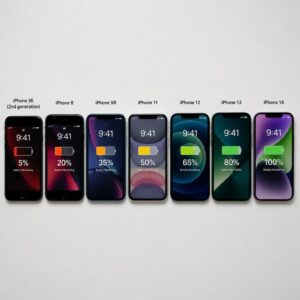
In Battery settings, you can now see exactly how long it will take to hit 80% or 100% whether you’re using a wall adapter, wireless pad, or power bank. That’s especially useful when you’re juggling work calls, flights, or just trying to leave the house on time.
Pro tip: Wired charging still tends to be fastest — but now you can see concrete numbers. 🔋
7. Instant Object Search from Screenshots
This one feels like sci-fi.
Take a screenshot, then draw around an object in it. A quick wait later, your iPhone will search the web and show you results — perfect if you want to find that shirt someone’s wearing or look up a gadget. No typing, no extra steps.
It’s similar to other smart selection tech but integrated right into screenshots, saving precious time.
8. Custom Ringtones from Your MP3s
You might know you can make custom ringtones — but on the iPhone 17 Pro, it’s really simple now.
Drop an MP3 into Files → Downloads, open it, tap Share, then select Use as Ringtone — so long as the clip is under 30 seconds.
That’s free personalization that you’ll actually use. 🎶
9. Customize Your Home Screen Like a Pro
Apple’s customization options used to be limited. No more.
Resize Icons & Change Styles
- Large icons without labels? Yep.
- Small icons with labels? You got it.
- Tinted icons that match your wallpaper or case? Fancy.
It’s like giving your phone a personality.
Pro tip: You can even color-pick based on your wallpaper for perfect aesthetic harmony.
10. Lock Screen Spatial Wallpapers & Dynamic Clocks
Your lock screen just went from boring to beautiful.
Pick a photo, then hit the spatial icon to turn it into a 3D background. Then tap the clock and drag a handle to resize its size for style points. The iPhone even resizes clocks automatically with photo shuffle wallpapers so each look feels unique.
Add Apple Music’s Animated Art and your lock screen can literally dance when you tap album notes. 🎶
11. Tailor Your Camera Button Controls
Love simplicity? This hidden trick removes clutter.
Head into Camera settings → Camera control → Customize and disable everything except Zoom. Now when you swipe your camera, it goes straight to zoom — no fuss.
If you prefer adjusting exposure instead, just swipe to make things brighter or darker — simple!
12. Quick iOS Tips Everyone Should Know
Here are some bite-sized but powerful tricks:
- Change iMessage backgrounds: Tap the chat name → Backgrounds and swipe through animated designs.
- Lock any app with Face ID: Long-press app → Require Face ID.
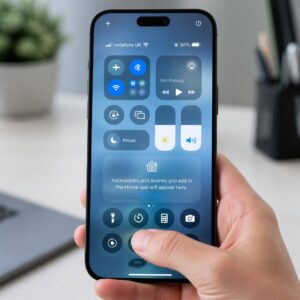
- Flashlight beam control: In Control Center, swipe left-right on the flashlight to focus or flood the light.
- Turn on battery percentage: In Battery settings, toggle battery percentage for a precise juice read.
Small tweaks, big impact.
Conclusion: Your iPhone 17 Pro Hidden Tricks Cheat Sheet
The iPhone 17 Pro isn’t just another smartphone — it’s a toolbox of little surprises that elevate everyday use. From spatial photos and battery insights to camera innovations and interface polish, these iPhone 17 Pro Hidden Tricks will help you do more with less effort.
Whether you’re a creator, a casual snapper, or someone who just wants a smoother phone experience, mastering these tricks will make your iPhone feel truly yours.
Outbound References
Here are some authoritative pages I referenced:
- 🔗 Apple’s official iPhone 17 Pro specs, including all camera details and system info. Apple iPhone 17 Pro Official Specs & Features
- 🔗 MacRumors coverage of iPhone 17 Pro features, including the camera and dual capture capabilities. iPhone 17 Pro Features Explained
If you want, I can also provide short social posts or visuals to go with this blog. Just let me know! 📱✨