Table of Contents
Toggle7 Shocking Ways ChatGPT + Siri Shortcuts Are Replacing Entire App Subscriptions on iPhone
Open your iPhone right now. Go to Settings, tap your name at the top, then tap Subscriptions.
Count them.
Grammarly. Duolingo. Your meal planner. That fitness app you downloaded in January. The email client that promised to “tame your inbox.” The AI writing tool. The study app your kid uses.
If you’re like the average iPhone user in 2025, you’re carrying somewhere between 6 and 12 active app subscriptions. At $5 to $15 a month each, that quiet drip of auto-renewals is costing you $500 to $1,500 a year — money that vanishes from your bank account in $9.99 increments you barely notice.
Now here’s the part that should make you pause: a growing number of those subscriptions do the exact same thing ChatGPT can do through a free Siri Shortcut on your iPhone. Same quality. Same convenience. Fraction of the cost.
I’ve spent the last three months systematically replacing my paid app subscriptions with custom Siri Shortcuts powered by the ChatGPT API. The results surprised even me. I cancelled seven subscriptions, saved roughly $68 per month, and in most cases, the Shortcut version worked better because I could customize it to my exact workflow.
This article walks you through every single replacement — what it does, how to set it up, and where the trade-offs live. No hype. No fluff. Just the practical reality of what AI automation on iPhone looks like right now.
The Subscription Trap Nobody Talks About
How Much Are You Really Spending on iPhone Apps?
The subscription economy has exploded. According to a 2024 report from App Annie (now data.ai), the average American smartphone user spends $133 per month on digital subscriptions across all platforms, with mobile app subscriptions accounting for roughly 40% of that total.
The App Store makes it frictionless to subscribe — one Face ID scan and you’re locked into a recurring charge. What it doesn’t do is remind you, six months later, that you haven’t opened that $12.99/month meditation app since February.
The subscription model works brilliantly for developers. For users? It’s a slow leak. You’re paying for overlapping functionality across apps that each solve one narrow problem. A grammar checker here. A recipe generator there. A language tutor in another tab. Each one charges you separately for capabilities that a large language model handles natively.
Why ChatGPT and Siri Shortcuts Change the Math
ChatGPT isn’t a grammar app. It isn’t a recipe app. It isn’t a language tutor. It’s a general-purpose reasoning engine that can perform the role of all three — and dozens more — through natural language prompts.
Siri Shortcuts is Apple’s built-in automation framework. It lets you chain together actions on your iPhone: grab text from your clipboard, send it to a web API, process the response, and display it — all triggered by a voice command or a tap on your home screen.
When you connect these two tools, you get a personal AI assistant that lives inside your iPhone’s native automation layer. No app store download. No subscription fee per use case. One API connection, unlimited applications.
The cost? An OpenAI API key runs roughly $5–$10 per month for moderate personal use — and that single key powers every Shortcut you build. Compare that to the $68/month I was paying for seven separate subscriptions, and the math speaks for itself.
How ChatGPT + Siri Shortcuts Work Together (A 3-Minute Primer)
What Siri Shortcuts Can Do That Most People Miss
Most iPhone users think of Siri Shortcuts as the thing that lets you say “Hey Siri, heading home” to trigger a navigation route and send a text to your partner. That’s the surface layer.
Underneath, Shortcuts is a full visual programming environment. You can:
- Make HTTP requests to any web API (including OpenAI’s)
- Process JSON data returned from those requests
- Manipulate text — extract, replace, format, translate
- Read from and write to your clipboard, notes, reminders, and calendar
- Run conditionals and loops based on input
- Trigger via Siri voice commands, home screen widgets, automations, or the Action Button on iPhone 15 Pro and later
In plain English: Shortcuts can talk to ChatGPT, send it your question or task, receive the answer, and deliver it to you however you want — as a notification, a spoken response, a note, or a clipboard paste.
Connecting ChatGPT’s API to Your iPhone
The bridge between Siri Shortcuts and ChatGPT is the OpenAI API. Here’s the simplified version of how it works:
- You sign up at platform.openai.com and generate an API key
- You build (or download) a Siri Shortcut that includes a “Get Contents of URL” action
- That action sends an HTTP POST request to OpenAI’s chat completions endpoint (
https://api.openai.com/v1/chat/completions) - The request includes your API key, the model you want to use (GPT-4o, GPT-4o-mini, etc.), and your prompt
- OpenAI returns a response, which the Shortcut parses and displays
The entire exchange takes 2–5 seconds on a typical cellular connection.
The Setup You Need Before We Start
Before diving into the seven replacements, make sure you have:
- An iPhone running iOS 17 or later (iOS 18 recommended for the latest Shortcut actions)
- The Shortcuts app installed (it comes pre-installed on all iPhones)
- An OpenAI account with API access — sign up here
- An API key stored securely (I’ll cover security in detail later)
- A small API budget — $5–$10/month covers heavy personal use; GPT-4o-mini costs a fraction of a cent per request
🔗 Get started with OpenAI’s API — free trial credits available
Once you have these in place, every Shortcut below takes 5–15 minutes to build from scratch. Or you can find pre-built templates in the Shortcuts Gallery and community repositories like RoutineHub — just swap in your API key.
7 Paid App Subscriptions You Can Replace Right Now
1. Writing and Grammar Assistants (Goodbye, Grammarly Premium)
Subscription replaced: Grammarly Premium ($12/month) or ProWritingAid ($10/month)
Estimated savings: $120–$144/year
Grammarly Premium checks grammar, suggests tone improvements, rewrites sentences for clarity, and catches plagiarism. It’s genuinely useful. But GPT-4o does all of this natively — and with more contextual understanding than a rule-based grammar engine.
The Shortcut: I built a Shortcut called “Proofread This.” Here’s what it does:
- Grabs whatever text is currently on my clipboard
- Sends it to GPT-4o with the prompt: “Proofread the following text. Fix grammar, punctuation, and spelling errors. Improve sentence clarity without changing the meaning or tone. Return only the corrected text, followed by a brief list of changes.”
- Displays the corrected version in a Quick Look window
- Offers to copy the result back to my clipboard
Real-world test: I ran a 500-word draft blog post through both Grammarly Premium and my Shortcut. Grammarly flagged 14 issues. The Shortcut caught all 14 plus three awkward phrasings that Grammarly missed. The tone preservation was better too — Grammarly sometimes flattens voice into corporate blandness, while GPT-4o maintained my conversational style.
Where Grammarly still wins: Real-time inline corrections as you type. The Shortcut works on finished text, not live keystrokes. If you need that live overlay in Safari or Mail, Grammarly’s keyboard extension still has an edge.
Setup time: ~10 minutes
Trigger: “Hey Siri, proofread this” or a home screen widget
2. Meal Planning and Recipe Generators (Goodbye, Mealime Pro)
Subscription replaced: Mealime Pro ($5.99/month) or Yummly Pro ($4.99/month)
Estimated savings: $60–$72/year
Meal planning apps generate weekly menus, create grocery lists, and adjust for dietary restrictions. They’re handy — but they pull from a fixed recipe database, which means you see the same 40 meals rotating every few weeks.
The Shortcut: My “Weekly Meal Plan” Shortcut does this:
- Asks me three questions via Siri: dietary restrictions, how many people I’m cooking for, and how many days I need
- Sends those answers to GPT-4o with a detailed prompt requesting a full weekly meal plan (breakfast, lunch, dinner) with recipes, prep times, and a consolidated grocery list
- Formats the output as a structured note and saves it to Apple Notes
- Optionally adds the grocery list items to Reminders
Real-world test: The variety blew Mealime out of the water. GPT-4o generated recipes I’d never seen before — Korean gochujang chicken bowls, shakshuka with feta, miso-glazed salmon — all calibrated to my “no dairy, high protein” preference. The grocery list was organized by store section (produce, protein, pantry), which Mealime Pro doesn’t do.
Where Mealime still wins: Nutritional macro tracking. If you need precise calorie and macro counts logged automatically, a dedicated app with a food database is more reliable than GPT-4o’s estimates (which are directionally correct but not lab-accurate).
Setup time: ~15 minutes
Trigger: “Hey Siri, plan my meals” or a Sunday morning automation
3. Language Learning Tutors (Goodbye, Duolingo Super)
Subscription replaced: Duolingo Super ($12.99/month) or Babbel ($13.95/month)
Estimated savings: $156–$167/year
This one shocked me the most. Duolingo is a $6 billion company built on gamified language drills. GPT-4o is a significantly better language tutor for anyone past the absolute beginner stage.
The Shortcut: My “Spanish Practice” Shortcut runs a conversational lesson:
- Asks what level I’m at and what topic I want to practice (ordering food, job interviews, travel, etc.)
- Initiates a role-play conversation in Spanish via text or Siri’s voice output
- After each of my responses, provides corrections, explains grammar rules, and suggests more natural phrasing
- Ends with a 5-question quiz on the session’s vocabulary
Real-world test: After two weeks of daily 10-minute Shortcut sessions, my conversational Spanish improved noticeably more than after two months of Duolingo streaks. The difference is context. Duolingo drills isolated sentences. GPT-4o simulates real conversations where I have to think on my feet, make mistakes, and get immediate, personalized feedback.
Where Duolingo still wins: Gamification and habit formation. The streak mechanic, XP system, and league rankings keep casual learners engaged in a way that a Shortcut doesn’t. For absolute beginners who need structure and motivation, Duolingo’s scaffolding is hard to replicate.
Setup time: ~10 minutes
Trigger: “Hey Siri, practice Spanish” or a daily 8 AM automation
4. Personal Fitness Coaching (Goodbye, Fitbod Elite)
Subscription replaced: Fitbod Elite ($12.99/month) or Future ($149/month — yes, really)
Estimated savings: $156–$1,788/year
Fitness coaching apps generate workout plans based on your goals, available equipment, and recovery status. The expensive ones (like Future) pair you with a human coach via text. The cheaper ones (like Fitbod) use algorithms.
The Shortcut: My “Today’s Workout” Shortcut works like this:
- Asks me three things: what muscle groups I trained yesterday, what equipment I have access to today (gym, home dumbbells, bodyweight only), and how much time I have
- Generates a complete workout with exercises, sets, reps, rest periods, and form cues
- Saves the workout to Apple Notes and creates a timer Shortcut for rest periods between sets
Real-world test: The workout quality rivals Fitbod’s algorithm and comes close to what my human trainer used to program. GPT-4o understands periodization, progressive overload, and exercise substitutions. When I told it my shoulder was sore, it swapped overhead presses for lateral raises without missing a beat.
Where Fitbod still wins: Workout logging and progressive tracking. Fitbod automatically records your weights and reps, then adjusts future workouts based on your history. The Shortcut generates great plans but doesn’t maintain a persistent training log unless you build that layer yourself (which is possible but adds complexity).
Setup time: ~15 minutes
Trigger: “Hey Siri, what’s my workout today?” or a morning automation
5. Email Summarization and Triage (Goodbye, Spark Premium)
Subscription replaced: Spark Premium ($7.99/month) or SaneBox ($7/month)
Estimated savings: $84–$95/year
Premium email apps promise to cut through inbox noise with AI summaries, smart sorting, and priority filtering. Spark’s AI features, for example, summarize long threads into bullet points and draft replies.
The Shortcut: My “Summarize Inbox” Shortcut takes a different approach:
- Uses the “Find Mail” action to pull the 10 most recent unread emails
- Extracts the sender, subject, and body preview from each
- Sends the batch to GPT-4o with the prompt: “Summarize each email in one sentence. Flag any that require a response within 24 hours. Draft a brief reply for the urgent ones.”
- Displays the summary as a notification and saves the full breakdown to Apple Notes
Real-world test: The summaries were sharper than Spark’s AI. GPT-4o caught nuance that Spark missed — like identifying a passive-aggressive client email that needed careful handling versus a routine newsletter that could be archived. The draft replies were usable with minor edits, saving me 15–20 minutes each morning.
Where Spark still wins: Deep inbox integration. Spark lives inside your email client, so it can sort, archive, and snooze messages with a swipe. The Shortcut gives you intelligence about your inbox but can’t take action on messages directly (yet — iOS 18’s expanded Mail Shortcuts actions are closing this gap).
Setup time: ~15 minutes
Trigger: “Hey Siri, summarize my inbox” or an 8 AM weekday automation
6. Code Assistance on Mobile (Goodbye, Copilot Mobile)
Subscription replaced: GitHub Copilot Individual ($10/month) for mobile use
Estimated savings: $120/year
Mobile coding is a niche use case, but for developers who review pull requests, debug snippets, or prototype ideas on their iPhone during commutes, Copilot’s mobile integration has been a game-changer. GPT-4o through Shortcuts handles the same tasks with more flexibility.
The Shortcut: My “Debug This Code” Shortcut:
- Reads code from my clipboard (copied from a GitHub notification, Slack message, or text editor)
- Sends it to GPT-4o with the prompt: “Review this code for bugs, security vulnerabilities, and performance issues. Explain any problems in plain English and provide the corrected version.”
- Displays the analysis and offers to copy the fixed code
Real-world test: I fed it a Python function with a subtle SQL injection vulnerability. Copilot flagged the injection. GPT-4o flagged the injection, explained why it was dangerous, suggested parameterized queries, and also caught an edge case in the error handling that Copilot missed.
Where Copilot still wins: IDE integration. Copilot lives inside VS Code and Xcode, providing inline autocomplete as you type. The Shortcut is a review-and-debug tool, not a live coding companion. For actual development work on a laptop, Copilot’s integration is unmatched.
Setup time: ~10 minutes
Trigger: “Hey Siri, debug this” or a clipboard-triggered automation
7. Study and Research Helpers (Goodbye, Notion AI)
Subscription replaced: Notion AI ($10/month add-on) or Quizlet Plus ($7.99/month)
Estimated savings: $96–$120/year
Notion AI summarizes documents, generates study guides, and answers questions about your notes. Quizlet creates flashcards from your material. Both are popular with students and knowledge workers.
The Shortcut: My “Study This” Shortcut handles both use cases:
- Accepts text input — a pasted article, lecture notes, or a chapter summary
- Asks me what I need: a summary, flashcards, quiz questions, or an explanation of a specific concept
- Generates the requested output and saves it to Apple Notes or Reminders (for spaced-repetition flashcards)
Real-world test: I fed it a 3,000-word article on transformer architecture (relevant to my AI research work). The summary was concise and accurate. The 10 quiz questions it generated tested genuine understanding, not just keyword recall. When I asked it to explain attention mechanisms “like I’m 15,” it produced a clearer explanation than most YouTube tutorials I’ve watched.
Where Notion AI still wins: Persistent knowledge base integration. Notion AI can search and reference your entire Notion workspace, connecting ideas across hundreds of documents. The Shortcut works on whatever text you feed it in the moment — it doesn’t maintain a searchable knowledge graph.
Setup time: ~10 minutes
Trigger: “Hey Siri, study this” or a share sheet extension
Side-by-Side Savings Comparison Table
| Subscription Replaced | Monthly Cost | Annual Cost | Shortcut Cost (API) | Annual Savings |
|---|---|---|---|---|
| Grammarly Premium | $12.00 | $144 | ~$1 | $132 |
| Mealime Pro | $5.99 | $72 | ~$0.50 | $66 |
| Duolingo Super | $12.99 | $156 | ~$1 | $144 |
| Fitbod Elite | $12.99 | $156 | ~$0.75 | $147 |
| Spark Premium | $7.99 | $95 | ~$0.50 | $89 |
| GitHub Copilot (mobile) | $10.00 | $120 | ~$1 | $108 |
| Notion AI | $10.00 | $120 | ~$1 | $108 |
| Total | $71.96 | $863 | ~$5.75 | ~$794 |
API costs are estimates based on moderate daily use with GPT-4o-mini for routine tasks and GPT-4o for complex requests. Your actual costs will vary based on usage volume and model selection.
That’s nearly $800 per year back in your pocket. And you’re not losing functionality — in most cases, you’re gaining customization.
The Privacy and Security Angle You Cannot Ignore
This is the section most “AI life hack” articles skip. I won’t.
What Data Does ChatGPT Collect Through Shortcuts?
When you send text to the OpenAI API, that data leaves your iPhone and travels to OpenAI’s servers. Period. This is fundamentally different from Apple Intelligence, which processes most tasks on-device using the Neural Engine.
OpenAI’s API data policy (as of early 2025) states that:
- API data is not used to train models by default (unlike the free ChatGPT web interface, which may use your conversations for training unless you opt out)
- Data is retained for 30 days for abuse monitoring, then deleted
- You can request data deletion through OpenAI’s privacy portal
That said, you are sending personal information — your emails, your code, your health data, your study notes — to a third-party server. Understand that trade-off before you build these Shortcuts.
How to Lock Down Your API Key on iPhone
Your OpenAI API key is a credential. Treat it like a password.
- Never hardcode it in plain text inside a Shortcut. Use the “Get Contents of URL” action’s header field to pass it as a Bearer token, and store the key in a password manager
- Set spending limits in your OpenAI dashboard — I cap mine at $10/month to prevent runaway charges if a Shortcut loops accidentally
- Use a dedicated API key for your iPhone Shortcuts, separate from any keys you use for development or work. If the key leaks, you revoke one key without disrupting other services
- Monitor usage weekly at platform.openai.com/usage to spot anomalies
🔒 Learn more about securing API keys from OWASP
When You Should NOT Use This Setup
Some data is too sensitive to send to any external API, no matter how strong the privacy policy:
- Medical records or health information protected by HIPAA
- Financial data — bank statements, tax documents, account numbers
- Confidential work documents covered by NDA or corporate data policies
- Children’s personal information subject to COPPA regulations
- Legal documents containing privileged attorney-client communications
For these use cases, stick with on-device processing (Apple Intelligence, local LLMs via apps like MLC Chat) or dedicated apps with end-to-end encryption and compliance certifications.
Limitations and Honest Trade-Offs
I want to be straight with you: this setup isn’t perfect. Here are the real downsides I’ve encountered after three months of daily use:
No persistent memory across sessions. Each Shortcut invocation is a fresh conversation. GPT-4o doesn’t remember that you told it your dietary restrictions last Tuesday. You have to include context in every prompt or store preferences in a note that the Shortcut reads each time. This adds setup overhead.
Latency on complex requests. Simple grammar checks return in 2–3 seconds. A full weekly meal plan with recipes and a grocery list can take 15–25 seconds. That’s fine for asynchronous tasks but frustrating if you expect instant results.
No native UI. Shortcuts display results as plain text in Quick Look windows or notifications. There’s no polished interface, no progress bars, no gamified streaks. If UX matters to you, dedicated apps still feel more refined.
Prompt engineering is a skill. The quality of your output depends entirely on the quality of your prompt. A vague prompt gets a vague answer. Building effective Shortcuts requires some trial and error — think of it as programming in plain English.
API costs can spike. If you build a Shortcut that accidentally loops or processes large documents repeatedly, your API bill can jump. Set spending alerts and test new Shortcuts with GPT-4o-mini (which costs roughly 15x less than GPT-4o) before switching to the more powerful model.
Advanced Tips for Power Users
Once you’ve built the basics, these techniques take your setup to the next level:
- Chain multiple models in one Shortcut. Use GPT-4o-mini for quick classification tasks (“Is this email urgent?”) and route only complex requests to GPT-4o. This cuts costs by 60–80%.
- Use the Action Button on iPhone 15 Pro/16 Pro. Map your most-used Shortcut to the Action Button for one-press access. I have mine set to “Proofread This” — press and hold, and whatever’s on my clipboard gets polished.
- Build automations, not just Shortcuts. iOS 18 lets you trigger Shortcuts based on time, location, app opens, and NFC tags. I have a Shortcut that runs every morning at 7 AM, summarizes my inbox, generates my workout, and reads my daily priorities — all before I finish my coffee.
- Store preferences in Apple Notes. Create a note called “AI Preferences” with your dietary restrictions, fitness goals, language level, and writing style. Have your Shortcuts read this note and include it in the system prompt. This simulates persistent memory without any external database.
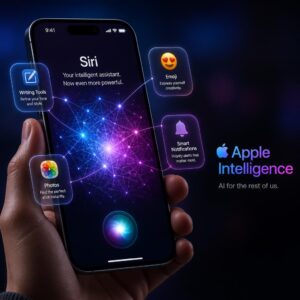
- Combine with Apple Intelligence. Use Apple Intelligence for on-device tasks (notification summaries, writing tools in Mail) and route heavier lifting to ChatGPT via Shortcuts. The two systems complement each other rather than competing.
Frequently Asked Questions (FAQs)
1. Do I need ChatGPT Plus to use Siri Shortcuts with ChatGPT?
No. The Shortcuts connect to the OpenAI API, which is a separate product from the ChatGPT Plus subscription ($20/month). You only need an OpenAI API account with a valid API key. API pricing is usage-based — most personal users spend $5–$10 per month, which is significantly less than a ChatGPT Plus subscription. That said, if you already have ChatGPT Plus, you still need a separate API key for Shortcuts; the two billing systems are independent.
2. Is this legal and within Apple’s terms of service?
Yes. Siri Shortcuts is Apple’s official automation framework, and making HTTP requests to external APIs is a documented, supported feature. OpenAI’s API terms of service permit personal use through third-party integrations. You’re not hacking anything — you’re using both platforms exactly as designed.
3. Can I use these Shortcuts offline?
No. The Shortcuts require an active internet connection to reach OpenAI’s servers. Without connectivity, the HTTP request fails and the Shortcut returns an error. If you need offline AI capabilities, look into on-device models through apps like MLC Chat or Apple Intelligence (available on iPhone 15 Pro and later with iOS 18.1+).
4. How do I find pre-built ChatGPT Shortcuts instead of building my own?
Several community repositories host ready-made Shortcuts:
- RoutineHub.co — the largest Shortcuts community; search “ChatGPT” for dozens of templates
- r/shortcuts on Reddit — active community sharing and reviewing Shortcuts
- MacStories.net — Federico Viticci publishes detailed Shortcut guides with download links
When downloading third-party Shortcuts, always review the actions before running them. Check that the API key field is empty (so you can insert your own) and that no data is being sent to unknown URLs.
5. Will Apple Intelligence make these Shortcuts obsolete?
Not entirely. Apple Intelligence handles on-device tasks well — writing assistance, notification summaries, image generation, and Siri enhancements. But it has significant limitations: it runs smaller models, can’t access the internet for real-time information, and doesn’t support the open-ended customization that ChatGPT Shortcuts offer. Think of Apple Intelligence as a capable assistant for common tasks and ChatGPT Shortcuts as a specialist you call for complex, custom work. They coexist.
6. How accurate is ChatGPT for tasks like meal planning and fitness?
GPT-4o provides directionally accurate and highly useful output for meal planning and fitness programming, but it is not a substitute for professional medical, nutritional, or training advice. Calorie counts and macro estimates are approximations. Exercise form cues are text-based and can’t replace in-person coaching. Use these Shortcuts as a starting point and consult qualified professionals for personalized health guidance.
7. Can I share my ChatGPT Shortcuts with family members?
Yes, you can share Shortcuts via iCloud link, AirDrop, or the Shortcuts Gallery. However, do not share your API key. Each family member should create their own OpenAI account and API key. You can build the Shortcut once, share the template, and have each person insert their own credentials. This keeps billing separate and prevents one person’s usage from draining another’s budget.
8. What happens if OpenAI changes its API pricing or terms?
API pricing changes do happen — OpenAI has actually reduced prices several times since 2023. If prices increase significantly, you have options: switch to a cheaper model (GPT-4o-mini is extremely affordable), reduce usage, or migrate to an alternative API like Anthropic’s Claude or Google’s Gemini, which use similar HTTP request structures and can be swapped into existing Shortcuts with minimal changes.
Your Next Move
The subscription economy trained us to accept monthly charges as the default cost of using software. AI automation breaks that assumption. You don’t need seven apps doing seven narrow jobs when one reasoning engine can handle all seven through a native iPhone feature you already own.
Here’s what I’d do if I were starting fresh today:
- Audit your subscriptions. Open Settings > [Your Name] > Subscriptions. List every active charge and ask: “Does this do something ChatGPT can’t?”
- Pick the easiest replacement first. The proofreading Shortcut takes 10 minutes to build and replaces the most expensive subscription on most people’s lists. Start there. Build confidence. Then tackle the harder ones.
- Set up your OpenAI API account. Sign up here, generate a key, and set a $10 monthly spending limit.
- Build or download one Shortcut this weekend. Don’t try to replace everything at once. One Shortcut, used daily for a week, will teach you more about AI automation than reading ten articles.
- Cancel one subscription. Once your Shortcut works reliably, cancel the app it replaced. Watch your monthly expenses drop. Then repeat.
The tools are free. The setup is straightforward. The savings are real. The only thing standing between you and a leaner, smarter iPhone workflow is 15 minutes of setup time.
Go build your first Shortcut.
This article was originally published on CyberTechNerd.com. For more guides on AI automation, cybersecurity best practices, and technology that saves you money, explore our latest content and subscribe to our weekly newsletter.