Disclaimer: This article is for educational and informational purposes only. Results may vary depending on your iPhone model, iOS version, usage habits, and individual device conditions. The tips shared here are based on publicly available iOS features and general user experience. Always back up your device before making significant changes to settings.
Hidden iPhone Battery Settings Apple Won’t Tell You
You bought a premium phone. You paid a premium price. And somehow, by 2 PM, you’re hunting for a wall outlet like your life depends on it.
You’re not alone. Millions of iPhone users live with perpetual battery anxiety, never realizing that buried inside their phone are settings Apple quietly added, never spotlighted in any keynote, and never walked you through at setup. These aren’t hacks. They’re not jailbreaks. They’re legitimate iOS features sitting right there, waiting for you to find them.
This guide is going to show you exactly where they are.
Introduction: Why Your iPhone Battery Is Dying Faster Than It Should
Here’s the thing Apple doesn’t say out loud: iOS is optimized to look impressive in demos, not to maximize your battery life by default.
Every time you buy a new iPhone, Apple ships it with settings tuned for visual impact. High refresh rates. Background app activity. Persistent location tracking. AI features running silently in the background. It all looks smooth and magical, and it drains your battery at a pace that would make a 2007 laptop blush.
The dirty secret? A significant portion of that drain is completely optional. You can keep the features you actually use and quietly kill everything that’s running in the background without your permission. You just need to know where to look.
The menus we’re walking through exist inside your actual iOS settings. Some require a few taps to find. A couple are tucked behind accessibility options nobody thinks to check. But every single one is legitimate, free, and available right now on your device.
By the time you finish this post, your phone will behave differently. Not placebo differently. Measurably, noticeably differently.
Let’s get into it.
The Hidden iPhone Battery Usage Menu That Shows You Exactly What’s Killing Your Battery
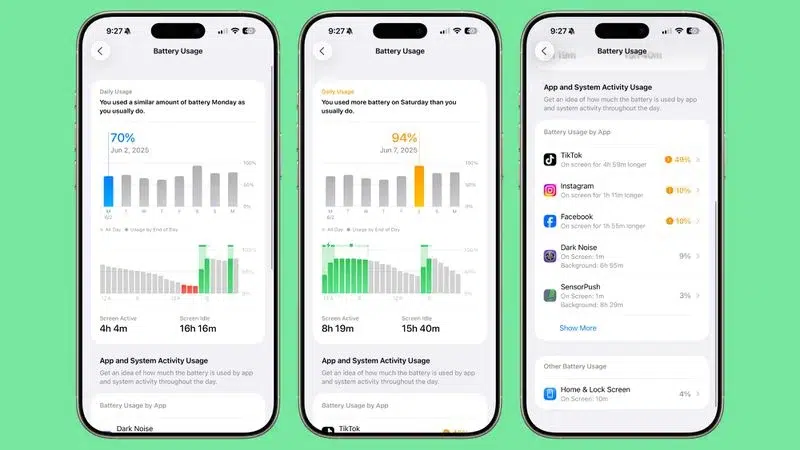
Most people have seen the battery percentage. Far fewer have actually used the detailed battery usage breakdown buried one level deeper.
Go to Settings > Battery. You’ll see Battery Health and a percentage. Good start. Now scroll down. You’ll find a breakdown of which apps consumed the most battery over the last 24 hours or the last 10 days. Tap the clock icon in the top right corner of that list and you get a split view: time on screen versus time in background.
That “background” column is where things get interesting.
Some apps rack up more background time than screen time. Meaning they’re draining your iPhone battery life when you’re not even looking at them. Social media apps are notorious for this. So are news apps, weather apps, and certain navigation tools. The background activity often has nothing to do with keeping the app functional for you. It’s about fetching data, refreshing feeds, and serving you faster ads when you open them.
What to look for in this menu:
- Any app with high background time relative to its screen time
- Apps you rarely use appearing in the top 10 battery consumers
- System services (found at the very bottom of the list) consuming disproportionate battery
Once you identify the culprits, you have options. You can disable background refresh for specific apps, revoke always-on location permissions, or delete apps you genuinely don’t need running silently all day.
This one menu, used properly, is a complete audit of your iPhone battery drain. Most people have never opened it.
Background App Refresh: The Silent Battery Killer Hidden iPhone Settings Can Fix
Background App Refresh is one of those features that sounds useful and often isn’t.
The idea is that your apps stay updated even when you’re not using them. Instagram refreshes your feed. Your email client checks for new messages. Your news app downloads fresh headlines. All while the app is closed. In theory, this means things load faster when you open them. In practice, it means your battery is working constantly for apps that could simply refresh the moment you open them.
Go to Settings > General > Background App Refresh. You’ll see a master toggle and a list of every app on your phone. Apple gives you three options at the top: Off, Wi-Fi, or Wi-Fi & Cellular. Most people have it set to Wi-Fi & Cellular, which is the most battery-intensive option.
Here’s the honest truth: very few apps actually need background refresh.
Apps that genuinely benefit from it:
- Navigation apps like Google Maps or Waze (so routes pre-load)
- Podcast apps if you want episodes downloaded automatically
- Messaging apps if your notifications seem delayed
Apps that don’t need it at all:
- Instagram, TikTok, Facebook, X (Twitter)
- Shopping apps
- Games
- Banking apps
- Weather apps (they refresh the second you open them)
Turn it off globally first, then selectively re-enable it for the two or three apps where you notice a real difference. The iPhone battery life improvement here can be dramatic, especially if you have dozens of apps installed.
Location Services: The Secret iPhone Settings That Track You More Than You Know
Location tracking is quietly one of the largest contributors to battery drain that users never think about.
Go to Settings > Privacy & Security > Location Services. Scroll through the list. You’ll almost certainly find apps set to “Always” that have absolutely no reason to know where you are at all times. Shopping apps. Recipe apps. Flashlight apps. Games. Apps that haven’t been opened in three months.
The “Always” setting means those apps can ping your GPS continuously in the background, even when you’re sitting still at your desk.
The permission tiers explained simply:
- Never: The app cannot access your location at all
- Ask Next Time or When I Share: One-time access, then it asks again
- While Using the App: Location only when the app is open
- Always: Continuous access, including in the background
For most apps, “While Using the App” is more than enough. For apps like shopping or social media, “Never” is perfectly fine. They work exactly the same without knowing your ZIP code.
There’s also a setting called Precise Location that appears under each app. Many apps request your exact GPS coordinates when a general neighborhood-level location would do the job fine. Toggle precise location off for any app where pinpoint accuracy doesn’t actually matter.
Work through this list methodically. It takes about ten minutes and the impact on your hidden iPhone battery settings is substantial. According to Apple’s own support documentation on top battery-saving practices, managing location permissions is consistently listed among the most impactful actions you can take.
The Display and Brightness Settings Apple Buries That Wreck Your iPhone Battery Life
Your screen is the single most power-hungry component on your iPhone. Everything behind the glass, the processing, the radios, the sensors, is secondary to what the display consumes. So the settings that govern your display have an outsized effect on your iPhone battery life.
Start with Settings > Display & Brightness. Auto-Brightness is usually on, and that’s fine. But the starting brightness level matters. If your phone feels dim for a few seconds after you unlock it, that’s normal. If it’s consistently bright in low-light environments, something is calibrating incorrectly and you should recalibrate by covering the light sensor (on the top of the phone) and then uncovering it in your actual lighting conditions.
The ProMotion issue most people don’t know about:
If you have an iPhone 13 Pro, 14 Pro, 15 Pro, or any Pro model since 2021, your display runs at 120Hz by default. That’s ProMotion. It makes scrolling look silky smooth, and it costs real battery.
Go to Settings > Accessibility > Motion > Limit Frame Rate. Turning this on caps your display at 60Hz. You will notice a slight visual difference when scrolling. Most people adjust within an hour and stop noticing entirely. The battery difference is measurable.
Other display settings worth adjusting:
- Set Auto-Lock to 30 seconds (Settings > Display & Brightness > Auto-Lock). The default is often 2 minutes, which means your screen stays on long after you’ve put the phone down.
- Turn on Reduce White Point under Settings > Accessibility > Display & Text Size. This reduces the maximum brightness ceiling, which matters at night and saves battery without making your screen unreadable.
- If you have an iPhone with an OLED display (iPhone X and newer), using a dark wallpaper and enabling Dark Mode (Settings > Display & Brightness > Dark Mode) genuinely saves battery. OLED screens don’t illuminate black pixels, so dark interfaces use measurably less power.
Stacking these display changes together is one of the fastest ways to extend iPhone battery life without sacrificing anything you’d actually miss.
The iPhone’s Secret Connectivity Settings Menu That Drains Power in the Background
Your iPhone is always reaching out. To cell towers. To Wi-Fi networks. To Bluetooth devices. To satellites. Every one of those radio connections burns power, even when you’re not actively using any of them.
Most people know to turn on Airplane Mode when they want to save battery aggressively. What most people don’t know is that you can make surgical adjustments that give you most of that benefit without actually going offline.
Wi-Fi:
If you’re in an area with poor or no Wi-Fi signal and your phone keeps scanning for networks, that scanning burns battery. If you’re out for the day and won’t be near a trusted network, go to Settings > Wi-Fi and toggle it off. Your cellular connection handles everything and your phone stops burning energy on fruitless network scans.
Bluetooth:
Bluetooth is frequently left on by people who use it only occasionally. If you’re not using AirPods, a smartwatch, or a car connection right now, Settings > Bluetooth and toggle it off. Background Bluetooth activity is a consistent, low-level drain that adds up over the course of a day.
AirDrop:
This one surprises people. AirDrop uses both Wi-Fi and Bluetooth simultaneously to stay discoverable. Go to Settings > General > AirDrop and set it to “Receiving Off” when you’re not actively using it. Two radios, running continuously, for a feature you use occasionally, is a poor trade.
5G Settings:
If you have a 5G iPhone (iPhone 12 and later), your phone may be connecting to 5G networks even when the speed difference is irrelevant, like when you’re reading an email or checking a weather app. Go to Settings > Cellular > Cellular Data Options > Voice & Data and switch from “5G Auto” or “5G On” to “LTE.” You will not notice a speed difference for most everyday tasks, and your battery will thank you. Apple’s own internal testing shows LTE consumes significantly less power than maintaining a 5G connection.
Notifications: The Hidden iPhone Battery Drain Nobody Talks About
This one gets overlooked because it feels minor. It isn’t.
Every notification your phone receives wakes the processor, illuminates the screen, vibrates the motor, and if you have an older model, flashes the indicator. Multiply that by the average American smartphone user who receives somewhere between 65 and 80 app notifications per day, and you have a meaningful, constant source of battery drain baked into your daily routine.
Go to Settings > Notifications. Go through this list app by app. For each one, ask yourself a simple question: “Did I choose to get notifications from this app, or did it just turn itself on?” For most apps, the answer is the latter.
A practical notification audit:
- Turn off notifications entirely for shopping apps, games, and social media you check voluntarily
- For email, switch from “immediate” to a scheduled check if your mail client supports it
- For apps you want to hear from, disable sound and badge separately if you only want to see notifications when you choose to look
- Disable Lock Screen notifications for apps that don’t need to wake your screen
There’s also a setting called Scheduled Summary (Settings > Notifications > Scheduled Summary) that batches non-urgent notifications into a digest delivered at set times. This is one of Apple’s better quality-of-life additions that almost nobody uses. Enabling it for social media and news apps means your phone stops lighting up every 8 minutes while keeping you informed on your schedule.
Siri, Spotlight, and the Background Intelligence Draining Your iPhone Battery Life
Apple’s intelligence features are impressive. They’re also running constantly, and they cost more battery than you’d expect.
“Hey Siri” and always-on listening:
Go to Settings > Siri & Search. If you don’t use Hey Siri regularly, turn it off. Always-on voice detection requires your phone to continuously process audio through its microphone. On newer chips it’s efficient, but it’s never free.
Siri Suggestions and App Predictions:
Still in Settings > Siri & Search, scroll down and you’ll see a list of every app with options for “Learn from this App,” “Show App in Search,” “Show on Home Screen,” and more. Siri learns your patterns by analyzing your behavior in real time. This background learning burns CPU cycles quietly.
For apps you use occasionally or apps you don’t want Siri to learn from, toggle these off. You won’t lose any core functionality.
Spotlight Search Indexing:
Go to Settings > Siri & Search and scroll to the bottom. You’ll find toggles for which apps get indexed by Spotlight. Removing rarely-used apps from Spotlight indexing means your phone doesn’t maintain search data for them, which reduces background processing.
Analytics and Diagnostics:
Go to Settings > Privacy & Security > Analytics & Improvements. Here you’ll find toggles for sharing analytics with Apple, sharing with app developers, and improving Siri. None of these directly provide you with value. All of them require background processing and periodic data uploads. Turning them off is painless and yields a small but genuine improvement in iPhone battery life.
The Refresh and Fetch Settings Deep Inside iOS That Keep Your Battery Constantly Working
Email is one of the most persistent silent battery drains on any smartphone, and most users have no idea their email settings are set up in the most power-intensive way possible.
There are two ways your phone gets new email: Push and Fetch.
Push means the mail server contacts your phone the instant a new email arrives. Your phone wakes up, establishes a connection, downloads the message, and notifies you. This happens for every single email, including spam, marketing, and the 47 newsletter subscriptions you’ve accumulated over the years.
Fetch means your phone checks for new mail on a schedule: every 15 minutes, every 30 minutes, hourly, or manually. This is dramatically more battery-efficient because your phone controls the timing rather than being woken by external servers constantly.
Go to Settings > Mail > Accounts > Fetch New Data. At the top you’ll see a Push toggle. Below it, you can set the Fetch schedule for accounts that support it.
Recommended approach:
- Turn Push off globally
- Set Fetch to “Hourly” for accounts that aren’t time-sensitive
- Set your most important work account to “Every 30 Minutes”
- Set personal or low-priority accounts to “Manually”
If you receive a genuinely urgent email once a week, Push is overkill. The phone-in-pocket feeling that you’ve missed something won’t be satisfied by slightly faster email delivery. It gets satisfied by reducing anxiety, and that starts with turning off the constant background noise.
This one setting change has reportedly made a noticeable difference for heavy email users who treat their iPhone as a mobile office.
Low Power Mode: The Feature Apple Advertises But Doesn’t Explain Properly
Low Power Mode gets mentioned in Apple’s marketing when batteries are discussed, but what it does specifically gets glossed over.
When you enable Low Power Mode (Settings > Battery > Low Power Mode, or ask Siri, or add it to Control Center), iOS does the following automatically:
- Reduces display brightness slightly
- Reduces ProMotion refresh rate to 60Hz on Pro models
- Pauses iCloud Photos sync
- Pauses iCloud Drive activity
- Disables automatic downloads
- Reduces background app activity significantly
- Reduces “Hey Siri” detection sensitivity
- Disables some visual effects
That’s a comprehensive set of changes. The interesting part is that you don’t have to wait until your battery hits 20%. You can turn Low Power Mode on at 100% and leave it on all day.
Many users who do this report being able to comfortably make it through a full day, sometimes a day and a half, on a single charge. The trade-off is that a few automatic background processes pause, but for most everyday use, you won’t notice.
The hidden tip within Low Power Mode:
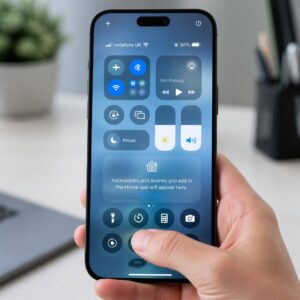
Add it to your Control Center (Settings > Control Center, then tap the plus next to Low Power Mode). Now you can toggle it with two taps from any screen without diving into settings every time. Treat it like a switch you flip on in the morning the way you’d turn off lights you’re not using. Simple habit, meaningful result.
Comparison Table: Default iPhone Settings vs. Optimized Hidden Battery Settings
| Setting | Default (Apple’s Shipped Config) | Optimized for Battery Life | Estimated Impact |
|---|---|---|---|
| Background App Refresh | Wi-Fi & Cellular (All Apps) | Off (selective re-enable) | High |
| Location Services | Always (multiple apps) | While Using / Never per app | High |
| Display Refresh Rate (Pro) | 120Hz ProMotion | 60Hz via Limit Frame Rate | Medium-High |
| Auto-Lock | 2 Minutes | 30 Seconds | Medium |
| Push Email | On (all accounts) | Off, Fetch Hourly or Manual | Medium-High |
| 5G Connection | 5G Auto or On | LTE | Medium |
| Hey Siri | Always Listening | Off (if rarely used) | Low-Medium |
| Notifications | All apps enabled | Curated, with Scheduled Summary | Medium |
| Bluetooth | On | Off when not in active use | Low-Medium |
| AirDrop | Contacts Only (radio still active) | Receiving Off | Low |
| Analytics Sharing | On | Off | Low |
| Dark Mode (OLED models) | Off (Light Mode default) | On | Medium |
| Spotlight Indexing | All apps | Curated to essentials | Low |
| Low Power Mode | Off | On from 100% (optional) | High |
The cumulative effect of applying all of these is not trivial. Each change on its own is modest. Together, they fundamentally change how your iPhone manages power across a full day.
The iPhone Settings Apple Definitely Knows About But Has No Reason to Highlight
Let’s be direct about something. Apple is a hardware company. Every two years, they’d prefer you to buy a new iPhone. Settings that make your current phone last longer all day reduce a key pain point that pushes people toward upgrades.
This isn’t a conspiracy. It’s just business logic. Apple builds these settings into iOS, they make them technically accessible, and then they design the default experience to prioritize visual performance over battery endurance. The knowledge gap between “shipped defaults” and “optimized settings” is entirely real and has real consequences for how long your iPhone lasts between charges.
Research from the World Economic Forum on top sustainable technology practices has highlighted that consumer electronics longevity is directly tied to software optimization, and that user education on device settings plays a measurable role in reducing unnecessary upgrade cycles. When your phone’s battery lasts longer each day, the phone itself lasts longer as a viable device over years.
There’s also the question of battery health, which lives at Settings > Battery > Battery Health & Charging. Your iPhone has a built-in “Optimized Battery Charging” feature that learns your charging habits and slows charging above 80% until just before your typical wake-up time. This preserves long-term battery chemistry. Make sure it’s toggled on.
If your battery health has already dropped below 80%, iOS will have already suggested considering a battery service. A battery replacement from Apple is a fraction of a new iPhone’s cost and restores performance to near-original levels. Many people buy a new phone when a battery replacement would have solved the problem entirely.
Advanced Hidden iPhone Settings for Power Users Who Want Every Last Percentage
If you’ve done everything above and you want to go further, there are a few more layers worth exploring.
Reduce Motion:
Go to Settings > Accessibility > Motion > Reduce Motion. This disables the parallax wallpaper effect and reduces animation transitions throughout iOS. On older iPhones, this can have a meaningful impact. On newer models, the effect is smaller but still measurable. The animations are cosmetic. Removing them costs you nothing functional.
Reduce Transparency:
Go to Settings > Accessibility > Display & Text Size > Reduce Transparency. This removes the frosted-glass blur effects throughout iOS, particularly in the Control Center and notification shade. Rendering real-time blur effects requires GPU processing. Turning this off saves that processing for things that actually matter.
Airplane Mode During Sleep:
If you charge your phone overnight and don’t need to receive calls or messages during sleeping hours, enabling Airplane Mode before bed stops all radio activity during charging. Your phone charges faster and the cellular radios get a rest. This also means your phone starts the day fully charged without having spent hours maintaining background connections it had no practical reason to maintain.
Screen Time and App Limits:
Settings > Screen Time gives you controls that go beyond parental management. You can use App Limits to cap the amount of time certain battery-heavy apps run each day. When the limit is reached, the app locks unless you override it. This is as much a battery strategy as it is a wellness tool.
iCloud Sync Settings:
Go to Settings > [Your Name] > iCloud and review which services are actively syncing. Many users have iCloud sync enabled for apps they never check. Every sync point requires background network activity. Turning off iCloud sync for unused apps reduces that activity meaningfully.
Why Your Battery Health Number Matters More Than Your Battery Percentage
There’s a difference between your battery percentage right now and the overall health of your battery’s capacity.
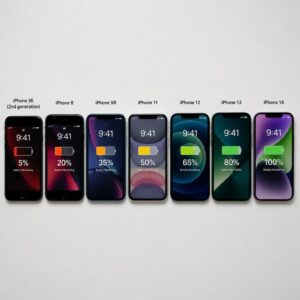
A brand-new iPhone has a battery at 100% health. After a year of regular use and charging, it might be at 88%. That means even when the percentage says 100%, the total capacity available is 88% of what it once was. Your phone dies faster not because of settings alone, but because the chemical capacity has degraded.
Settings > Battery > Battery Health & Charging shows you this number. If it’s above 80%, Apple considers the battery to be performing within normal specifications. Below 80%, you may notice significantly reduced performance and faster drain.
What affects battery health degradation:
- Frequent charging from 0% to 100% (partial charges are gentler on lithium-ion chemistry)
- Leaving the phone in hot environments (cars in summer are particularly damaging)
- Charging with uncertified third-party cables at the wrong wattage
- Keeping the battery at 100% for extended periods (overnight charging without Optimized Battery Charging enabled)
The settings in this guide reduce daily drain, which means you’re starting more cycles at a higher charge level, doing fewer deep discharge cycles, and putting less thermal stress on the battery. Indirectly, good battery habits and the right settings extend not just your daily battery life but the long-term health of the battery itself.
Conclusion: Your iPhone Already Has What You Need. You Just Had to Know Where to Look.
The settings that double your practical battery life were never hidden in the sense of being inaccessible. They were hidden in plain sight, behind menus Apple designed for other purposes, buried in accessibility options nobody opens, and sitting in defaults that prioritize how impressive the phone looks out of the box.
You don’t need a new iPhone. You don’t need a battery case. You don’t need to carry a portable charger everywhere you go like a safety blanket with a USB port.
You need fifteen minutes with your current phone’s settings and the knowledge that these options exist.
Apply them top to bottom. Check back on your battery usage screen in 48 hours. The difference will be measurable. Not marginal. Measurable.
And the next time someone complains that their iPhone dies by noon, you’ll know exactly what to send them.
Found this useful? Share it with someone whose phone is always at 11% by dinnertime. They’ll thank you. Or drop a comment below with which setting made the biggest difference for you. Genuinely curious which one surprises people most.