The Best iPhone Family Location Sharing Apps for 2026
You just want to know your kid got home safe. That should not require a computer science degree, a family therapy session, or a privacy lawsuit.
Whether you’re a parent tracking a teenager’s commute, a spouse coordinating school pickups, or an adult child keeping tabs on an aging parent who lives alone, iPhone family location sharing has become one of the most practical, peace-giving technologies available to modern families. The problem isn’t that the tools don’t exist. The problem is that most families set them up wrong, use the wrong app for their situation, or skip the crucial conversation that makes the whole thing work without blowing up family trust.
Introduction: Why Family Location Sharing Has Become a 2025 Essential
Think back to what “knowing where your family is” looked like twenty years ago. You called the house phone. If nobody answered, you waited and worried. If your teenager was late, you sat by the window running through worst-case scenarios until headlights appeared in the driveway.
Today, a quick glance at your phone tells you your daughter is still at soccer practice, your husband is stuck in traffic on Route 9, and your mother arrived safely at her doctor’s appointment. That shift, from anxious waiting to calm awareness, is genuinely life-changing for millions of families. And the technology enabling it has matured dramatically.
According to a 2024 Pew Research Center report, 72% of parents of teenagers say they track their child’s location using their phone, up from 61% in 2020. The trend is accelerating, and it’s not limited to parent-child relationships. Families are using location sharing to coordinate caregiving for elderly parents, manage complex multi-household schedules, and simply stay connected in an era where everyone is perpetually in motion.
The technology has also become dramatically more accessible. Apple’s built-in Find My app, third-party platforms like Life360, and robust parental control suites like Bark and Qustodio have transformed what was once a technically complex setup into something most people can configure in under ten minutes.
Think of family location sharing like a group text for physical space. Instead of texting “where are you?” every twenty minutes, everyone’s location is quietly visible to the people who need to see it, updated in real time, without anyone having to remember to reply.
But here’s where most families stumble. The technology is easy. The conversation is hard. And skipping that conversation, setting up tracking without full transparency and genuine consent from every family member involved, turns a helpful tool into a source of conflict, resentment, and eroded trust. A teenager who discovers their parent installed a tracking app without telling them doesn’t feel protected. They feel surveilled. The distinction matters enormously.
A 2024 study from the American Psychological Association found that adolescents who perceived parental monitoring as transparent and mutually agreed upon reported significantly higher levels of family trust and lower rates of anxiety than those who felt monitored covertly. The tool isn’t the issue. The approach is everything.
“Location sharing works best when it’s a family agreement, not a parental decree. The families who use it most successfully treat it as a two-way street, where parents share their locations too.” — Child development and digital safety research consensus, 2024
This post covers every major iPhone family location sharing option available in 2025: Apple’s native Find My app, Life360, and the leading parental control platforms. For each one, you’ll get a clear breakdown of what it does, who it’s best for, how to set it up correctly, and what it costs. By the end, you’ll know exactly which tool fits your family’s specific situation and how to introduce it in a way that builds trust rather than destroying it.
1. Apple Find My: The Easiest iPhone Family Location Sharing Tool You Already Have
Every iPhone comes with Find My built in, and for millions of families, it’s all they’ll ever need. No subscription, no third-party app, no additional setup beyond what Apple already provides. If your family runs on Apple devices, this is your starting point.
Find My combines two functions that used to require separate apps: locating people and locating devices. The People tab shows you the real-time location of every family member who has agreed to share their location with you. The Devices tab shows every Apple device linked to your Apple ID, which is invaluable if a phone goes missing. The Items tab tracks AirTags, which we’ll get to later.
What makes Find My genuinely excellent for families:
- It’s completely free, built into every iPhone, iPad, Mac, and Apple Watch
- Location sharing is always mutual and consensual. Nobody gets added without accepting an invitation
- It works even when the shared person’s phone is in low-power mode or offline, using Apple’s encrypted mesh network of over a billion Apple devices
- Notifications alert you when a family member arrives at or leaves a specific location, which Apple calls location alerts
- The interface is clean, fast, and integrated with the rest of the Apple ecosystem
Setting up Find My family location sharing takes four steps:
- Open the Find My app on your iPhone and tap the People tab
- Tap “Share My Location” and enter the phone number or Apple ID of the family member you want to share with
- Choose whether to share your location indefinitely or for one hour or until end of day
- The other person receives a notification and must accept before any location sharing begins
That last point is worth emphasizing. Find My requires active acceptance from the person being shared with. There is no way to add someone to Find My without their knowledge. This design is intentional and smart. It makes the consent conversation unavoidable, which is the right approach.
Best for: Families where everyone uses Apple devices, couples who want simple mutual location visibility, adult children keeping tabs on elderly parents who are comfortable with technology.
Estimated time saved per week: One to two hours of “where are you?” texts and phone calls eliminated.
Limitation to know: Find My requires both people to have Apple devices. If your teenager has an Android phone (it happens), Find My won’t work for location sharing with them specifically. You’ll need a cross-platform solution like Life360.
2. Life360: The Most Comprehensive iPhone Family Location Sharing Platform
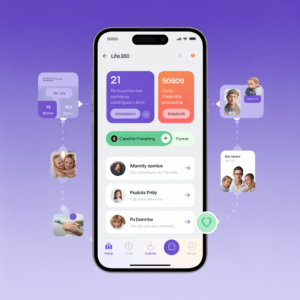
Life360 is what Find My would be if someone took it seriously as a dedicated family safety product and added about forty additional features. With over 66 million active users worldwide, Life360 has become the default choice for families who need more than basic location visibility.
The core concept is a private “Circle,” a group you create and invite family members to join. Everyone in the Circle can see everyone else’s location on a shared map, updated in real time. But Life360 layers significant additional functionality on top of that foundation.
What Life360 adds beyond basic iPhone location sharing:
- Driving reports: After every drive, Life360 generates a report showing top speed, hard braking events, rapid acceleration, phone use while driving, and overall driving score. For families with new teenage drivers, this feature alone is worth the subscription
- Crash detection: The app uses phone sensors to detect potential vehicle crashes and automatically alerts other Circle members and, in the premium tier, emergency services
- Place alerts: Get notified when family members arrive at or leave specific locations, like school, work, or home
- SOS button: Family members can trigger a silent distress alert that shares their location and sends an emergency notification to the Circle
- Battery alerts: Get notified when a family member’s phone battery is critically low, which is useful precisely when you need to reach them most
- 24/7 roadside assistance: Included in premium plans, because it turns out families need this more than they expect
Life360 pricing tiers:
- Free: Real-time location sharing for up to 30 days of location history, two place alerts, basic driving summary
- Gold ($9.99/month or $79.99/year): Unlimited location history, unlimited place alerts, detailed driving reports, crash detection
- Platinum ($19.99/month or $149.99/year): Everything in Gold plus identity theft protection, stolen phone protection, SOS with live agent, and 24/7 roadside assistance
For most families, the Gold tier represents the best value. The driving reports and detailed location history justify the cost for households with teenagers or family members who commute regularly.
Setting up Life360 for your family:
- Download Life360 from the App Store and create an account
- Create a Circle and give it your family name
- Tap “Invite” and send invitations to each family member via text or email
- Each person downloads the app and accepts the invitation
- Adjust location sharing permissions within the app settings
Every person must actively accept the invitation. Life360 cannot be installed or activated on someone’s phone without their participation. This is a firm design constraint, not just a policy.
Best for: Families with teenage drivers, households that mix iPhone and Android users (Life360 is fully cross-platform), parents who want driving behavior insight alongside location visibility.
Estimated time saved per week: Two to three hours of coordination, check-in calls, and driving-related anxiety eliminated.
3. Apple Screen Time and Parental Controls: iPhone Family Location Sharing With Guardrails
Location sharing is one piece of keeping kids safe on their iPhones. Apple’s Screen Time feature addresses the broader picture, giving parents visibility and control over how their children use their devices while keeping location sharing embedded in the larger context of digital wellbeing.
Screen Time is accessed through Settings, and when configured as part of Apple’s Family Sharing setup, it allows parents to see detailed reports of their child’s app usage, set daily limits on specific app categories, restrict access to explicit content, control in-app purchases, and yes, manage location sharing permissions.
What Screen Time’s family features include:
- App usage reports broken down by category and individual app
- Daily app limits that lock specific apps after a set amount of time
- Downtime scheduling, which blocks all non-essential apps during designated hours like bedtime or school hours
- Content restrictions for websites, movies, music, and apps based on age ratings
- Communication limits that restrict who your child can call, text, or FaceTime during specific hours
- Screen Distance reminders to protect young eyes
- Location sharing integration through Family Sharing
The Family Sharing setup is the foundation everything else builds on:
- Go to Settings, tap your name, then tap Family Sharing
- Tap “Add Member” and choose “Create Child Account” for children under 13, or send an invitation to older family members
- Once Family Sharing is active, Screen Time can be managed for child accounts from the parent’s device
- Enable “Share My Location” within Family Sharing to activate location visibility across the family group
- Use the “Ask to Buy” feature to require parental approval for all App Store purchases
One crucial distinction: Screen Time and parental controls are designed for minor children, specifically children whose parents have legal guardianship. Using these controls on an adult’s device without their consent, including a college-age child who has moved out, raises both legal and ethical concerns. These tools are appropriate for the parent-minor child relationship and not for monitoring adults.
Best for: Parents of children aged 8-17 who want integrated location sharing alongside comprehensive digital wellbeing management. Especially valuable for younger children getting their first iPhone.
Estimated time saved per week: One to two hours of device negotiation and content monitoring replaced by automated, consistent guardrails.
4. Find My With AirTags: iPhone Family Location Sharing for the Forgetful and the Young
AirTags deserve their own section because they solve a specific family location challenge that phone-based tracking can’t address: locating people or items when the phone is dead, lost, or not with the person you’re trying to find.
An AirTag is a small, coin-shaped tracking device that attaches to anything you care about: a backpack, a set of keys, a bicycle, a family pet’s collar, a child’s jacket. It uses Apple’s Find My network (that same mesh of over a billion Apple devices) to update its location continuously without needing a cellular connection or its own battery-draining GPS chip. When you check the item in Find My, Apple’s network reports the last known location with remarkable accuracy.
Practical family use cases for AirTags:
- Attach one to your child’s backpack so you can confirm they made it to school even if their phone dies
- Track the family car if it’s used by multiple drivers
- Find lost luggage during family travel
- Locate your teenager’s bike if it goes missing
- Keep tabs on a pet’s carrier during travel
AirTags cost $29 for a single tag or $99 for a four-pack. There’s no subscription fee. They run on standard CR2032 batteries that last about a year and cost roughly $1 to replace.
Important privacy protection built into AirTags: Apple has implemented robust anti-stalking measures. If an AirTag is separated from its owner and travels with an unknown person, that person’s iPhone will receive an alert that an unknown AirTag is traveling with them, with instructions on how to disable it. Android users can download Apple’s Tracker Detect app to scan for unwanted AirTags. These protections exist specifically to prevent covert tracking, and they work.
Setting up an AirTag:
- Remove the battery tab from the new AirTag
- Hold it near your iPhone. A setup prompt appears automatically
- Name the AirTag (Backpack, Keys, etc.) and assign it to your Apple ID
- Attach it to the item you want to track
- View it anytime in the Items tab of the Find My app
Best for: Families with young children who aren’t yet carrying phones, tracking shared family items, adding a backup layer of location awareness for school-age kids.
Estimated time saved per week: One hour of “where did I put the car keys / backpack / luggage” searches eliminated.
5. Bark: The Smarter Parental Control App for iPhone Family Safety
Bark takes a fundamentally different approach to parental monitoring than most apps in this space, and for many families, it’s the most thoughtful option available. Rather than giving parents a live feed of everything their child does online, Bark uses AI to monitor content across texts, emails, and 30+ social media platforms and only alerts parents when it detects something genuinely concerning.
The philosophy behind Bark reflects a real tension in digital parenting. Reading every text your teenager sends erodes the trust that healthy parent-child relationships depend on. But ignoring their digital life entirely leaves them without a safety net when they encounter bullying, predators, depression triggers, or explicit content. Bark positions itself as the middle path.
What Bark monitors and alerts parents about:
- Cyberbullying, both as victim and as perpetrator
- Signs of depression, anxiety, or suicidal ideation in messages
- Sexual content, including explicit conversations and images
- Online predators attempting to make contact
- Drug and alcohol references
- Violence-related content
Parents receive an alert only when the AI detects a potential issue, with enough context to understand the situation without reading every private message. This approach respects the teenager’s reasonable expectation of privacy while maintaining a meaningful safety net.
Bark also includes:
- Screen time management and scheduling
- Website filtering and content blocking
- Location sharing through the Bark Jr. feature
- Check-in features that let kids signal they’re safe
Bark pricing:
- Bark Jr. ($5/month): Designed for younger children, includes screen time, web filtering, and location features
- Bark Premium ($14/month): Adds AI content monitoring across texts, email, and social media for older children and teenagers
Best for: Parents of tweens and teenagers who want meaningful safety monitoring without reading every message their child sends. Particularly valuable for families where trust and autonomy are important values alongside safety.
Estimated time saved per week: Two to three hours of manual content checking replaced by AI-filtered alerts that only surface genuine concerns.
6. Qustodio: The Most Detailed iPhone Parental Control and Location Sharing Suite
Qustodio is the choice for parents who want comprehensive data about their child’s digital life presented in a clear, organized dashboard. Where Bark focuses on flagging concerning content, Qustodio gives parents full visibility into everything, with detailed reports, granular controls, and some of the best location features in any parental control app.
The Qustodio parent dashboard is genuinely impressive. It shows daily and weekly summaries of app usage, web activity, search history, social media activity (on supported platforms), call and text logs on Android (iOS limits this due to Apple’s privacy architecture), time spent in individual apps, and location history with a timeline.
Qustodio’s location features specifically:
- Real-time location tracking on the family map
- Location history showing everywhere the device has been throughout the day
- Geofencing alerts when the device enters or leaves defined areas
- Panic button that children can press to send an instant alert with their location to parents
- Family locator map visible to all family members who have the app
Setting up Qustodio on your child’s iPhone:
- Create a parent account at Qustodio.com
- Download the Qustodio app on the child’s iPhone
- Sign in with the parent account credentials during setup
- The child’s device is now visible in the parent dashboard
- Configure content filters, time limits, and location alerts through the dashboard
Note: On iPhone, some Qustodio features (particularly call and message monitoring) are more limited than on Android due to Apple’s strict app sandbox policies. iOS location tracking and app usage reporting work fully.
Qustodio pricing:
- Small Plan ($54.95/year): Up to 5 devices
- Medium Plan ($96.95/year): Up to 10 devices
- Large Plan ($137.95/year): Up to 15 devices
Best for: Families with multiple children across different ages and devices, parents who want detailed historical data rather than just real-time snapshots, households with younger children who need more direct oversight.
Estimated time saved per week: One to two hours of manual device checking replaced by a comprehensive dashboard accessible from any browser.
7. Google Family Link on iPhone: Cross-Platform iPhone Family Location Sharing
Yes, Google Family Link works on iPhone. This surprises most people, but for families where parents use Android and children use iPhones (or vice versa), Family Link bridges the gap in a way that neither Apple’s nor Life360’s native features fully address.
Family Link is Google’s free parental oversight platform. It’s primarily designed for Android, but the parent companion app works on iPhone, allowing Android-using parents to monitor and manage their child’s iPhone. The child-side app also runs on iPhone with a subset of features.
What Family Link offers for iPhone families:
- Real-time location sharing on a family map
- Location history for the past 30 days
- Daily activity reports showing app usage time
- App approval, parents must approve any App Store download for children under 13
- Remote device lock, parents can lock the child’s iPhone remotely from the Family Link parent app
- Bedtime enforcement that locks the device at scheduled times
- Content filters for Google Search and Chrome (when used on the child’s device)
Family Link’s location tracking on iPhone requires the child to have the Family Link child app installed and running with location permissions granted. It updates location every few minutes rather than continuously, so it’s slightly less real-time than dedicated solutions. For most family coordination purposes, this is more than adequate.
The biggest advantage of Family Link: It’s completely free. For families on tight budgets who need cross-platform location sharing and basic parental controls without a monthly subscription, Family Link delivers genuine value at zero cost.
Best for: Mixed Android/iPhone households, budget-conscious families, situations where basic location sharing and app oversight are the primary needs without requiring driving reports or AI content monitoring.
Estimated time saved per week: One hour of device negotiation and location-checking replaced by automated visibility.
8. The Find My Network and Third-Party Accessories: Expanding iPhone Family Location Sharing
The Find My ecosystem extends far beyond Apple’s own AirTags. Apple opened the Find My network to third-party manufacturers in 2021, and the resulting accessory market has created genuinely useful options for expanding family location awareness in creative ways.
Notable Find My-compatible accessories for families:
- Tile trackers with Find My support: Tile’s Pro and Slim trackers now work with both the Tile network and Apple’s Find My network, giving them the widest possible coverage. Attach them to anything important.
- Chipolo CARD Spot: A credit-card-thin tracker that slides into a wallet. Perfect for tracking a teenager’s wallet alongside their phone.
- VanMoof and other smart bikes: Several electric bike manufacturers have integrated Find My network support directly into their frames. If your teenager commutes by e-bike, their bike appears in your Find My app.
- Belkin SoundForm Freedom earbuds: AirPods aren’t the only earbuds that appear in Find My. Belkin’s earbuds integrate with the network, which matters if your teenager constantly misplaces them.
- Pebblebee tags: Waterproof, rechargeable alternatives to AirTags with longer battery life and a built-in button for two-way finding.
The key advantage of the Find My ecosystem for families is consolidation. Instead of managing five different apps for five different tracking devices, everything appears in a single Find My interface alongside family member locations and Apple devices.
What this looks like in practice:
- Open Find My on your iPhone
- The People tab shows family members who are sharing their location
- The Devices tab shows all Apple devices linked to your family group
- The Items tab shows every AirTag and Find My-compatible accessory in your family
One app, complete picture. For family coordination, that simplicity is valuable.
Best for: Families already invested in the Apple ecosystem who want to extend location awareness beyond phones to backpacks, wallets, bikes, and other frequently misplaced items.
Estimated time saved per week: 30 minutes to one hour of “has anyone seen the keys/backpack/wallet” searching eliminated weekly.
iPhone Family Location Sharing Apps: Comparison Table
| App | Platform | Location Sharing | Key Extra Feature | Best For | Pricing |
|---|---|---|---|---|---|
| Apple Find My | iOS/macOS only | Real-time, mutual | AirTag integration, device finding | Apple-only families | Free |
| Life360 | iOS + Android | Real-time, Circle-based | Driving reports, crash detection | Families with teen drivers | Free / $9.99 / $19.99 per month |
| Apple Screen Time | iOS only | Via Family Sharing | Full app and content controls | Parents of minor children | Free |
| AirTags | iOS only | Via Find My | Item tracking, no phone required | Tracking bags, keys, bikes | $29 per tag |
| Bark | iOS + Android | Via Bark Jr. | AI content monitoring | Parents wanting privacy-respecting oversight | $5 / $14 per month |
| Qustodio | iOS + Android | Real-time + history | Detailed dashboard, panic button | Multi-child families, detailed reporting | $54.95 / $96.95 / $137.95 per year |
| Google Family Link | Cross-platform | Every few minutes | Free, cross-platform, app approval | Mixed Android/iPhone families | Free |
| Find My Accessories | iOS only | Via Find My | Tracks non-phone items | Extending Find My to everyday items | $29–$49 per accessory |
Your iPhone Family Location Sharing Action Plan: A Complete Setup Guide
Bookmark this section. Whether you’re setting this up for the first time or auditing what you already have running, these ten steps walk you through everything in the right order. Follow them sequentially and you’ll have a complete, consensual, functional family location sharing setup by the time you’re done.
1. Have the family conversation before touching any app.
Gather everyone who will be part of the location sharing arrangement and explain what you’re setting up, why, and what it will and won’t be used for. If you skip this conversation, you risk setting up a system that technically works but destroys family trust the moment anyone discovers it. Be specific about who can see whose location, when, and for what purpose. For teenagers especially, frame this as a mutual agreement, not a unilateral decision.
2. Determine which app fits your family’s actual situation.
Use this decision tree: Apple-only household with basic needs? Use Find My. Teen drivers or mixed Android/iPhone? Use Life360 Gold. Minor children needing comprehensive controls? Use Apple Screen Time plus either Bark or Qustodio. Budget is a concern? Use Find My plus Google Family Link. Skipping this step means you might set up an expensive platform when the free built-in option was all you needed.
3. Set up Apple Family Sharing first, regardless of which app you choose.
Go to Settings, tap your name, tap Family Sharing, and add every family member. This is the foundation that enables Find My location sharing, Screen Time parental controls, shared App Store purchases, and iCloud storage sharing. Without it, many of Apple’s family features simply don’t function. This takes five minutes and costs nothing.
4. Enable location sharing in Find My for all consenting family members.
Open Find My, go to the People tab, tap “Share My Location,” and invite each family member. They must accept individually. Check that “Share My Location” is toggled on in Settings under your Apple ID and Privacy. If it’s off, nobody can see your location even if they have an active sharing relationship with you.
5. If using Life360, create your Circle and set driving behavior notifications.
Download Life360, create a Circle, invite family members, and spend five minutes in the notification settings. Enable crash detection alerts for all drivers. Set place alerts for the locations that matter most: home, school, and work. If you skip the notification configuration, Life360 becomes a passive map rather than an active safety tool.
6. If using Screen Time for children, configure Downtime and App Limits before handing back the device.
Set Downtime hours (typically 9 PM to 7 AM for school-age children) and add daily limits for social media and entertainment categories before the child has a chance to set their own Screen Time passcode. If you skip this step and the child sets their own passcode first, you lose administrative control and have to reset the device to regain it.
7. Place AirTags on high-value or frequently misplaced items.
Attach an AirTag to your child’s backpack, the family car keys, and any other items that regularly go missing or that you’d want to locate in an emergency. Name each AirTag clearly in the Find My app so you can identify them at a glance. Skipping this step means you’re relying solely on phone-based tracking, which fails the moment a phone dies, goes missing, or gets left behind.
8. ⚠️ WARNING: Do not set location update intervals to “always on” without understanding the battery impact.
Life360 and Qustodio with continuous GPS tracking enabled can drain a smartphone battery significantly faster than normal use. A child who arrives home with a dead phone defeats the entire purpose of the safety system. Configure your chosen app for frequent-but-not-continuous updates (every 5-10 minutes is sufficient for most family coordination) and discuss with your teenager why keeping their phone charged matters.
9. Test every feature before you consider the setup complete.
Have a family member drive to a nearby location while you watch the map in real time. Trigger a location alert by setting a geofence and having someone enter and exit it. If you’re using Life360, take a short drive and check the driving report afterward. Testing takes 30 minutes and ensures you catch configuration errors before you need the features in a real situation.
10. Schedule a monthly check-in to review the arrangement and adjust as needed.
Put a recurring calendar reminder for the first of each month to review connected devices, check that all family members’ sharing is still active, update place alerts for any schedule changes, and ask family members if the current arrangement still feels appropriate and fair. Location sharing agreements should evolve as children get older and family circumstances change. The teenage 16-year-old who needed frequent check-ins may be ready for more autonomy at 18, and acknowledging that growth reinforces trust.
Expert Insight: What Child Development Research Says About Family Location Sharing
Dr. Anya Patel, Child Development and Digital Wellbeing Researcher (Illustrative Expert Voice)
“The research on family location sharing consistently shows that the technology itself is neutral,” says Dr. Anya Patel, a child development researcher specializing in adolescent autonomy and digital family dynamics. “What determines whether it strengthens or strains family relationships is entirely about how it’s introduced and governed.”
Dr. Patel points to a pattern she calls “surveillance creep,” where monitoring that begins with legitimate safety rationale gradually expands beyond its original scope. A parent who initially set up location sharing to know when their 13-year-old arrived home from school finds themselves checking the app compulsively at 19 to see where their college-age child is on a Saturday night.
“The families who use location sharing most successfully treat it as a time-limited contract with explicit renegotiation points,” she explains. “They say: at 13, we share locations continuously. At 16, you control when you share and we receive alerts for specific places. At 18, you decide entirely, and we’ll respect that decision.”
She recommends that parents implement what she calls the “reciprocity test” before setting up any location sharing arrangement: are you willing to share your own location with your child in return? If the answer is no, examine why. Mutual location sharing, where parents are visible to children just as children are visible to parents, models the equity that makes teenagers genuinely more receptive to the arrangement.
The nuanced counterpoint Dr. Patel offers: location sharing is not a substitute for communication. “I see families where everyone knows exactly where everyone else is physically, but nobody talks about how anyone is doing emotionally. The map shows you the body. It doesn’t show you the person. The safety it provides is real, but it’s incomplete. The conversation always has to accompany the technology.”
Conclusion: The Right Way to Know Where Your Family Is
Family location sharing, done right, is one of the most practical gifts modern technology offers to families navigating the complexity of contemporary life.
The three things that matter most in getting this right: choosing the tool that actually fits your family’s specific situation rather than the one with the most features, having the transparent consent conversation before any app gets installed, and treating the arrangement as a living agreement that evolves as your family changes. Location sharing should feel like a safety net that everyone in the family helped design, not a surveillance system that some family members discovered after the fact.
What’s at stake if you get this wrong cuts both ways. A family with no location sharing loses real opportunities for safety, coordination, and peace of mind in situations where that information genuinely matters. A family that implements location sharing covertly or without ongoing consent risks something harder to repair: the trust that makes a family actually function. A teenager who feels tracked without respect doesn’t just resent the app. They find ways around it, stop communicating, and lose confidence that their parents see them as a person rather than a liability to be monitored.
The tools in this post give you every option you need. Apple Find My for simplicity. Life360 for driving safety and cross-platform coverage. Screen Time and Bark for child-appropriate oversight. Qustodio for detailed visibility. AirTags for tracking the things phones can’t cover. Every tool is consensual by design, which means every tool requires you to have the conversation first. That’s a feature, not a bug.
The conversation is worth having. The peace of mind on the other side of it is real.
Set Up Your Family’s Location Sharing Today
Start here: Open Settings on your iPhone, tap your name, tap Family Sharing, and add your first family member. That’s step one. It takes three minutes and unlocks Find My, Screen Time, and the entire Apple family ecosystem at no cost. Once Family Sharing is active, the rest of the setup in this guide follows naturally.
We want to hear from you: What’s been the biggest challenge your family has faced with location sharing, whether that’s the technology setup, the conversation about it, or figuring out the right boundaries? Drop your experience in the comments. Every family’s situation is different, and real stories help other families figure out their own approach.
Curious about the next step? Check out our complete guide to iPhone parental controls in 2025, where we go deeper on Screen Time, content filtering, communication limits, and how to adjust controls as your kids grow older. It pairs naturally with everything covered here and takes your family’s digital safety setup to the next level.
Last updated: 2025. App pricing and features reflect current publicly available information at time of publication. Apple, Life360, Bark, Qustodio, and Google product features are subject to change with platform updates. Always review the privacy policy of any third-party app before installation.