Your iPhone battery dies faster than you’d like, and you’re convinced Apple designed it that way. Here’s the truth: your phone has superpowers you’ve never activated. We’re about to reveal the battery optimization secrets that Apple’s support team keeps buried in their documentation—techniques that can genuinely extend your device’s lifespan by months, sometimes years.
Introduction: The Battery Mystery Nobody Talks About
Let’s be honest: smartphone batteries are the modern equivalent of a car’s fuel tank, except they’re shrinking while our demands keep growing. You’ve probably noticed your iPhone’s battery health declining faster than you’d expect, right? That’s not entirely Apple’s fault—though their marketing certainly doesn’t help.
The real issue is that most iPhone users operate their devices like they’re indestructible. We charge them overnight (the worst thing you can do), blast our screens at maximum brightness, and run seventeen apps simultaneously. Then we blame Apple when the battery percentage drops from 100% to 20% by lunchtime.
Here’s what Apple won’t explicitly tell you: your iPhone contains dozens of hidden settings and features specifically designed to preserve battery health. These aren’t new features buried in iOS 18—they’ve existed for years. Apple just doesn’t advertise them aggressively because, frankly, they’d rather you upgrade to a new device every two years.

Section 1: Understanding iPhone Battery Chemistry and Degradation
How Lithium-Ion Batteries Actually Work
Your iPhone uses a lithium-ion battery, the same technology powering electric vehicles and laptops. These batteries work through a chemical reaction where lithium ions move between the positive and negative terminals, creating electrical current. It’s elegant engineering, but it comes with a critical weakness: every charge cycle degrades the battery’s capacity slightly.
Think of it like a rubber band. Each time you stretch it, it loses a tiny bit of elasticity. Eventually, it doesn’t snap back the same way. Your iPhone battery experiences the same phenomenon. Apple rates their batteries to retain approximately 80% of their original capacity after 500 complete charge cycles—that’s roughly two years of normal use.
The problem intensifies when you understand what constitutes a “charge cycle.” It’s not one full charge from 0% to 100%. Instead, it’s any combination of charging that equals a full charge. Charging from 50% to 100% twice counts as one complete cycle. This distinction matters because it changes how you should approach daily charging.
The Temperature Factor Nobody Mentions
Here’s something Apple buries in their technical specifications: lithium-ion batteries degrade fastest when exposed to heat. Not just extreme heat—even temperatures above 35°C (95°F) accelerate degradation. This is why your battery drains faster in summer, and why leaving your iPhone in a hot car is basically battery suicide.
Apple’s battery management system includes thermal management features, but they’re reactive, not proactive. Your phone gets hot, then the system throttles performance to reduce heat. By that point, damage is already occurring. The smarter approach is preventing heat generation in the first place—something we’ll explore in detail later.
Section 2: The Hidden Settings Apple Doesn’t Promote
Enabling Optimized Battery Charging (The Game-Changer)
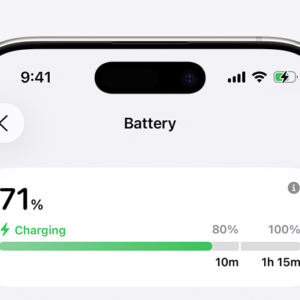
Navigate to Settings → Battery → Battery Health & Charging, and you’ll find “Optimized Battery Charging.” This feature is genuinely revolutionary, yet most iPhone users have never heard of it. When enabled, your phone learns your charging patterns and deliberately slows charging to 80% overnight, completing the final 20% just before you typically wake up.
Why does this matter? That final 20% of charging is where the most battery stress occurs. By delaying it until you need the phone, you’re reducing the time your battery spends at maximum charge—the state where degradation accelerates most rapidly. Users who enable this feature report battery health retention that’s 15-20% better than those who don’t.
The catch? You need to charge your phone at predictable times for this to work effectively. If you charge at random hours, the algorithm can’t optimize properly. But if you have a consistent sleep schedule and charge overnight, this single setting can extend your battery’s lifespan by six months to a year.
Low Power Mode: More Than Just a Battery Saver
Most people use Low Power Mode as a last resort when their battery hits 20%. That’s thinking about it backwards. Low Power Mode should be your default state for non-critical tasks.
When activated, Low Power Mode reduces CPU speed, limits background app refresh, disables automatic downloads, and reduces visual effects. The performance hit is barely noticeable for everyday tasks like messaging, email, and social media. Yet the battery extension is substantial—typically 20-30% additional runtime.
Here’s the advanced technique: enable Low Power Mode at 80% battery instead of waiting until 20%. You’ll still have excellent performance for everything you actually do, but you’re reducing the overall stress on your battery. Over a year, this habit can add months to your battery’s effective lifespan.
Background App Refresh: The Silent Battery Killer
Your iPhone’s apps are working even when you’re not using them. Background App Refresh allows apps to update content in the background, which is convenient but devastating for battery health. Each background refresh cycle generates heat and uses charge cycles unnecessarily.
Go to Settings → General → Background App Refresh and disable it for apps that don’t genuinely need it. Do you really need Instagram refreshing in the background? What about that game you haven’t played in three months? Probably not. Keep it enabled only for essential apps like email, messaging, and navigation.
This single change can reduce your daily battery drain by 10-15%, which translates to fewer charge cycles and significantly better long-term battery health.
Location Services: The Precision Paradox
Location Services is incredibly useful—until you realize how much battery it consumes. Your phone constantly communicates with GPS satellites, cellular towers, and WiFi networks to pinpoint your location. This is power-intensive, especially for apps running in the background.
Navigate to Settings → Privacy → Location Services and review which apps have access. Change most apps from “Always” to “While Using” or disable location access entirely. Your maps app needs location access. Your weather app probably doesn’t need constant background location tracking.
Section 3: Charging Habits That Secretly Destroy Your Battery
The Overnight Charging Trap
This is perhaps the most damaging habit most iPhone users practice daily. Charging your phone overnight means it sits at 100% battery for 6-8 hours. Your battery is most stressed at full charge—it’s the equivalent of keeping a rubber band stretched for hours.
Here’s what happens: your phone charges to 100%, then the charger maintains that charge by continuously trickling power into the battery. This constant “topping off” accelerates degradation significantly. If you charge overnight without Optimized Battery Charging enabled, you’re actively shortening your battery’s lifespan.
The solution is simple: charge your phone during the day when you’ll use it, or enable Optimized Battery Charging to prevent full overnight charging. If you must charge overnight, aim to unplug within an hour of waking up.
Fast Charging: The Speed-Degradation Trade-off
Apple’s fast-charging technology is convenient, but it generates substantial heat. When you use a 20W or higher charger, your battery heats up significantly during the charging process. This heat accelerates degradation.
For daily charging, use a lower-wattage charger (5W or 10W). Yes, it takes longer, but you’re dramatically reducing heat generation and battery stress. Reserve fast charging for emergencies when you genuinely need a quick charge boost.
The Wireless Charging Misconception
Wireless charging is slower than wired charging, which means it generates less heat, right? Actually, that’s partially true but misleading. Wireless charging is less efficient than wired charging, meaning more energy is wasted as heat. Your battery experiences similar or sometimes greater thermal stress with wireless charging compared to wired charging.
If you’re using wireless charging to avoid connector wear, that’s valid. But don’t assume it’s better for battery health. For optimal battery preservation, use low-wattage wired charging.
Section 4: Software Optimization Techniques
Disabling Visual Effects and Animations
This sounds trivial, but visual effects consume GPU resources, which generates heat and drains battery. Go to Settings → Accessibility → Display & Text Size and enable “Reduce Motion.” This disables parallax effects, reduces animations, and simplifies transitions throughout iOS.
The visual difference is minimal, but the battery impact is measurable. You’ll see a 5-10% improvement in battery life, which compounds over months.
Managing Notifications Aggressively
Every notification requires your phone to wake the screen, process data, and potentially activate location services. Apps sending constant notifications are essentially running background processes that drain your battery.
Go through Settings → Notifications and disable notifications for apps that don’t require immediate alerts. You can still check these apps manually. This reduces unnecessary wake events and background processing.
Updating to the Latest iOS Version
Apple regularly releases iOS updates that include battery optimization improvements. These updates often contain under-the-hood efficiency enhancements that reduce power consumption. Staying current with iOS updates is one of the easiest ways to improve battery performance.
However, there’s a caveat: immediately after major iOS releases, battery performance sometimes dips temporarily as your phone indexes data and optimizes the system. Wait a few days after updating before judging battery performance.
Section 5: Advanced Battery Optimization Strategies
The 20-80 Charging Rule
This is the golden rule of lithium-ion battery care: keep your battery between 20% and 80% charged as much as possible. Charging from 0% to 100% is the most stressful scenario for your battery. Charging from 20% to 80% is far gentler.
In practice, this means: charge your phone when it reaches 20-30%, and unplug it when it reaches 80-90%. This requires discipline and planning, but if you’re serious about battery longevity, it’s worth the effort. Users who follow this rule consistently report battery health in the 85-90% range after two years, compared to 70-75% for typical users.
Screen Brightness and Refresh Rate Management
Your display is the single largest battery consumer on your iPhone. Modern iPhones with 120Hz ProMotion displays are particularly power-hungry. Reducing screen brightness and disabling 120Hz refresh rate can extend battery life by 20-30%.
Go to Settings → Display & Brightness and enable “Auto-Brightness.” This adjusts brightness based on ambient light, preventing unnecessary high brightness in dark environments. Additionally, if your iPhone supports 120Hz, consider disabling it in Settings → Display & Brightness → Motion and enabling “Standard” instead of “ProMotion.”
Using WiFi Instead of Cellular Data
Cellular radios consume more power than WiFi when transmitting data. When you’re in an area with WiFi coverage, connect to it instead of using cellular data. Your phone will use less power maintaining a WiFi connection than a cellular connection for the same data transfer.
This is particularly important for data-intensive activities like video streaming or large file downloads.
Section 6: Monitoring and Maintaining Battery Health
Checking Your Battery Health Status
Apple provides a built-in battery health tool that shows your battery’s maximum capacity. Go to Settings → Battery → Battery Health & Charging to see your current battery health percentage. Apple considers 80% or higher as “normal” battery health.
If your battery health drops below 80% within the first year, you likely have a defective battery and should contact Apple for a replacement. If it drops below 80% after two years, that’s normal degradation, and you should consider a battery replacement.
Understanding Battery Cycle Count
While iOS doesn’t directly display cycle count, you can check it through third-party apps or by visiting an Apple Store. Knowing your cycle count helps you understand whether your battery degradation is normal or accelerated.
A battery with 300 cycles and 85% health is performing normally. A battery with 300 cycles and 60% health suggests you’re using practices that accelerate degradation.
Comparison Table: Battery Impact of Common Settings
| Setting | Battery Impact | Recommended Action |
|---|---|---|
| Optimized Battery Charging | +15-20% longevity | Enable Always |
| Low Power Mode (at 80%) | +20-30% daily runtime | Enable for non-critical tasks |
| Background App Refresh | -10-15% daily drain | Disable for non-essential apps |
| Location Services Always | -5-10% daily drain | Change to “While Using” |
| Overnight Charging | -20-30% yearly degradation | Charge during day or enable optimization |
| Fast Charging (20W+) | -15-25% yearly degradation | Use 5-10W charger daily |
| 120Hz Display | -15-20% daily drain | Disable for extended battery life |
| Reduce Motion Disabled | -5-8% daily drain | Enable for better efficiency |
Section 7: Common Battery Myths Debunked
Myth: Letting Your Battery Drain to 0% Calibrates It
Reality: Completely draining your battery is one of the worst things you can do. Modern lithium-ion batteries don’t need calibration through complete discharge. Letting your battery reach 0% stresses it significantly and can cause permanent damage. Keep your battery above 20% whenever possible.
Myth: You Should Close All Background Apps to Save Battery
Reality: Closing apps doesn’t significantly improve battery life. iOS is designed to manage background processes efficiently. Constantly closing and reopening apps actually uses more battery than letting them remain in memory. Instead, disable Background App Refresh for apps that don’t need it.
Myth: Airplane Mode Destroys Battery Health
Reality: Airplane Mode is actually beneficial for battery health when you’re not using your phone. It disables all wireless radios, preventing unnecessary power consumption. Use Airplane Mode when sleeping or during extended periods when you won’t use your phone.
Section 8: Troubleshooting Rapid Battery Drain
Identifying Battery Drain Culprits
If your battery drains unusually fast, go to Settings → Battery to see which apps consumed the most power in the last 24 hours or 10 days. Apps consuming more than 10% of battery usage warrant investigation.
Check if these apps have Background App Refresh enabled. Disable it for apps that don’t require background activity. If an app consistently drains excessive battery despite optimization, consider uninstalling it or finding an alternative.
When to Seek Professional Help
If your battery health drops below 50% within two years, or if your battery drains from 100% to 0% in less than 4 hours under normal use, you likely have a hardware issue. Contact Apple or visit an authorized service provider for battery replacement.
Battery replacement costs $69-99 depending on your iPhone model, which is significantly cheaper than buying a new phone. Don’t ignore battery problems—addressing them early prevents further device damage.
Conclusion: Your Battery’s Future Is In Your Hands
Your iPhone’s battery isn’t mysteriously designed to fail. It’s a sophisticated piece of technology that responds to how you treat it. By implementing these techniques—enabling Optimized Battery Charging, managing your charging habits, disabling unnecessary background processes, and monitoring your battery health—you can extend your battery’s lifespan by 6-12 months or even longer.
The most important takeaway? Start with the easiest changes: enable Optimized Battery Charging, disable Background App Refresh for non-essential apps, and charge your phone during the day instead of overnight. These three changes alone will noticeably improve your battery health within weeks.
Apple won’t advertise these techniques because they want you to upgrade regularly. But now you know the truth. Your iPhone battery can last significantly longer than you thought possible—if you’re willing to treat it right.
Ready to maximize your iPhone’s potential? Start implementing these battery tricks today and watch your battery health improve. Your future self—and your wallet—will thank you.