Disclaimer: This article is for educational purposes only. Features mentioned may vary depending on your iPhone model and iOS version.
5 Shocking Hidden iPhone Tricks You Didn’t Know
You use your iPhone every single day.
But I’m willing to bet you’re only tapping into 60% of what it can do.
Some of the most powerful tools are buried three menus deep. Others hide in plain sight. And once you discover them? You’ll wonder how you ever lived without them.
Introduction
Modern smartphones are overloaded with features. Notifications. Apps. Settings stacked inside other settings. It’s digital clutter.
Most people stick to the basics — texting, scrolling, snapping photos. Meanwhile, Apple quietly packs powerful features into every iOS update. They’re not flashy. They’re not heavily advertised. But they change how you use your device.
These Hidden iPhone Tricks aren’t gimmicks. They save time. Protect privacy. Improve productivity. And make your phone feel brand new again.
Let’s dig into the features Apple didn’t exactly shout about — but absolutely should have.
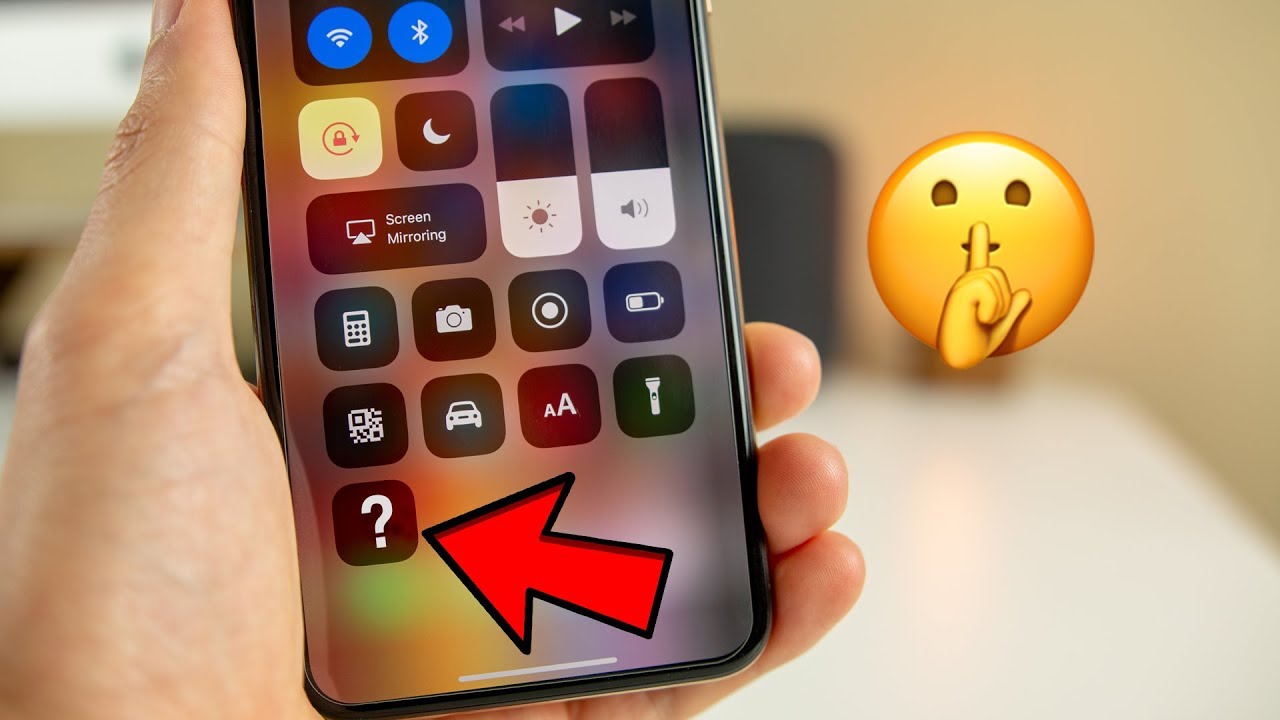
Hidden iPhone Tricks That Instantly Boost Typing Speed
Typing on glass isn’t natural. That’s why this first trick feels like magic.
1. Turn Your Keyboard into a Trackpad
Press and hold the spacebar.
Your keyboard instantly transforms into a trackpad. The cursor moves with precision across text. Editing becomes smooth instead of frustrating.
This is one of the most practical Hidden iPhone Tricks because it:
- Eliminates clumsy screen tapping
- Makes editing long messages painless
- Works inside almost every app
It’s subtle. But once you start using it, you’ll never go back.
Bonus: Text Replacement Shortcuts
Inside Settings → General → Keyboard → Text Replacement, you can create custom shortcuts.
Type “@@” and your full email appears.
Type “adr” and your address auto-fills.
Small tweak. Huge time saver.
Hidden iPhone Tricks for One-Handed Power Use
Big screens are great — until you’re holding coffee.
2. Back Tap for Secret Actions
Go to Settings → Accessibility → Touch → Back Tap.
You can assign actions when you double-tap or triple-tap the back of your phone.
Options include:
- Screenshot
- Lock screen
- Launch camera
- Open specific apps
- Activate Shortcuts
This Hidden iPhone Trick feels futuristic. You tap the back of your phone and it obeys.
No extra buttons. No awkward reach.
Hidden iPhone Tricks That Upgrade Your Photos Instantly
Your iPhone camera is powerful. But most users barely scratch the surface.
3. Copy and Paste Photo Edits
Edit one photo — exposure, contrast, warmth, filters.
Tap the three dots → Copy Edits.
Open another photo → Paste Edits.
Done.
This Hidden iPhone Trick is perfect for:
- Instagram consistency
- Travel albums
- Batch editing
Apple doesn’t promote it much, yet it rivals editing workflows discussed in advanced iOS breakdowns like this ultimate iOS guide.
Professional-looking edits in seconds.
Hidden iPhone Tricks That Protect Your Privacy
Privacy isn’t optional anymore. It’s survival.
4. Hide Photos Behind Face ID
Open the Photos app. Select a photo. Tap Share → Hide.
Now go to Albums → Hidden → Enable Face ID protection in Settings.
Your private photos are locked behind biometric security.
This Hidden iPhone Trick protects:
- IDs
- Sensitive documents
- Personal screenshots
And it works seamlessly without third-party apps.
Hidden iPhone Tricks That Turn Notes Into a Scanner
Paper clutter is annoying. Your phone can eliminate it.
5. Built-In Document Scanner
Open Notes → Tap Camera icon → Scan Documents.
It auto-detects edges. Enhances contrast. Converts to PDF.
You can:
- Sign documents digitally
- Share instantly
- Save to Files
No scanner. No extra apps.
This is one of the most underrated Hidden iPhone Tricks for students, professionals, and entrepreneurs.
Hidden iPhone Tricks That Replace Third-Party Apps
Here’s something most people miss: your iPhone already replaces half your app store downloads.
Live Text Recognition
Open the camera. Point at text.
You can:
- Copy phone numbers
- Translate foreign language signs
- Extract emails
It works on photos too.
Apple integrates machine learning directly into iOS, and industry reviewers in lists like this best iPhone tips guide frequently highlight how powerful these built-in tools have become.
Less app clutter. More efficiency.
Hidden iPhone Tricks vs Traditional Usage
Let’s break this down clearly.
| Feature | Traditional Way | Hidden iPhone Trick Way |
|---|---|---|
| Cursor Control | Tap screen repeatedly | Hold spacebar for trackpad |
| Screenshot | Press side + volume buttons | Double-tap back of phone |
| Scan Documents | Download scanner app | Use Notes built-in scanner |
| Protect Photos | Use third-party vault | Built-in Face ID lock |
| Edit Multiple Photos | Edit individually | Copy & paste edits |
The difference? Speed and simplicity.
Hidden iPhone Tricks remove friction.
Hidden iPhone Tricks That Improve Battery Life
Battery anxiety is real.
Here’s a simple one:
Background App Refresh Control
Go to Settings → General → Background App Refresh.
Turn off apps you rarely use.
This Hidden iPhone Trick:
- Extends battery
- Reduces data usage
- Improves performance
Another underrated feature: drag the brightness slider slightly lower than auto. Tiny change. Big difference.
Hidden iPhone Tricks That Reduce Distractions
Notifications are productivity killers.
Scheduled Summary
Go to Settings → Notifications → Scheduled Summary.
Choose which apps deliver notifications at specific times.
Instead of constant buzzing, you get:
- Controlled updates
- Fewer interruptions
- Mental clarity
This Hidden iPhone Trick turns your phone into a tool instead of a distraction machine.
Common Mistakes People Make with Hidden iPhone Tricks
You’ve seen the tricks. But here’s where people go wrong.
Mistake 1: Overcomplicating Shortcuts
Start simple. Don’t build 15 automation rules on day one.
Mistake 2: Ignoring Accessibility Features
Many Hidden iPhone Tricks live under Accessibility. That section isn’t just for disabilities. It’s for power users.
Mistake 3: Not Updating iOS
New tricks appear with updates. Stay current.
Hidden iPhone Tricks and Data Awareness
Every feature that simplifies your life also handles your data.
Pay attention to:
- App permissions
- Location access
- Microphone usage
Go to Settings → Privacy & Security.
Review permissions quarterly.
Hidden iPhone Tricks improve your experience — but awareness protects you.
Myths About Hidden iPhone Tricks
Let’s clear the air.
Myth 1: Hidden features slow down your phone.
False. Most are lightweight system tools.
Myth 2: You need third-party apps for power use.
Not anymore. iOS integrates most essentials.
Myth 3: Accessibility features aren’t for me.
They’re for anyone who wants smarter navigation.
How to Combine Hidden iPhone Tricks for Maximum Productivity
Individually, these tricks are helpful.
Combined? They’re transformative.
Imagine this workflow:
- Scan a document in Notes
- Sign it digitally
- Screenshot confirmation with Back Tap
- Send using text replacement shortcut
That’s efficiency.
Hidden iPhone Tricks compound. Each one removes a small friction point. Stack enough of them, and your phone becomes a productivity engine.
The Psychology Behind Hidden iPhone Tricks
Here’s something interesting.
When you discover hidden features, you feel ownership. Control. Mastery.
It’s the difference between driving a car and understanding how it works under the hood.
Apple designs iOS to be simple on the surface and deep underneath. The more you explore, the more powerful it becomes.
And once you internalize these Hidden iPhone Tricks, your device feels custom-built for you.
Conclusion
Most people upgrade their iPhone searching for better performance.
Ironically, they’re already holding it.
These Hidden iPhone Tricks:
- Save time
- Improve privacy
- Reduce stress
- Boost productivity
No new apps. No extra cost. Just smarter use.
Your iPhone isn’t just a phone. It’s a toolkit hiding in plain sight.
Now you know where to look.
CTA
Share this with someone who thinks they “know everything” about their iPhone.
Then try one trick today. Just one.
And if you discovered a Hidden iPhone Trick I didn’t mention, drop it in the comments below. Let’s level up together.