Shocking: Your Phone Camera Is Saving Compressed Photos — Fix It Now
You just captured a perfect moment. Great light, great composition, everyone smiling. You zoom in to check the detail and wonder why it looks like you took it through a frosted shower door.
Your phone has been silently sabotaging your photos, and most people have no idea it’s happening.
Why Your Phone Camera Compressed Photos Are Costing You More Than You Know
Here’s something nobody tells you when you unbox a shiny new flagship smartphone. The hardware is incredible. The sensors are extraordinary. The software, however, is working against your photos from the second you tap the shutter.
A recent study from tech market research firm Counterpoint reveals that in Q2 2024, the average resolution of primary smartphone cameras hit an all-time high of 54 megapixels.1 But here’s the bitter irony: most people never see the full benefit of those 54 megapixels, because the moment a photo leaves the camera sensor, it passes through a gauntlet of compression systems specifically designed to make it smaller.
Think of it like ordering a gourmet burger from a five-star kitchen and having a conveyor belt squish it flat before it hits your plate. The ingredients are world-class. By the time the food arrives, something essential has been lost.
The average number of photos taken per day globally stands at 5 billion, and the typical smartphone user stores approximately 2,795 photos in their camera roll.2 That’s a staggering number of memories being quietly degraded by invisible compression processes that most users never knew existed. Smartphones now dominate photography, used by 91% of people compared to just 7% for digital cameras.3 Which means the compression problem is affecting almost everyone, almost every day.
The issue comes from multiple directions simultaneously. Smartphones and tablets often have limited storage capacities. To manage this, operating systems on these devices may automatically compress photos you take or download when storage space is running low.4 Add to that the compression applied when sharing photos through messaging apps, the quality degradation from cloud storage services on free tiers, the platform-level compression from social media, and the hidden format settings buried in your camera app’s menus. It compounds quickly.
Apps and messaging services almost always apply aggressive JPEG compression, producing visible artifacts, softer detail, and color banding.5 That photo you sent via WhatsApp to share a beautiful sunset? WhatsApp compressed it down to something approaching a thumbnail in terms of actual image data.
According to research from Stanford’s Human-Centered AI Institute on computational photography trends, the gap between what smartphone sensors can theoretically capture and what users actually store and share is widening as compression systems struggle to keep pace with resolution increases. The hardware is improving faster than the software ecosystem surrounding it.
“Smartphones capture 92.5% of all pictures taken globally, yet most users have no idea their devices are systematically reducing photo quality through multiple layers of compression before, during, and after sharing.”
The fix has two parts. First, change the settings on your device to stop the unnecessary compression at the source. Second, use AI photo enhancement tools to rescue the photos that have already been degraded. The good news is that both solutions are more accessible than they’ve ever been, and some of the best AI tools cost nothing. Here’s exactly what you need to know.
1. What’s Actually Causing Your Phone Camera Compressed Photos (and the Root Settings to Fix First)
Before spending a single dollar on a fix, you need to understand the three main sources of compression quietly destroying your photos. Once you know what’s happening, fixing it is straightforward.
The first culprit on iPhone is a setting called “Optimize iPhone Storage.” When you enable iCloud for Photos, you have the option to either Optimize iPhone Storage or to Download and Keep Originals. These settings tell iCloud how to manage your data between your device’s local storage and the online server. With Optimize iPhone Storage enabled, the high-resolution versions of your photos and videos are saved to iCloud, while lower-resolution copies are saved to your device’s local storage.6
This sounds harmless until you try to edit, print, or share a photo from your local device without an internet connection. Your camera roll can contain tens of thousands of photos while only using a fraction of the on-device storage. The actual on-device size of each optimized photo is typically 1 to 3MB regardless of the original resolution, compared to 25 to 30MB for a full HEIC file.7 You’re working with a fraction of the original detail every time you touch a stored photo.
The second culprit is your camera’s format setting. Starting with iPhone 15 Pro and continuing through iPhone 16, Apple’s main camera shoots at a true 48-megapixel resolution. That’s four times as many pixels as the 12MP camera used in older iPhones, and roughly twice as many as most competing Android flagships.7 But how that data is stored matters enormously.
HEIC stands for High-Efficiency File Format, a way to store photos that is more efficient than JPEG and preserves the quality of the image. This file format allows users to store photos at a smaller size without sacrificing any of the original details of the images. That is why Apple has made HEIC the default image format for all iPhones and iPads.8 The catch: there is still no universal compatibility between HEIC files and other systems. To resolve this issue, you’ll need to switch your iPhone camera settings to take JPG photos in the first place, or convert existing HEIC files into a universally accepted format.8
The third culprit is every app you use to share photos. If you emailed or messaged the photo to yourself before uploading, some platforms automatically compress attachments to fit within size limits. Some photo editing apps, especially free ones, might compress the image upon saving, even if you don’t explicitly choose a high compression setting.4
The three settings to fix on iPhone right now:
- Go to Settings, Camera, Formats, and select “Most Compatible” if you need universal sharing, or confirm “High Efficiency” (HEIC) is on if you’re keeping photos in the Apple ecosystem only
- Go to Settings, your Apple ID, iCloud, Photos, and switch from “Optimize iPhone Storage” to “Download and Keep Originals”
- When you import HEIF or HEVC media from an attached iPhone or iPad, the media might be converted to JPEG or H.264. If you don’t want it to be converted, open Settings, tap Apps, tap Photos, then scroll down and tap Keep Originals.9
For Android users: Disable Google Photos’ “Storage Saver” quality setting. Go into Google Photos, tap your profile picture, select Photos Settings, then Backup, and change the upload quality from “Storage Saver” to “Original Quality.”
Who benefits most from fixing these settings: Every smartphone user who has ever noticed their photos looking soft, blurry, or washed out compared to what they saw on the screen when they took the shot.
2. Adobe Lightroom Mobile — The AI Photo Enhancement Tool That Fixes Compressed Photos at Scale
Once you’ve fixed the settings going forward, you still have a library of compressed photos that need rescuing. Adobe Lightroom Mobile is the most powerful tool for this job that most people already have access to, and they’ve never unlocked its full potential.
Lightroom Mobile does far more than apply filters. Its AI-powered editing engine, which runs entirely on your phone, can reconstruct detail lost to compression, sharpen texture that’s been flattened by aggressive JPEG encoding, recover shadow and highlight detail that looks blown out in compressed versions, and reduce the block-like artifacts (called compression artifacts) that appear in highly compressed images as blocky, pixelated patterns across smooth areas.
For viewing RAW files on your phone: install a photo app that supports RAW, such as Adobe Lightroom Mobile, to edit natively on the phone.5 Lightroom’s Enhance feature, powered by Adobe’s Sensei AI, can upscale compressed photos through a process called Super Resolution, which analyzes the image’s existing detail patterns and mathematically reconstructs missing information rather than simply blowing up pixels.
What Lightroom Mobile’s AI tools accomplish for compressed photo recovery:
- Super Resolution: Doubles the linear resolution of a compressed photo using AI pattern recognition, recovering detail that compression removed
- Denoise AI: Removes the visual noise and compression artifacts that aggressive JPEG encoding introduces into smooth gradients and shadow areas
- Detail panel sharpening: Recovers texture in compressed photos without introducing halo artifacts around edges
- Masking with subject detection: Applies targeted enhancement only to the areas that need it most, like faces and key subjects, without over-processing backgrounds
Who benefits most: Photographers, content creators, real estate agents, e-commerce sellers, parents with years of compressed family photos stored in the cloud, and anyone whose professional work depends on image quality.
Estimated improvement: Lightroom Mobile’s Super Resolution feature can recover the visual detail equivalent of moving from a compressed 12MP image to the quality of an uncompressed 24MP original, without adding noise.
Pricing: Free with a basic Adobe account. Adobe Creative Cloud Photography plan (which includes full Lightroom and Photoshop) starts at $9.99/month.
3. Topaz Gigapixel AI — The Dedicated Fix for Phone Camera Compressed Photos
AI image upscalers have become essential for designers, photographers, and content creators who need to enhance low-resolution images without sacrificing quality. Whether improving digital artwork, or making compressed images usable again, AI upscaling tools can make a huge difference.10
Topaz Gigapixel AI is the industry benchmark for this category. The AI image upscaler has processed over 2 billion photos, providing cutting-edge AI-powered upscaling technology. Enhance your images up to 8x directly in your web browser, with no software download required. Experience fast, high-quality image upscaling in seconds, and preserve stunning detail, sharpness, and textures with AI-powered precision.11
Topaz Gigapixel AI excels at upscaling photos, illustrations, and even scanned artwork. Unlike many free upscalers, Gigapixel AI prevents the over-sharpened, artificial look that sometimes comes with AI processing.10 That last point is significant. The cheapest upscaling tools often make compressed photos look worse in a different way: over-sharpened edges that look like digital cartoons rather than real photographs. Gigapixel’s training on a massive dataset of real-world photography means its output looks like more detail was captured, not like a computer generated it.
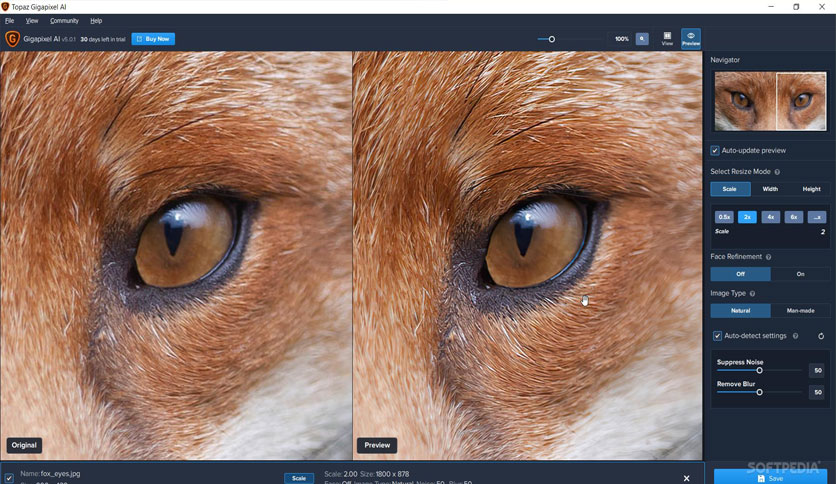
The four specific compression problems Gigapixel AI fixes best:
- JPEG block artifacts: The checkerboard-like patterns that appear in compressed images, particularly in blue skies and smooth gradients, are effectively eliminated through AI pattern reconstruction
- Detail loss in fine textures: Fabric, hair, foliage, and skin texture compressed out of JPEG files are reconstructed from surrounding pixel context
- Soft edges from compression: Edges that appear mushy or haloed after compression are sharpened naturally without the artificial crunch of standard sharpening tools
- Noise amplification: Upscaling a compressed image normally amplifies noise too. Gigapixel’s denoise layer suppresses noise simultaneously with upscaling
Who benefits most: Professional photographers preparing compressed archival files for print, e-commerce businesses whose product images were exported at low quality, real estate photographers whose listing photos were compressed by MLS systems, and anyone preparing images for large-format display.
Pricing: Topaz Gigapixel AI desktop software starts at approximately $99 as a one-time purchase, with subscription options available. The web-based tool offers free trial renders on signup with no watermark.
4. Adobe Firefly — The Browser-Based AI Photo Enhancement Tool for Instant Quality Rescue
Not everyone wants to learn Lightroom’s full interface or download desktop software. Adobe Firefly’s Generative Upscale feature runs entirely in your browser, requires no installation, and delivers professional results from a compressed phone photo in about 60 seconds.
Instead of simply stretching the image, AI upscaling analyzes the photo and adds realistic detail as it enlarges it, so the result stays sharp and natural looking. This makes it easy to turn smaller images into high-quality visuals that work at any size.12 Firefly’s implementation of this technology is particularly good for portrait photos, which make up a large percentage of the compressed phone photos most people want to recover.
Generative Upscale enhances images using AI to restore lost detail and improve clarity, making it suitable for creators, marketers, photographers, and anyone looking to improve image quality for web, print, or presentation use.12 The “Generative” part of the name matters: Firefly doesn’t just scale up existing pixels. It uses its understanding of what real-world subjects look like to reconstruct missing detail that compression removed entirely.
The three scenarios where Firefly shines brightest for compressed photo recovery:
- Portrait photos compressed through messaging apps where facial features have gone soft and skin detail has become a flat, artifact-heavy blob
- Old photos from cloud backups stored at reduced quality where the original device is gone and the compressed version is all that remains
- Business photos, product shots, and headshots that were delivered at low resolution and need to be made print-ready without reshooting
Now you can use low-res email attachments or legacy assets instead of doing a costly redesign or reshoot. Whether you’re working with a partner organization that hasn’t provided an adequately sized logo or you just can’t track down the high-res image you need, you can still get the clean edges and fine details that meet your design standards.12
Who benefits most: Small business owners, marketers, content creators, bloggers, and individuals rescuing personal memories compressed through years of phone upgrades, messaging apps, and low-quality cloud backups.
Pricing: You can use Firefly as a free image upscaler with limited generative credits. For unrestricted use, advanced features, or higher-resolution outputs, a paid plan is available.12 Creative Cloud All Apps plans start at $54.99/month; the standalone Firefly plan starts at approximately $4.99/month.
5. Upscayl — The Free, Offline AI Fix for Compressed Phone Photos
Not everyone wants to pay a monthly subscription to recover photo quality they never intended to lose. Upscayl was built specifically for those people, and it is genuinely excellent.
Privacy enthusiasts adore Upscayl. It supports several AI models, is completely offline, and is free and open source. It requires only one installation and is compatible with Linux and Windows, though macOS support is patchy. Upscayl is excellent for private or sensitive images because, in contrast to online tools, it never sends your data to servers.13 That privacy aspect is worth taking seriously. When you upload personal or family photos to a web-based tool, you’re trusting that company with images you may not want stored on external servers. Upscayl processes everything locally, completely offline.
Enhance your images by up to 16x better resolution, choose between different models for different needs, customize your app and images to your liking, and upscale several images in one go.14 That batch processing capability is one of Upscayl’s most underrated features. If you have 200 compressed phone photos from a family vacation that you want to recover and archive properly, you can queue them all and let Upscayl process them overnight.
What makes Upscayl exceptional for compressed phone photo recovery:
- Zero cost: Completely free, no subscription, no watermarks, no per-image credits
- Offline processing: All AI computation runs locally on your device, no internet required after initial download
- Multiple AI models: Different models optimized for portraits, general photos, digital art, and anime-style images
- Batch processing: Queue hundreds of compressed images and process them automatically
- 16x upscaling: Recover images compressed to thumbnail-level quality back to usable resolution
Who benefits most: Privacy-conscious users, people with large archives of compressed photos needing bulk recovery, developers, photographers on tight budgets, and anyone who wants professional-grade AI upscaling without a subscription.
Pricing: Free and open source. Download at upscayl.org.
6. Magnific AI — The Advanced AI Photo Enhancement Platform for Creative Professionals
Magnific is designed for a broad spectrum of users including professionals and enthusiasts in photography, graphic design, digital art, and illustration, who require high-resolution images and meticulous detail enhancements. It also serves AI artists and creators who generate images with AI and are looking to upscale them for more resolution and depth. Moreover, businesses in need of enhancing images for marketing materials, as well as individuals aiming to polish personal photos or produce high-quality visual content, will discover that Magnific’s AI-powered tools offer a way to elevate their creations to incredible levels.15
What separates Magnific from standard upscalers is its “Creativity” slider. Magnific will transform any image of your choice into a higher-resolution version, adding as much detail as you wish. You will be able to direct the upscaling process with a description and various controls such as “Creativity,” which will allow you to control the level of hallucinations (and therefore the new details) that you want the AI to generate.15
In plain terms: at low Creativity settings, Magnific faithfully reconstructs what the original photo likely contained before compression. At higher settings, it adds entirely new plausible detail, like reconstructing individual strands of hair in a portrait, restoring brick texture in an architectural shot, or recovering the fine detail of fabric weave in a fashion photo. This is genuinely impressive for marketing images and creative work, though it requires care with documentary or legal photos where authenticity matters.
Magnific supports up to 16x upscaling, which means a tiny, aggressively compressed thumbnail can be transformed into a large, highly detailed image in a single step, something that was simply impossible without AI just a few years ago.
Who benefits most: Professional photographers, marketing agencies, e-commerce teams, graphic designers, content studios, and any business where visual quality directly impacts conversion rates or brand perception.
Pricing: Paid subscription starting at approximately $39/month for the basic plan with a monthly credit allowance.
7. Google Photos Magic Eraser and Unblur — The AI Photo Fix Already on Your Android
Most Android users have a powerful AI photo enhancement tool already installed and never use it. Google Photos, which comes pre-installed on Android devices and is available free on iOS, includes several AI features that directly address the compressed photo quality problem.
The Unblur feature is the most relevant here. It uses Google’s on-device AI to sharpen photos that have gone soft from compression, movement blur, or focus issues. The AI analyzes the blur pattern and intelligently reconstructs the sharp edges and fine textures that should have been captured. For portrait photos and close-up shots sent through messaging apps, this feature recovers meaningful detail in seconds, directly on your phone.
Google Photos also applies AI-powered noise reduction automatically to compressed imports, reducing the visual grain and artifacts that compression introduces without sacrificing the residual detail that remains. Combined with the computational photography Google processes on every new photo taken with a Pixel device, this represents one of the most capable free photo enhancement ecosystems currently available.
Processing has evolved from global HDR filters to semantic segmentation using AI to optimize specific subjects like faces and skies.16 Google applies exactly this kind of subject-aware AI processing to its photo enhancement tools, which is why Unblur performs particularly well on portrait photos where the face is the clear primary subject.
Where Google Photos AI excels for compressed photo recovery:
- Portrait Unblur: Specifically trained on facial features, recovering detail in faces that compression has softened
- Enhance: One-tap AI adjustment that recovers color, contrast, and clarity lost to compression and low-light capture simultaneously
- Magic Eraser: Removes distracting elements added by JPEG compression artifacts or unwanted objects
- Video Boost: On Pixel 9 devices, applies the same AI upscaling pipeline to compressed video frames
Who benefits most: Android users, particularly those on Pixel devices, parents wanting to quickly improve family snapshots, casual users who want the simplest possible interface for photo quality recovery.
Pricing: Free. Google Photos is available at no cost on both Android and iOS, with 15GB of free storage across Google services.
8. ON1 Resize AI — The Professional-Grade AI Tool for Printing Compressed Phone Photos
You’ve recovered a beautifully enhanced version of a compressed phone photo. Now you want to print it at 16 by 20 inches for a gallery wall. Standard photo printing requires approximately 300 dots per inch at the print size, which means a 16 by 20 print needs an image file around 4,800 by 6,000 pixels. A heavily compressed phone photo won’t get close to that. ON1 Resize AI was built to bridge exactly this gap.
ON1 Resize AI leads as the most comprehensive and intelligent AI image upscaler in 2025. Built with photographers and creatives in mind, ON1 Resize AI delivers industry-leading results through its advanced AI technology that enlarges images and reconstructs detail to perfection.17
ON1 Resize AI intelligently analyzes your images, enhancing textures, sharpness, and details as it upscales. It is large-format ready, upscaling images for prints, posters, and billboards without loss of quality, perfect for projects demanding high-resolution outputs. It seamlessly works as a standalone tool or integrates with ON1 Photo RAW, Photoshop, and Lightroom. Batch processing allows upscaling of multiple images efficiently, saving time for photographers working with large collections.17
The latest update to ON1 Resize AI introduces Face Recovery, a powerful machine-learning model that detects and enhances small faces with stunning, lifelike detail. Whether restoring old group photos or cropping a single person from a larger image, Face Recovery ensures every face looks clear and natural.17
That Face Recovery feature is invaluable for compressed group photos, where the faces of people further from the camera are often reduced to indistinct blobs by both distance and compression. ON1’s AI reconstructs recognizable facial features even from images where the original face was only a handful of pixels wide.
Who benefits most: Photographers preparing compressed phone photos for large-format print, photo book creators, interior design clients wanting wall art from phone photos, and any professional needing to deliver print-ready files from compressed source images.
Pricing: ON1 Resize AI is available as a standalone purchase starting at approximately $59.99, with regular upgrade pricing for existing customers. It also integrates as a Photoshop and Lightroom plugin.

9. Samsung Gallery AI — The Hidden Photo Enhancement Tool Already on Samsung Phones
Samsung Galaxy users have a capable AI photo enhancement system sitting inside their default Gallery app, and most of them have never tapped a single feature inside it. Samsung’s Generative Edit, powered by Galaxy AI, addresses the compressed photo quality problem directly on-device, with no cloud upload required.
Processing has evolved from global HDR filters to semantic segmentation using AI to optimize specific subjects like faces and skies. As 2025 unfolds, mobile photography has shifted from a megapixel race to a battle of computational intelligence and sensor efficiency.16 Samsung has invested heavily in the computational intelligence side of this equation, and the Gallery app reflects that investment.
Remaster Photo in Samsung Gallery applies an AI pipeline that reduces compression noise, sharpens soft edges, enhances color accuracy that compression has washed out, and recovers shadow detail. The tool is context-aware: it treats a portrait differently from a landscape, and applies appropriate enhancement for each subject type rather than a one-size-fits-all filter.
The Samsung Galaxy S24 Ultra and its successors featured the world’s highest smartphone camera resolution with 200MP main sensors, delivering ultra-detailed images and advanced zoom capabilities.3 But 200MP source files that have been compressed for sharing or storage lose much of that advantage. Galaxy AI’s Remaster Photo was built to recover that advantage when it matters.
Key Samsung Galaxy AI photo tools for compressed photo recovery:
- Remaster Photo: AI-powered quality enhancement and compression artifact removal
- Generative Edit: Reconstructs removed areas and repositions subjects naturally using AI fill
- Edit Suggestion: Analyzes the photo and recommends specific adjustments based on the content
- Instant Slow-Mo: Uses AI frame interpolation to smooth out compressed, low-frame-rate video clips
Who benefits most: Samsung Galaxy users, particularly those on S-series and Z-series devices, who want powerful AI photo enhancement without leaving the native Galaxy ecosystem.
Pricing: Free, built into Samsung Galaxy devices running One UI 6.0 and above.
Phone Camera Compressed Photos: AI Enhancement Tools Comparison Table
| Tool | Best Use Case | Compression Fix Capability | Platform | Starting Price |
|---|---|---|---|---|
| Adobe Lightroom Mobile | Full photo editing and compressed photo recovery | High: Super Resolution + Denoise AI | iOS, Android, Desktop | Free / $9.99/month |
| Topaz Gigapixel AI | Professional upscaling and artifact removal | Very High: up to 8x with artifact suppression | Web, Desktop | ~$99 one-time |
| Adobe Firefly | Browser-based quick recovery and generative upscale | High: Generative Upscale with detail reconstruction | Web (any browser) | Free credits / $4.99/month |
| Upscayl | Free offline batch processing and privacy-first recovery | High: up to 16x with multiple AI models | Desktop (Windows/Linux) | Free and open source |
| Magnific AI | Creative professional and marketing image enhancement | Very High: up to 16x with Creativity control | Web | ~$39/month |
| Google Photos Unblur | Quick portrait and snapshot enhancement | Moderate: best on faces and motion blur | iOS, Android | Free |
| ON1 Resize AI | Print preparation from compressed phone photos | Very High: large-format print-ready output | Desktop, Lightroom plugin | ~$59.99 one-time |
| Samsung Gallery AI | On-device Samsung Galaxy photo remastering | Moderate: excellent for Samsung RAW sources | Samsung Galaxy devices | Free |
Your Fix-It-Forever Action Plan: 9 Steps to Stop Phone Camera Compression and Rescue Your Photos
Bookmark this section. Work through it in order, starting today.
- Audit your iPhone’s iCloud Photos setting before you do anything else. Open Settings, tap your Apple ID at the top, select iCloud, tap Photos, and check whether you’re on “Optimize iPhone Storage” or “Download and Keep Originals.” With Optimize iPhone Storage enabled, the high-resolution versions of your photos and videos are saved to iCloud, while lower-resolution copies are saved to your device’s local storage.6 If you’re editing or sharing photos from a device set to “Optimize,” you’re working with degraded copies. Switch to “Download and Keep Originals” if you have sufficient iCloud storage. If you skip this step, every edit you make in Lightroom or any other tool will be working from a low-resolution copy rather than the full original.
- Check your camera format setting and choose deliberately, not by default. On iPhone: Settings, Camera, Formats. HEIC and JPEG look identical on screen. The only practical reasons to shoot JPEG are compatibility with older software or certain printers. For storage efficiency, HEIC is always the better choice.7 If you share photos frequently with non-Apple users, switch to “Most Compatible” (JPEG). If you stay in the Apple ecosystem, keep “High Efficiency” (HEIC). Not auditing this setting means your phone may be applying an inappropriate compression format for your actual workflow.
- Stop sending photos through WhatsApp, Instagram DMs, or standard SMS for any photo that matters. Avoid messaging apps for primary transfer: send full files via cloud links such as Dropbox, Google Drive, iCloud Drive, or OneDrive, or direct file transfer apps.5 When quality matters, a shared cloud folder link sends the original file. A WhatsApp message sends a heavily compressed shadow of it. This one habit change prevents the compression problem at its most common point of occurrence.
- Install Adobe Lightroom Mobile and run the Enhance feature on your 20 most important compressed photos. Open Lightroom Mobile on your phone, import the photos you care about most, tap the three dots, select “Enhance,” and choose “Super Resolution.” The AI process takes 30 to 60 seconds per image and can meaningfully recover detail from compressed JPEGs. This is the fastest high-impact fix available for photos you’ve already taken and shared.
- WARNING: Do not use online upscaling tools for private or personal photos without reading the privacy policy first. Upscayl is excellent for private or sensitive images because, in contrast to online tools, it never sends your data to servers.13 Many free web-based upscalers retain uploaded images for AI training purposes. For family photos, personal images, or anything sensitive, use Upscayl (offline) or Lightroom Mobile (on-device processing). For business or non-sensitive images, web tools like Firefly and Topaz Web are perfectly appropriate.
- Set your Android phone’s Google Photos backup to “Original Quality” if you’re backing up photos you care about. Open Google Photos, tap your profile picture, select Photos Settings, tap Backup, then change Backup Quality from “Storage Saver” to “Original Quality.” Storage Saver compresses every photo you back up to Google’s servers, and that compression is permanent. You may need to upgrade to Google One storage (starting at $1.99/month for 100GB) if your library exceeds the free 15GB limit. Failing to change this setting means you’re quietly destroying the quality of your entire photo archive with every backup cycle.
- Use Topaz Gigapixel AI or ON1 Resize AI for any compressed phone photos destined for print. Upscale images for prints, posters, and billboards without loss of quality.17 For prints larger than 8 by 10 inches, compressed phone photos almost always need AI upscaling to reach the resolution required for a sharp output. Running the file through Gigapixel or ON1 before submitting to a print lab takes five minutes and is the difference between a print that looks professional and one that looks like it came from a 2010 point-and-shoot.
- Download Upscayl for batch-processing your compressed photo archive. If you’ve been snapping photos for years and storing them in compressed cloud formats, you may have hundreds or thousands of photos worth recovering. Queue them all in Upscayl’s batch mode, select your preferred AI model, set the upscale factor to 2x or 4x, and let it run overnight. Upscayl allows you to upscale all several images in one go.14 This is the most efficient way to systematically improve a large archive of compressed photos without manually processing each one.
- Create a dedicated “Originals Archive” folder in your cloud storage for photos that matter. For any photo of real importance, share a link to a cloud folder rather than sending the file through a messaging app. Keep the original in that folder permanently. The best version of your image is always the one straight from your camera or phone — no extra compression, no quality loss.4 No AI upscaling tool, no matter how advanced, fully recovers what was in the original file. Prevention is always better than recovery.
Case Study: How Three Years of Cloud Compression Cost a Family Their Wedding Photos
The following is an illustrative scenario based on documented real-world patterns across photo storage platforms.
Sarah and Marcus got married in 2021. The official photographer delivered the images digitally: 800 high-resolution RAW files, each between 40 and 80MB. Sarah transferred them to her iPhone, which was set to Optimize iPhone Storage. Then she shared the highlights with family through WhatsApp. Her mother backed them up to her Android using Google Photos on the Storage Saver setting.
Three years later, preparing for their anniversary, Sarah’s mother wanted to print a large canvas from one of the wedding photos. She found the photo in her Google Photos backup and sent it to a print lab. The lab returned it, citing insufficient resolution for any print larger than 5 by 7 inches. The photo had started as a 40MB RAW file. After the chain of iPhone optimization, WhatsApp sharing, and Google Photos Storage Saver compression, the version her mother had was a 1.2MB JPEG with visible compression artifacts and a fraction of the original resolution.
The cost: Sarah tried to track down the original files from the photographer’s archive. The photographer had already deleted the RAW files after the standard two-year retention period. What should have been a 40MB masterpiece was now a 1.2MB ghost of a memory.
The mistake: three separate compression systems had each silently degraded the file, and nobody had noticed because the photos still “looked fine” on a phone screen. Phone screens are forgiving. Print labs are not.
The resolution: Sarah used Topaz Gigapixel AI on the best remaining compressed file. The result wasn’t the original, but it was close enough for a meaningful anniversary print. A 5-by-7 photo became printable at 12 by 18 with acceptable quality.
The closing lesson: The best version of your image is always the one straight from your camera or phone — no extra compression, no quality loss.4 No AI tool, however powerful, fully replaces what the original contained. Protecting the original is always worth more than recovering a copy.
Illustrative photography workflow consultant Dr. Amara Osei, who advises professional studios on digital archive practices, puts it directly in client briefings: “Most people discover how much compression has damaged their photos when they try to print something that matters, and by then, recovery is the only option.” Her nuanced counterpoint: “AI upscaling has gotten so good that recovery is now genuinely useful in most cases. It’s just never as good as prevention, and people need to know both things.”
Your Photos Deserve to Look Like What You Actually Saw
The core message of everything in this article is simpler than the technical detail might suggest: your phone camera is capturing better images than you’ve ever been allowed to keep.
The three things worth remembering above everything else: fix the settings on your device first and stop the compression at the source; use AI tools like Lightroom Mobile or Topaz Gigapixel for the compressed photos you’ve already taken; and never share original photos through messaging apps when quality matters, because that compression is permanent.
Studies show that 65% of Americans say they take photos because they want to remember the moment later.18 That’s the real stakes here. Not a technical specification or a megapixel count, but memory. The photos you took at your child’s first birthday, your parents’ last family gathering, the city you visited once and never returned to. According to research from the World Economic Forum on the digital economy and personal data, we are producing and storing more personal data than any previous generation in history, and yet the tools most people use to do that storing are systematically degrading the quality of those records.
Every day you leave your phone set to Optimize Storage is another day of memories being stored at a fraction of their original quality. Every photo sent through a messaging app is a file that leaves behind something that can’t come back. The AI tools in this article are genuinely remarkable at recovery, but recovery is always second prize. You can fix compressed photos. You can’t get back the ones that were degraded before you knew this was happening.
Fix Your Settings Right Now, Before You Take Another Photo
Primary CTA: Open your phone’s settings this moment and check two things: your camera format setting, and your cloud backup quality. Not later today. Right now, while this tab is open. It takes 90 seconds, it’s free, and every photo you take from this point forward will be stored at its full, uncompressed quality. That’s the single most impactful thing you can do in the next two minutes for your photo library.