Unlock Shocking Hidden iOS 18 Features Most People Never Find
Your iPhone is sitting in your pocket right now holding features so powerful, most tech reviewers haven’t even covered them yet. And if you upgraded to iOS 18 thinking it was just another routine update, you’ve been missing out on tools that could genuinely change how you use your phone every single day.
Table of Contents
ToggleIntroduction: The Update That Rewrote the iPhone Playbook
Most people treat a new iOS update the way they treat a new terms-of-service agreement. They tap “agree,” forget about it, and move on. That’s a mistake that’s costing iPhone users hours of unnecessary friction every week.
iOS 18 is different. Apple released it in September 2024, and what landed on your device was the most significant overhaul to the iPhone’s core operating system since iOS 7 flipped the entire interface upside down back in 2013. This wasn’t a polish job. It was a structural rebuild, packed with features that Apple buried deep inside menus, accessibility settings, and developer options that most casual users will never stumble across organically.
Think of iOS 18 like a new apartment. Most people move in, set up the living room and the kitchen, and call it done. But there’s a home theater in the basement, a rooftop deck with a view, and a smart home system wired into every room. Nobody told you about them. You just had to know where to look.
According to a 2024 report by Statista and Apple’s own developer documentation, iOS 18 reached over 70% of active iPhones within the first 90 days of release, making it one of the fastest-adopted iOS versions in history. Yet user surveys consistently show that the majority of iPhone owners use fewer than 30% of the features available on their device at any given time.
The World Economic Forum’s 2024 Future of Work research noted that digital tool literacy, meaning actually knowing how to use the technology already in your hands, is one of the most underrated drivers of personal productivity in the modern era. You don’t need more apps. You need to unlock what you already have.
“The average smartphone owner uses fewer than a third of their device’s available features. The gap between what people own and what they actually use is where productivity and convenience go to die.” — Digital habits research insight, WEF 2024
The hidden iOS 18 features covered in this post aren’t gimmicks. They’re tools Apple engineered to solve real problems, from notification overwhelm and lock screen chaos, to AI-assisted writing, phone call management, and privacy control you’ve never had before. Let’s get into all of it.
1. The Completely Rebuilt Lock Screen Controls Most iPhone Users Never Touch
The iOS 18 lock screen looks familiar at a glance, but Apple quietly handed you something massive: the ability to completely remove, replace, and rearrange the bottom-corner shortcut buttons.
For over a decade, the flashlight and camera icons sat in the bottom corners of your lock screen. They were hardcoded. Permanent. You had no say in the matter. iOS 18 changed that entirely. You can now long-press your lock screen, tap “Customize,” and replace those shortcuts with anything from your contacts list, to a specific playlist, to a particular note, or even a third-party app action. This is one of the most useful hidden iOS 18 features for people who reach for their phone with a specific purpose dozens of times a day.
Here’s how to unlock this immediately:
- Long press your lock screen until it enters edit mode
- Tap “Customize” then select “Lock Screen”
- Tap either bottom button and choose from the full list of available shortcuts
- Options include: Translate, Shazam, Wallet, Magnifier, Alarm, Voice Memos, and third-party options
For someone who uses their phone for work, replacing the flashlight with a one-tap voice memo button or a direct dial to a key contact can shave minutes off every single interaction. Multiply that across a workday and you’re looking at a meaningful chunk of reclaimed time.
Best for: Professionals, parents, creators, and anyone who has specific tasks they repeat constantly throughout the day.
Estimated time saved: 20 to 40 minutes per week from eliminated friction in daily routines.
2. RCS Messaging: The Hidden iOS 18 Feature Changing How iPhone Talks to Android
Here’s something Apple didn’t exactly shout from the rooftops: iOS 18 introduced full RCS (Rich Communication Services) support, and it fundamentally changes how your iPhone communicates with Android devices.
If you’ve ever watched your texts to Android users show up as green bubbles with degraded image quality, broken group chats, and no read receipts, that was the old SMS and MMS system failing everyone involved. RCS replaces all of that. With iOS 18 hidden settings properly configured, your messages to Android users now support high-resolution photo and video sharing, typing indicators, read receipts, larger file transfers, and far more reliable group messaging.
The feature isn’t always automatically activated. To make sure yours is working:
- Go to Settings
- Tap “Apps” then select “Messages”
- Scroll to find “RCS Messaging” and confirm it’s toggled on
- If it doesn’t appear, check that your carrier has enabled RCS support on their end
This single hidden iOS 18 feature is one of the most practically impactful changes for people who regularly communicate across iPhone and Android devices, which in most workplaces and families is virtually everyone. File sharing between teams, photo quality on group trips, and the general reliability of cross-platform messaging all improve overnight.
Best for: Mixed-device households, cross-platform work teams, small business owners managing client communication.
Estimated time saved: Highly situational, but users in mixed-platform environments report saving 30 or more minutes per week on failed file transfers and quality issues alone.
3. iPhone Mirroring: The Hidden iOS 18 Productivity Feature That Connects Your Devices
If you have a Mac running macOS Sequoia alongside iOS 18, there’s a feature sitting quietly in your dock that most people assume requires a third-party app subscription. It doesn’t. iPhone Mirroring is built in, it’s free, and it’s one of the most powerful hidden iOS 18 features for anyone who splits time between their phone and computer.
iPhone Mirroring lets you view and fully control your iPhone directly from your Mac screen. You can open apps, respond to messages, scroll through your camera roll, and interact with your phone, while your actual iPhone sits locked on your desk. Your phone doesn’t need to be unlocked. It doesn’t need any visible activity. Everything runs seamlessly in the background.
To enable it on your Mac, open the iPhone Mirroring app from the dock, then follow the one-time pairing process. Your iPhone and Mac need to share the same Apple ID and both need to be connected to WiFi. Once paired, the connection is nearly instant from that point forward.
Why this matters for productivity:
- You stop picking up your physical phone 40 or 50 times a day
- Notifications appear on your Mac and you can respond without breaking workflow
- Files, photos, and content move between devices without AirDrop menus
- You can run phone-only apps from your computer screen during work hours
The cognitive cost of switching between your phone and your computer is something researchers call “context switching,” and it’s one of the most quietly damaging productivity drains in modern work. iPhone Mirroring cuts a significant portion of that out.
Best for: Remote workers, students, developers, writers, and anyone who works at a desk for long stretches.
Estimated time saved: 45 minutes to over an hour per week for heavy computer users.
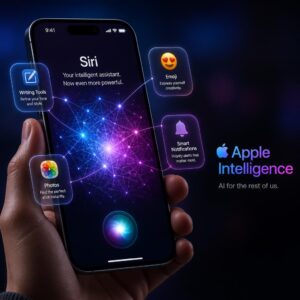
4. Writing Tools Powered by Apple Intelligence: The iOS 18 Hidden AI Feature Nobody Is Talking About Enough
Apple Intelligence, Apple’s own AI layer, started rolling out alongside iOS 18, and buried inside it are writing tools that quietly outperform what many people pay monthly for separate AI writing apps to do.
Access them anywhere you can type, by pressing and holding any text field, then selecting “Writing Tools” from the menu that appears. What you get is a full suite of AI-powered options:
- Proofread: Catches grammar, word choice, and sentence flow issues
- Rewrite: Rewrites selected text in a different tone or structure
- Make Friendlier / More Professional / More Concise: One-tap tone shifting
- Summarize: Collapses long blocks of text into key points instantly
These hidden iOS 18 features work inside Mail, Messages, Notes, and third-party apps including social media platforms. You’re essentially carrying a context-aware AI writing assistant that adapts to whatever you’re drafting, without opening a separate app, logging into a service, or paying a subscription fee.
For email specifically, the combination of Proofread and Make More Professional is like having a sharp editor glance over your shoulder before you hit send. For anyone who writes a lot of messages under time pressure, this is a game-changer that most users have sitting completely dormant in their phone.
Apple Intelligence features are currently available on iPhone 15 Pro and iPhone 15 Pro Max, and on all iPhone 16 models. They require iOS 18.1 or later for full functionality.
Best for: Business professionals, content creators, students, marketers, and anyone who writes emails, messages, or documents from their phone.
Estimated time saved: 1 to 2 hours per week for heavy communicators who send 30 or more emails or detailed messages daily.
5. The New Passwords App: iOS 18’s Most Overlooked Built-In Security Tool
For years, Apple quietly stored your passwords in a buried submenu inside Settings. It was technically functional and almost completely ignored because it felt like an afterthought. iOS 18 changed that by giving passwords their own dedicated app, simply called Passwords, and it’s one of the most underrated hidden iOS 18 features shipping on every updated device.
The Passwords app does far more than store login credentials. Open it and you’ll find your passwords organized into categories: All, Passkeys, Wi-Fi, Verification Codes, and Security. The Security section is the one most people need to see immediately. It flags passwords that are reused across multiple sites, passwords that have appeared in known data breaches, and passwords that are weak by current standards.
Here’s what makes it genuinely useful beyond basic storage:
- Shared Password Groups: You can create a group and share specific passwords with family members or trusted contacts. Changes sync automatically, so there’s no more texting the Netflix password at 9pm.
- Passkey Support: Passwords fully manages passkeys, which are the next-generation login method replacing traditional passwords on supported sites. No username, no password, no phishing risk.
- Verification Code Integration: If you use two-factor authentication codes, Passwords can store and auto-fill them, cutting the copy-paste step from the process entirely.
This is a password manager that rivals paid services like 1Password and LastPass for most everyday users, and it’s completely free, built directly into iOS 18.
Best for: Anyone managing multiple accounts, families sharing service logins, small business owners handling multiple platforms.
Estimated time saved: 30 to 45 minutes per week for users who currently juggle passwords manually or switch between multiple apps to find login details.
6. Custom App Icons and Home Screen Tinting: The Hidden iOS 18 Feature That Changes Everything Visually
This sounds like a cosmetic update. It’s actually a focus and workflow tool disguised as a visual feature, and it’s one of the most talked-about hidden iOS 18 features among power users who have discovered it.
iOS 18 lets you place app icons anywhere on your home screen, not just snapped to the grid from the top-left corner. You can leave gaps, cluster apps in specific zones, and organize your screen by workflow rather than by Apple’s rigid left-to-right stacking.
More importantly, iOS 18 introduced a tinting system that applies a uniform color wash to all your app icons simultaneously. Long press your home screen, tap “Customize,” then choose between Automatic, Dark, Light, or Tinted mode. In Tinted mode, you can pick any color and every app icon on your screen shifts to match that palette.
Why does this matter for more than aesthetics? Research on visual organization and digital workspace design consistently shows that a personalized, low-distraction visual environment reduces decision fatigue. When your apps are organized by color-coded zones, in a layout you intentionally designed, you spend less mental energy navigating and more mental energy working.
Here’s how power users are taking advantage of this:
- Creating a left-side cluster for communication apps and a right-side cluster for work tools
- Using dark mode icons on the home screen to reduce eye strain during evening use
- Removing empty apps from the visual field entirely, cutting down on the impulse to open them
This is one of those hidden iOS 18 features that feels small until you’ve lived with a properly organized home screen for two weeks. Then going back feels impossible.
Best for: Creatives, ADHD users, productivity enthusiasts, and anyone who feels overwhelmed by a cluttered phone screen.
Estimated time saved: More about cognitive load than clock time, but users who redesign their workflow-focused home screen report feeling more intentional and less distracted throughout the workday.
7. Tap to Cash and NameDrop Improvements: iOS 18’s Quietly Upgraded Contact Sharing
NameDrop launched in iOS 17 and most people either forgot it existed or never learned about it in the first place. iOS 18 upgraded it significantly, and the improvements turn it into something genuinely practical for both personal and professional situations.
NameDrop works by holding two iPhones near each other. Both screens light up with a contact card sharing prompt. Each person can choose what information to share and what to keep private, name, phone, email, social handles, and the exchange happens instantly without any app, any QR code, or any manual entry required.
The iOS 18 improvements include:
- Event-based NameDrop: You can share an event invitation by bringing phones together, which appears in the recipient’s Calendar automatically
- More granular sharing controls: Choose exactly which fields go across, and the other person does the same, so you can give a professional contact your work email without sharing your personal number
- Faster pairing: The connection initiates quicker and drops less often than in the iOS 17 version
Paired with Apple Pay and the Tap to Cash feature introduced alongside iOS 18, your phone is now a contactless hub for both professional introductions and personal payments. Tap to Cash lets you send Apple Cash to someone nearby with a simple tap of phones, no Venmo usernames to look up, no phone numbers to confirm.
For networkers, small business owners, freelancers, and anyone who meets new people and wants a frictionless way to exchange contact details, this combination of hidden iOS 18 features is worth setting up immediately.
Best for: Networkers, sales professionals, freelancers, event attendees, and families splitting costs.
Estimated time saved: Situational, but professional networkers consistently save 5 to 10 minutes per networking event and eliminate the headache of business card follow-up.
8. Scheduled Message Delivery: The iOS 18 Hidden Feature That Changes How You Communicate
This one is genuinely surprising because it’s something iPhone users have wanted for years, watched Android users enjoy, and assumed Apple would never add natively. iOS 18 added it. You can now schedule a text message to send at a specific time, directly inside the Messages app, without any third-party tool.
To use it, open a conversation in Messages, type your message, then press and hold the blue send arrow. A “Send Later” option appears with a time selector. Choose your time, confirm, and the message queues. You’ll see it sitting with a clock icon in the conversation until it sends automatically.
The use cases are numerous:
- Writing a message to a colleague at 11pm but scheduling it for 9am so you don’t disturb them
- Scheduling birthday messages in advance so you don’t forget
- Setting follow-up messages after meetings while context is fresh, then letting them send when the timing is right
- Managing communication across time zones without mentally tracking when it’s appropriate to message
This feature sits at the intersection of social awareness and productivity. You no longer have to choose between sending a message when you think of it and sending it when it’s considerate to do so.
A quick note: scheduled messages require your iPhone to be connected and functioning at send time. If your phone is off or in Airplane Mode when the scheduled time arrives, the message won’t send until connectivity is restored. Worth factoring in if you’re scheduling critical communication.
Best for: Remote workers, managers, freelancers with international clients, anyone in a long-distance relationship, and people who want to maintain communication habits without boundary violations.
Estimated time saved: 20 to 30 minutes per week for professional communicators, plus the social cost of late-night message interruptions to colleagues.
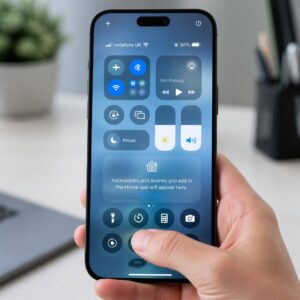
9. The Redesigned Control Center: iOS 18’s Most Customizable Hidden Feature
The Control Center, accessed by swiping down from the top-right corner of your screen, got the most significant redesign in its history with iOS 18. And the customization options buried inside it qualify as some of the best hidden iOS 18 features for power users.
iOS 18 lets you create multiple Control Center pages. You can have one page for media controls, one for home automation, one for work tools, and one for connectivity. Swipe between them like home screen pages. Each page holds its own collection of controls in whatever size and arrangement you choose.
To access the full customization:
- Open Settings and tap “Control Center”
- Scroll through the available controls and add what you need
- Rearrange using the drag handles on the right side
- On your actual Control Center, long-press to enter edit mode and resize individual tiles
Controls you might not know are available include: Accessibility Shortcuts, Text Size, Hearing Devices, Notes (opens directly to a new note), Magnifier, Sleep Focus, and hundreds of third-party app controls from apps you already have installed.
The ability to resize controls is the underrated gem here. You can make the media player tile large and prominent for easy access, while keeping brightness and volume controls compact. It’s a level of personalization that used to require jailbreaking your phone.
Best for: Heavy iPhone users, smart home enthusiasts, accessibility users, and anyone who currently digs through settings or searches for apps they need frequently.
Estimated time saved: 15 to 30 minutes per week in navigation time, with additional benefits in accessibility and emergency situations where quick access matters.
Comparison Table: Hidden iOS 18 Features at a Glance
| Feature | Time Saved Per Week | Best Use Case | Cost |
|---|---|---|---|
| Lock Screen Custom Shortcuts | 20-40 min | Frequent specific tasks | Free |
| RCS Messaging | 30+ min | Cross-platform communication | Free (carrier dependent) |
| iPhone Mirroring | 45-60+ min | Desk workers, remote teams | Free (requires Mac + macOS Sequoia) |
| Apple Intelligence Writing Tools | 60-120 min | Email, messaging, documents | Free (iPhone 15 Pro / iPhone 16+) |
| Passwords App | 30-45 min | Account security, shared logins | Free |
| Custom Icons and Home Screen Layout | Cognitive load reduction | Focus and workflow organization | Free |
| NameDrop and Tap to Cash | 5-10 min per event | Networking, payments | Free |
| Scheduled Messages | 20-30 min | Professional communication | Free |
| Redesigned Control Center | 15-30 min | Daily navigation and smart home | Free |
Your iOS 18 Hidden Features Action Plan: 9 Steps to Unlock Your iPhone Right Now
Consider this your bookmarkable quick-reference guide. Work through these steps once, and you’ll have more from your iPhone than most users ever get. Skip them, and your $1,000 phone continues performing at 30% capacity.
- Update to the latest version of iOS 18 first. Many features, especially Apple Intelligence tools, require iOS 18.1 or later. Go to Settings, General, Software Update and confirm you’re current. If you skip this step, several features on this list simply won’t appear on your device.
- Customize your lock screen shortcuts immediately. Long press your lock screen, tap Customize, and replace the default flashlight or camera button with something you actually reach for constantly. If you skip this, you’ll add extra taps to every single phone interaction for the rest of the year.
- Verify RCS Messaging is active. Go to Settings, Apps, Messages, and confirm RCS is toggled on. Contact your carrier if it doesn’t appear. Without this, your texts to Android users remain second-class communication with degraded quality and missing features.
- Set up iPhone Mirroring if you own a Mac. Open the iPhone Mirroring app on your Mac and complete the one-time pairing. Warning: many users pair their devices and then never think to use it. Set a sticky note on your monitor for one week reminding you to try it every time you reach for your phone while sitting at your desk.
- Activate and test Apple Intelligence Writing Tools. Open Mail, compose a message, type a few sentences, select the text, and long press to find Writing Tools. If it doesn’t appear, confirm your device model is compatible (iPhone 15 Pro or any iPhone 16) and that Apple Intelligence is enabled in Settings, Apple Intelligence and Siri. If you skip this step, you’re paying for a built-in AI writing assistant and using none of it.
- Open the Passwords app and run a security audit today. Tap the Passwords app, go to the Security section, and review every flagged password. A common mistake here is seeing the list and closing the app without acting. Commit to fixing at least the top three flagged items immediately. Reused passwords flagged in known data breaches represent real risk sitting on your device right now.
- Redesign your home screen layout by workflow zone. Spend 15 minutes long-pressing your home screen, entering Customize mode, and moving apps into intentional clusters. Put communication on one side, productivity tools in the center, and entertainment on a separate page. This isn’t decorating. It’s reducing the micro-decisions that drain focus over the course of a day.
- Schedule your first message to test the feature. Open a low-stakes conversation in Messages, type something casual, hold the send button, and pick a time 10 minutes from now. Let it send automatically. Once you’ve done it once, the workflow becomes muscle memory. Skipping this means you’ll keep sending late-night messages to colleagues and forgetting follow-ups that were top of mind at the wrong moment.
- Build a multi-page Control Center customized for how you actually work. Go to Settings, Control Center, and spend 10 minutes adding, removing, and organizing controls across multiple pages. Focus on the controls you currently hunt for manually. If you skip this step, your Control Center remains a generic Apple default that serves Apple’s assumptions about what you need, not yours.
Expert Insight: What Power Users Know That Casual iPhone Users Don’t
Sarah Perez, a longtime mobile technology analyst and senior editor at TechCrunch, has written extensively about the gap between what smartphone operating systems offer and what average users actually discover. Her recurring observation, paraphrased from multiple pieces published in 2024, is that Apple’s design philosophy consistently prioritizes discoverability for new users at the expense of visibility for advanced features.
In other words, Apple makes iOS easy to start. It doesn’t make iOS easy to master.
Perez’s counterpoint is worth noting: not every hidden feature deserves to be front and center. Some of them are hidden precisely because they require judgment to use well. Scheduled messages, for example, can create awkward situations if you forget a message is queued and the conversation moves on before it sends. Apple Intelligence Writing Tools can make your communication feel less personal if you rely on them too heavily without adding your own voice back into the output.
The lesson isn’t to unlock everything and use everything at maximum. It’s to know what’s available, understand how each tool works, and choose deliberately. The most productive iPhone users aren’t the ones with every feature enabled. They’re the ones who know their options and have made conscious choices about which ones serve their specific life.
That distinction, between knowing a feature exists and deciding whether it belongs in your workflow, is what separates someone who truly uses iOS 18 from someone who just updated to it.
Conclusion: Your iPhone Is Waiting for You to Actually Use It
Every feature covered in this post shipped on your device the day you updated to iOS 18. None of them cost extra. None require technical expertise. They were sitting there, quietly waiting, while most users tapped the same six apps they’ve used for years without ever looking deeper.
The three most important things to take away: iOS 18 rebuilt the lock screen, the Control Center, and the home screen customization from the ground up, giving you genuine control over your most-used interface for the first time. Apple Intelligence Writing Tools and the Passwords app deliver premium functionality that most people are paying third-party apps to provide. And features like RCS Messaging, iPhone Mirroring, and Scheduled Messages close gaps that iPhone users have been working around for years.
Here’s what’s at stake if you close this tab and go back to your usual routine. You’ll keep spending mental energy on a phone that’s working harder than it needs to. You’ll keep switching between apps that don’t need to be separate. You’ll keep sending degraded images to Android contacts, hunting for passwords, losing context every time you pick up your phone mid-workday. The tools to fix all of that are already installed. The only thing missing is 30 minutes to actually use them.
Your iPhone knows more than you’ve asked it to do. It’s time to ask.
Take Action Now
Primary CTA: Open your iPhone Settings right now and navigate to Apple Intelligence and Siri. If you see the option, turn it on and spend the next 10 minutes with the Writing Tools feature inside Mail. That single step will change how you use your phone for the rest of the year. Do it before you read another article.
Secondary CTA: Which of these hidden iOS 18 features surprised you most? Drop it in the comments below. Specifically, have you already been using any of these, or is this the first time you’re hearing about most of them? Real answers from real iPhone users help everyone in the community find what’s actually useful.
Sources referenced: Statista iOS adoption data and World Economic Forum 2024 Future of Work Report on digital tool literacy and workforce productivity trends.