Table of Contents
ToggleIs Your iPhone Running Slow? The Shocking Fix Apple Doesn’t Tell You About
You paid $800, maybe over $1,000, for that iPhone. Six months ago, it was lightning fast. Apps opened before your thumb even left the screen. Safari loaded pages in a blink. FaceTime connected without a hiccup.
Now? You tap an app and wait. And wait. Safari stutters. The keyboard lags behind your typing by a full word. Even the simple act of swiping between home screens feels like dragging your finger through wet cement.
Here’s the part that’ll sting: this probably isn’t random bad luck. And Apple’s official support page — the one that tells you to “restart your iPhone” and “update to the latest iOS” — is giving you maybe 20% of the real picture.
The truth is there are specific, fixable reasons your iPhone slows down over time, and there’s one particular reset technique that Apple buries deep in Settings, never promotes in its marketing, and rarely mentions in its support articles. It doesn’t erase your photos. It doesn’t delete your apps. But it can make an iPhone that feels three years old perform like it just came out of the box.
Let’s rip the cover off everything Apple’s not rushing to tell you.
Why Your iPhone Feels Slower Than the Day You Bought It
Before we get to the fixes, you need to understand why this happens. Because if you don’t understand the cause, you’ll fix the symptom today and be right back here in three months.
The “Planned Slowdown” Controversy Apple Already Admitted To
Remember 2017? Apple got caught doing something that confirmed what conspiracy theorists had been saying for years: they were intentionally slowing down older iPhones.
Apple’s explanation? They introduced a power management feature in iOS 10.2.1 that reduced the processing speed of iPhones with aging batteries. The logic: older batteries can’t deliver peak current, and if the processor demands more power than the battery can provide, the phone shuts down unexpectedly. So Apple throttled performance to prevent random shutdowns.
The problem wasn’t the engineering logic — it was that Apple did it silently. No notification. No toggle. No transparency. Users noticed their phones getting slower, assumed it was planned obsolescence, and millions upgraded to new iPhones unnecessarily.
Apple paid a $113 million settlement to U.S. states. They paid another $500 million to settle a class-action lawsuit. And they added the Battery Health feature in iOS 11.3 so users could finally see if their phone was being throttled.
But here’s what most people still don’t know: this feature is still active in 2025. If your battery health has degraded enough, your iPhone is being throttled right now, and Apple won’t send you a push notification about it. You have to go look for yourself.
We’ll show you exactly how to check in a later section.
Software Bloat: Each iOS Update Demands More From Your Hardware
Every September, Apple releases a major iOS update packed with new features: Live Activities, StandBy mode, Apple Intelligence, interactive widgets, real-time voicemail transcription. These features are designed for the latest hardware. But Apple pushes these updates to phones that are four, five, even six years old.
Your iPhone 12 from 2020 technically runs iOS 18. But running it and running it well are two different things. Each new iOS version adds background processes, increases RAM usage, and demands more from the GPU. Your hardware doesn’t get faster over time. It’s frozen at 2020 speeds, trying to run 2025 software.
This is like putting a 2025 turbo engine software tune on a 2020 economy car engine. The engine doesn’t blow up. It just strains.
Background Processes You Never Agreed To
Your iPhone is doing a staggering amount of work when you’re not even looking at it:
- Spotlight indexing is constantly crawling your files, messages, emails, and app content to build search results
- iCloud Photo Library is syncing, uploading, and optimizing thousands of images
- Mail is fetching messages from multiple accounts
- Background App Refresh is letting dozens of apps check for new content
- Siri Suggestions is analyzing your usage patterns and pre-loading content
- Analytics sharing is packaging and transmitting diagnostic data to Apple and app developers
Each of these processes is small on its own. Combined, they create a constant low-level drain on your CPU, RAM, and battery — and they all contribute to the sluggishness you’re feeling.
The Real Reasons Your iPhone Is Crawling (Not What You Think)
Most “speed up your iPhone” articles give you surface-level advice. Close your apps. Restart your phone. Update iOS. That’s fine, but it’s like putting a fresh coat of paint on a house with a cracked foundation. Let’s go deeper.
Overloaded System Cache and “Other” Storage
Go to Settings > General > iPhone Storage and scroll to the bottom. See that gray bar labeled “System Data” (previously called “Other”)? On many iPhones, this can balloon to 10, 15, even 20+ GB.
This category includes:
- Safari cache and offline reading lists
- Mail cache and attachments
- Streaming media caches (Spotify, YouTube, Netflix all store temporary files)
- Failed or paused software updates
- Diagnostic logs and crash reports
- Siri voices and language models
Apple provides no built-in tool to clear this category. There’s no “Delete System Data” button. And when your storage fills up, iOS starts aggressively managing memory, which directly slows down app performance, photo loading, and even basic UI animations.
This is one of the biggest reasons iPhones slow down, and Apple gives you almost no way to address it within the standard settings interface.
Battery Health and Its Direct Link to Performance
This connection is more direct than most people realize. It’s not just about battery life — how long your phone lasts on a charge. It’s about battery performance — how much power your battery can deliver at peak demand.
When your battery health drops below 80%, your iPhone may activate Performance Management Mode, which:
- Reduces maximum CPU clock speed
- Dims the display slightly
- Lowers speaker volume
- Reduces frame rates in some apps
- Disables camera flash in certain conditions
- Slows app launch times
You’re not imagining that your phone feels slower. Apple is literally telling the processor to work harder with less power. The fix? A battery replacement. Apple charges $89–$119 depending on your model (as of 2025), and authorized third-party repair shops often charge less. But Apple won’t proactively suggest this to you — you have to discover it yourself.
Rogue Apps Eating CPU Cycles in the Background
Some apps are worse than others. Social media apps (Facebook, Instagram, TikTok, Snapchat) are notorious for aggressive background activity: pre-fetching content, tracking location, syncing data, and running analytics.
A 2023 study by mobile analytics firm Pixalate found that Facebook’s iOS app generated over 70,000 data collection events per day on average. Each event requires CPU time, network activity, and memory.
You won’t find a “CPU Usage” monitor built into iOS (Apple doesn’t want you to see this). But if you notice your iPhone getting warm for no apparent reason or your battery draining faster than usual, a rogue app is likely the culprit.
Outdated Network Settings Slowing Everything Down
Here’s one almost nobody talks about: your iPhone stores network configurations, DNS caches, VPN settings, proxy configurations, and Wi-Fi authentication data. Over time, these can become corrupted or outdated, especially if you connect to dozens of different Wi-Fi networks (coffee shops, hotels, airports, offices).
Corrupted network settings don’t just slow your internet speeds — they can cause apps that depend on network connections to hang, stutter, and time out. Since nearly every modern app requires some network connection, this creates a cascading slowdown effect.
The Fix Apple Doesn’t Advertise: A Full Settings Reset Without Losing Data
Here’s the technique Apple buries deep in the Settings menu and never once mentions in its iPhone marketing, product pages, or mainstream support articles.
It’s called “Reset All Settings,” and it’s the single most effective way to speed up a slow iPhone without erasing your personal data.
What “Reset All Settings” Actually Does
This is different from “Erase All Content and Settings” (which wipes your phone clean like a factory reset). “Reset All Settings” does something far more surgical:
It resets every system configuration back to factory defaults while leaving your personal data untouched.
Specifically, it resets:
| What Gets Reset | What Stays Untouched |
|---|---|
| Wi-Fi networks and passwords | All photos and videos |
| Bluetooth pairings | All apps and app data |
| VPN configurations | Contacts and messages |
| Home screen layout | Music library |
| Notification preferences | Health data |
| Display and brightness settings | Apple Pay cards (re-verify needed) |
| Sound and haptic settings | iCloud account and sign-in |
| Privacy and location settings | Call history |
| Keyboard settings and dictionaries | Browsing history |
| Background App Refresh preferences | Saved files and documents |
Here’s why this works so well: over months and years of use, your iPhone accumulates hundreds of configuration changes, permission grants, background process authorizations, and system preferences. Some of these conflict with each other. Some become corrupted after iOS updates. Some enable resource-heavy features you forgot you turned on.
“Reset All Settings” clears all of that accumulated cruft in one sweep. It’s like cleaning out a closet that’s been accumulating junk for three years — you don’t throw away your clothes (your data), but you remove all the broken hangers, old shoeboxes, and random stuff that’s been making it impossible to find anything.
Step-by-Step Guide to Resetting All Settings on iPhone
Before you start: Write down your Wi-Fi password. You’ll need to reconnect after the reset.
For iOS 18 (and iOS 17, iOS 16):
- Open Settings
- Tap General
- Scroll to the bottom and tap Transfer or Reset iPhone
- Tap Reset
- Tap Reset All Settings
- Enter your passcode when prompted
- Confirm by tapping Reset All Settings again
- Your iPhone will restart — this takes 2–5 minutes
- Reconnect to your Wi-Fi network
- Re-pair your Bluetooth devices (AirPods, Apple Watch, car stereo)
Total time: About 10 minutes including reconnecting your devices.
What You Keep and What You Lose
Let’s be crystal clear about this because the fear of data loss stops people from trying it:
You KEEP:
- ✅ Every photo and video in your camera roll
- ✅ All your apps (no need to redownload anything)
- ✅ All app data (game saves, login sessions in most apps, chat histories)
- ✅ Your contacts, messages, and call history
- ✅ Your email accounts
- ✅ Your Apple ID and iCloud connection
- ✅ Your music, podcasts, and audiobooks
- ✅ Files in the Files app
- ✅ Health and fitness data
You LOSE (and need to reconfigure):
- ❌ Saved Wi-Fi passwords (reconnect manually)
- ❌ Bluetooth device pairings (re-pair your AirPods and Watch)
- ❌ Custom wallpaper (reset to default)
- ❌ Notification preferences (reconfigure per app)
- ❌ Home screen layout (returns to default arrangement)
- ❌ VPN configurations (re-enter manually)
- ❌ Custom keyboard settings
The trade-off is overwhelmingly worth it. You spend 15–20 minutes reconfiguring preferences in exchange for an iPhone that feels dramatically faster.
How much faster? Users on Apple’s own support forums and Reddit’s r/iPhone community consistently report:
- App launch times improving by 30–50%
- Safari loading pages noticeably faster
- Keyboard lag disappearing completely
- Smoother scrolling and animations
- Better battery life (because unnecessary background processes are disabled by default)
📢 [Ad Placement: Consider a related ad here for iPhone accessories, phone cases, or mobile security apps — high relevance to readers actively troubleshooting their iPhones.]
12 More Proven Fixes to Speed Up a Slow iPhone in 2025
The settings reset is the big one, but it’s not the only tool in your arsenal. Here are 12 additional fixes, ranked roughly by impact.
1. Clear Safari Cache and Website Data
Safari accumulates gigabytes of cached data over time: website files, cookies, browsing history, saved login sessions, and offline reading data.
How to clear it:
- Go to Settings > Apps > Safari (on iOS 18) or Settings > Safari (on earlier versions)
- Scroll down and tap Clear History and Website Data
- Choose All History
- Tap Clear History
Warning: This will log you out of websites and delete your browsing history. If you use iCloud Keychain or a password manager like 1Password or Bitwarden, your login credentials are safe — you’ll just need to re-enter them.
Impact: Moderate to High — especially if you’ve never done this before.
2. Offload Unused Apps Automatically
iOS has a built-in feature that removes apps you haven’t used recently while keeping their data intact. If you reopen the app, it re-downloads automatically with all your data preserved.
How to enable it:
- Go to Settings > General > iPhone Storage
- Tap Enable next to “Offload Unused Apps”
This frees up storage space, and more free storage means iOS has more room to manage memory and caching efficiently.
Impact: Moderate — particularly on 64GB and 128GB iPhones where storage is tight.
3. Disable Background App Refresh for Non-Essential Apps
This is one of the biggest hidden performance drains on any iPhone.
How to manage it:
- Go to Settings > General > Background App Refresh
- You’ll see a list of every app with permission to refresh in the background
- Turn off any app you don’t need real-time updates from
Keep enabled: Messaging apps, email, maps, banking apps (for transaction alerts)
Disable: Social media, shopping apps, news apps, games, entertainment apps
The average iPhone has 80+ apps installed. If even half of those are refreshing in the background, that’s 40 apps competing for CPU and network resources every few minutes.
Impact: High — this alone can noticeably improve performance and battery life.
4. Turn Off Unnecessary Location Services
Many apps request “Always On” location access when they only need it while you’re using them. Each app tracking your location consumes GPS power, CPU cycles, and battery.
How to audit it:
- Go to Settings > Privacy & Security > Location Services
- Review each app individually
- Change “Always” to “While Using the App” or “Never” for apps that don’t need constant location access
Pro tip: The small arrow icon next to each app tells you when it last accessed your location. If an app you rarely use shows a recent location access, it’s been tracking you in the background.
Impact: Moderate — improves both speed and battery life, plus it’s a significant privacy improvement.
5. Reduce Motion and Transparency Effects
iOS uses sophisticated parallax effects, animations, and transparency layers throughout the interface. These look beautiful on new hardware but can tax older processors.
How to reduce them:
- Go to Settings > Accessibility > Motion
- Enable Reduce Motion
- Go back to Accessibility > Display & Text Size
- Enable Reduce Transparency
This won’t make your iPhone look ugly — it replaces zoom animations with simple crossfades and removes some translucent background effects. On older iPhones (iPhone 11, 12, SE), this can make a visible difference in UI responsiveness.
Impact: Low to Moderate — most noticeable on iPhones with A13 chip or older.
6. Delete and Reinstall Problem Apps
Some apps accumulate massive caches over time:
- TikTok can store 2–5 GB of cached video
- Instagram often holds 1–3 GB of cached stories and reels
- Spotify caches album art, podcast data, and offline content
- Slack stores cached messages, files, and images
Deleting and reinstalling these apps clears their caches completely — something you often can’t do from within the app itself.
How to check app sizes:
- Go to Settings > General > iPhone Storage
- Tap any app to see its total size vs. its “Documents & Data” size
- If Documents & Data is significantly larger than the app itself, reinstalling will free up that space
Impact: Moderate to High — especially for heavy social media and streaming app users.
7. Update to the Latest iOS Version (Yes, Really)
This advice gets eye-rolls because it seems like the most generic suggestion possible. But there’s a specific reason it matters for performance.
Apple’s initial release of a major iOS version (like iOS 18.0) is often the buggiest and most resource-intensive. The follow-up point releases (18.1, 18.2, 18.3, etc.) contain performance optimizations, bug fixes, and memory management improvements that can significantly improve speed.
The key: Don’t install a major new iOS version on day one. Wait for the .1 or .2 release. But once those optimization updates are available, install them promptly.
How to check:
- Go to Settings > General > Software Update
- Install any available update
Impact: Variable — sometimes transformative, sometimes minimal, depending on the specific update.
8. Manage Your iPhone Storage Aggressively
When your iPhone storage is more than 90% full, performance degrades significantly. iOS needs free space for:
- Virtual memory (swap space)
- App caching
- System updates
- Photo processing
- Search indexing
Aim to keep at least 10–15% of your total storage free. For a 128GB iPhone, that means having at least 13–19 GB available.
Quick storage wins:
- Delete old text message threads with lots of photos and videos
- Review and delete screenshots (most people have hundreds of pointless screenshots)
- Remove downloaded Netflix, Spotify, or podcast episodes you’ve already consumed
- Delete old voicemails
- Use Google Photos to back up photos to the cloud, then remove them from your device
Impact: High — particularly if your storage is above 90% capacity.
9. Disable Siri Suggestions and Search Indexing
Siri Suggestions is constantly analyzing your behavior: which apps you open at what times, who you call, what you search for, where you go. This analysis runs in the background and contributes to CPU load.
How to disable:
- Go to Settings > Siri (iOS 18) or Settings > Siri & Search (earlier versions)
- Disable Suggestions While Searching
- Disable Suggestions on Lock Screen
- Disable Suggestions on Home Screen
- Scroll down and disable Siri suggestions for individual apps you don’t need smart suggestions from
Impact: Low to Moderate — helpful on older devices with limited RAM.
10. Check and Replace a Degraded Battery
We covered this earlier, but here’s the specific action step:
- Go to Settings > Battery > Battery Health & Charging
- Check Maximum Capacity
- Look for the Peak Performance Capability section
If you see a message saying “This iPhone has experienced an unexpected shutdown…” or “Performance management has been applied,” your phone is being actively throttled.
Battery replacement costs (Apple, as of 2025):
| iPhone Model | Battery Replacement Cost |
|---|---|
| iPhone 16 series | $99 |
| iPhone 15 series | $89 |
| iPhone 14 series | $89 |
| iPhone 13 series | $89 |
| iPhone 12 series | $89 |
| iPhone SE (3rd gen) | $89 |
| iPhone 11 series | $89 |
Third-party repair shops certified under Apple’s Independent Repair Provider program often charge $60–$80 for the same service.
Impact: Very High — if your battery health is below 80%, this is likely the single biggest performance improvement you can make.
📢 [Ad Placement: Battery replacement services, portable chargers, or MagSafe battery packs — highly relevant to readers experiencing battery-related slowdowns.]
11. Turn Off Automatic Downloads and App Updates
By default, your iPhone automatically downloads app updates, music purchases, and other content in the background. On older devices, this background downloading competes for bandwidth and processing power.
How to disable:
- Go to Settings > App Store
- Disable App Updates under Automatic Downloads
- Disable Apps (automatic app downloads from other devices)
- Consider disabling In-App Content as well
You can still update apps manually from the App Store whenever you choose — you’ll just control when it happens instead of letting it run during peak usage times.
Impact: Low to Moderate — mostly noticeable during heavy usage when background downloads compete for resources.
12. The Nuclear Option: DFU Restore
If nothing else works, a DFU (Device Firmware Update) restore is the most thorough reset possible. It reinstalls iOS at the firmware level, deeper than a standard factory reset.
⚠️ Warning: This erases EVERYTHING on your iPhone. Back up to iCloud or your computer first.
When to consider this:
- Your iPhone is still slow after trying all the above fixes
- You’re experiencing frequent crashes or glitches
- You suspect file system corruption
How to do it varies by model (the button combinations differ between Face ID and Touch ID iPhones). Apple’s support page provides model-specific instructions, or you can visit an Apple Store for assistance.
After the DFU restore, set up your iPhone as new rather than restoring from a backup. Restoring from a backup can reintroduce the same corrupted settings and caches that caused the slowdown in the first place.
Impact: Very High — but it’s a last resort because of the time investment required to set up your phone from scratch.
How to Check If Apple Is Throttling Your iPhone Right Now
You shouldn’t have to guess. Here’s how to find out definitively.
Using the Built-In Battery Health Tool
- Open Settings
- Tap Battery
- Tap Battery Health & Charging
- Read the Maximum Capacity percentage and the Peak Performance Capability section
What the numbers mean:
| Maximum Capacity | What It Means |
|---|---|
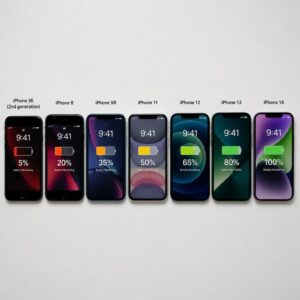
| 100%–90% | Battery is in good health. No throttling. |
| 89%–80% | Battery is aging. Performance may be slightly reduced under heavy load. |
| 79% or below | Battery is significantly degraded. Performance throttling is likely active. Apple recommends replacement. |
If you see the message “This iPhone has experienced an unexpected shutdown because the battery was unable to deliver the necessary peak power. Performance management has been applied to help prevent this from happening again” — your phone is actively being throttled right now.
You’ll also see a link to “Disable” performance management. You can disable it, but your phone may shut down randomly during high-demand tasks. The real fix is replacing the battery.
Third-Party Benchmarking Tools Worth Trying
Want to see actual performance numbers? These apps run standardized tests and give you scores you can compare against other iPhone models:
- Geekbench 6 — The gold standard for CPU benchmarking on mobile. Run a test and compare your scores to published averages for your iPhone model. If your scores are significantly lower, throttling or another issue is limiting your performance.
- 3DMark Wild Life — Tests GPU performance specifically. Useful if games and video are stuttering.
- AnTuTu Benchmark — Comprehensive test covering CPU, GPU, memory, and storage speeds.
After running these benchmarks, compare your results to the published averages for your specific iPhone model. If your scores are 20% or more below the average, something is actively limiting your phone’s performance.
When It’s Time to Stop Fixing and Start Replacing
Sometimes, the honest answer is that your iPhone has reached the end of its practical lifespan. No amount of settings tweaking will make a 7-year-old processor feel modern.
The 5-Year Rule for iPhone Hardware
Based on Apple’s software support history and real-world hardware degradation patterns, here’s a practical guideline:
| iPhone Age | Status in 2025 |
|---|---|
| 1–2 years old (iPhone 15, 16) | Peak performance. No action needed. |
| 2–3 years old (iPhone 14) | Still excellent. Minor tweaks may help. |
| 3–4 years old (iPhone 13) | Good with maintenance. Battery replacement may be needed. |
| 4–5 years old (iPhone 12) | Showing age. Regular maintenance required. Battery replacement recommended. |
| 5+ years old (iPhone 11 and older) | Reaching end of practical life. Consider upgrading. |
Apple typically provides iOS updates for 5–6 years after a phone’s release. Once your iPhone stops receiving iOS updates, it still works, but you’ll miss out on security patches, new features, and app compatibility.
Best Budget-Friendly iPhone Upgrades in 2025
If your iPhone is past the point of repair, here are the best value options without paying full flagship price:
- iPhone SE (4th generation, 2025) — Apple’s most affordable new iPhone with a modern chip. Perfect if you want current performance at the lowest price point.
- iPhone 15 (now discounted) — With the iPhone 16 cycle in full swing, the iPhone 15 is available at reduced prices through carriers and Apple’s refurbished store.
- Apple Certified Refurbished — Available at apple.com/shop/refurbished. These come with new batteries, new outer shells, and a full one-year warranty. Typically 15–20% cheaper than new.
- iPhone 14 — Now two generations old and available at significant discounts. Still receives full iOS support and runs every modern app smoothly.
📢 [Ad Placement: iPhone deals, trade-in services, phone carriers, or refurbished electronics marketplaces — high commercial intent from readers considering upgrades.]
Protecting Your iPhone Performance Long-Term
Fixing a slow iPhone is one thing. Keeping it fast is another. These habits prevent the problem from recurring.
Battery Care Habits That Extend Performance Life
Your iPhone battery is a lithium-ion cell with a finite number of charge cycles (Apple rates it at roughly 500 full cycles before reaching 80% capacity). Here’s how to maximize its lifespan:
- Use Optimized Battery Charging (Settings > Battery > Battery Health & Charging > Optimized Battery Charging). This feature learns your daily routine and waits to charge past 80% until you need to use your phone.
- Avoid extreme temperatures. Lithium-ion batteries degrade fastest in heat. Don’t leave your phone in a hot car. Don’t charge it while it’s in a thick case that traps heat. Apple states the ideal temperature range is 32°F to 95°F (0°C to 35°C).
- Don’t habitually drain to 0%. Deep discharges stress lithium-ion cells more than shallow ones. Keeping your battery between 20% and 80% most of the time is the sweet spot for longevity.
- Use the charging limit feature. In iOS 17 and later, you can set an 80% charge limit (Settings > Battery > Battery Health & Charging > Charge Limit). This significantly extends long-term battery health at the cost of 20% daily capacity.
- Use Apple-certified chargers. Cheap, uncertified chargers can deliver inconsistent power that stresses battery cells. Look for the MFi (Made for iPhone) certification or use Apple’s own chargers.
Storage Management Routines
Set a monthly reminder to:
- Check Settings > General > iPhone Storage
- Review your largest apps and their cache sizes
- Delete downloaded media you’ve already consumed
- Clear Safari cache
- Delete old message threads with large attachments
- Review and delete unnecessary screenshots and photos
Think of it like cleaning your house. If you do a little bit every month, you never face a massive, overwhelming job.
Security Practices That Also Boost Speed
Here’s something most people don’t connect: poor security hygiene can slow your phone down.
- Malicious configuration profiles can be installed by sketchy websites or phishing attacks. Check Settings > General > VPN & Device Management — if you see profiles you don’t recognize, delete them immediately.
- Compromised email accounts that are being used to send spam can generate massive amounts of background activity. Change passwords on any accounts that show unusual activity.
- Suspicious apps from outside the mainstream — apps you sideloaded or installed from alternative sources — can run background processes that drain resources. Stick to the App Store and keep your apps updated.
- Use a reputable VPN like NordVPN or ExpressVPN when connecting to public Wi-Fi. This doesn’t directly speed up your phone, but it prevents the kind of network-level attacks that can compromise your device configuration.
For a deeper guide on mobile security, check out our article on mobile cybersecurity best practices at CyberTechNerd.com.
FAQs About Slow iPhone Performance
Does closing apps in the app switcher speed up my iPhone?
No. This is the most persistent iPhone myth that refuses to die. When you swipe up to “close” an app, you’re removing it from memory. But iOS is designed to manage memory automatically — suspended apps in the background use almost zero CPU and minimal RAM. Force-closing apps actually hurts performance because reopening them requires a full reload from storage, which uses more CPU and battery than simply resuming a suspended app. Apple’s own engineers have confirmed this repeatedly. Stop force-closing your apps.
Will a factory reset make my iPhone faster?
A full factory reset (“Erase All Content and Settings”) can improve performance, but it’s overkill for most situations. It erases everything — photos, apps, messages, all of it. Try “Reset All Settings” first (which preserves your data), then the 12 fixes outlined in this article. Only resort to a factory reset (or DFU restore) if those steps don’t work. And if you do factory reset, set up as a new iPhone rather than restoring from a backup for the best performance results.
How often should I restart my iPhone?
Apple designs iOS to run indefinitely without a restart, but in practice, restarting once a week clears temporary memory leaks, flushes DNS caches, and resets background processes. If your iPhone is already running slowly, restart it as a first step — but don’t expect it to be a permanent fix. It’s a band-aid, not a cure.
Does using Low Power Mode all the time hurt my iPhone?
Low Power Mode reduces background activity, lowers screen brightness, disables some visual effects, and reduces CPU performance by about 10–15%. Using it occasionally to stretch battery life is fine. Using it 24/7 means you’re voluntarily throttling your own phone’s performance. If you find yourself keeping it on all the time because your battery can’t last a day without it, that’s a sign you need a battery replacement, not permanent Low Power Mode.
Can too many photos slow down my iPhone?
Yes, indirectly. Photos and videos consume storage space, and when your storage is nearly full, iOS struggles to manage memory, caching, and virtual memory. The photos themselves don’t use CPU, but the storage crunch they create affects everything. If you have 50,000+ photos, consider using iCloud Photos with “Optimize iPhone Storage” enabled (Settings > Photos > Optimize iPhone Storage) — this keeps smaller versions on your device and stores full-resolution originals in iCloud.
Why is my iPhone slow after an iOS update?
For the first 24–72 hours after a major iOS update, your iPhone performs extensive background work: re-indexing Spotlight search, re-optimizing apps for the new OS, rebuilding caches, and syncing iCloud data. This is normal and temporary. If your phone is still slow after a week, the update may be straining your hardware, and the fixes in this article will help.
Is it worth replacing the battery on an older iPhone?
If your iPhone is 4 years old or newer and the battery health is below 80%, a battery replacement is almost always worth it. At $89, it’s dramatically cheaper than buying a new phone and can restore performance to near-original levels. If your iPhone is 5+ years old, weigh the battery replacement cost against the price of upgrading to a newer used or refurbished model.
Do widgets slow down my iPhone?
Some widgets do. Widgets that update frequently — weather, stocks, news, fitness tracking — run background processes to refresh their data. Having a dozen active widgets on your home screen creates a constant stream of small background tasks. If you’re experiencing slowdowns, remove widgets you don’t actively use. Keep 2–3 essential widgets and remove the rest.
Can a VPN slow down my iPhone?
A VPN adds an encryption layer to all your network traffic, which requires additional CPU processing and can increase network latency. On modern iPhones (iPhone 12 and newer), this impact is negligible. On older hardware, you may notice slightly slower browsing and app loading when a VPN is active. If performance is critical and you’re on a trusted private network, you can temporarily disconnect your VPN.
How do I know if an app is causing my iPhone to slow down?
Go to Settings > Battery and review the battery usage breakdown by app. Any app consuming a disproportionate amount of battery relative to how much you use it is likely running excessive background processes. For example, if an app you use for 10 minutes a day shows 25% battery usage, it’s doing a lot of work behind the scenes. Consider deleting and reinstalling it, disabling its Background App Refresh, or finding an alternative.
Final Thoughts: Take Control of Your iPhone’s Speed
Your iPhone slowing down isn’t inevitable, and it’s not always a sign that you need to buy a new one. In most cases, it’s the result of accumulated system cruft, a degrading battery, bloated app caches, and background processes that pile up silently over months and years.
The “Reset All Settings” technique is the single most impactful fix that Apple never promotes. It takes 10 minutes, preserves all your personal data, and can make an iPhone that feels painfully slow perform like it’s months old instead of years old.
Here’s your action plan in order of priority:
- Check your battery health right now (Settings > Battery > Battery Health). If it’s below 80%, schedule a battery replacement.
- Perform “Reset All Settings” (Settings > General > Transfer or Reset iPhone > Reset > Reset All Settings).
- Clear Safari cache and review your largest apps for excessive cached data.
- Disable Background App Refresh for every app that doesn’t need it.
- Free up storage — aim for at least 10–15% of your total capacity being available.
Do these five things today. It’ll take less than 30 minutes, and you’ll notice the difference immediately.
Your iPhone was designed to be fast. Now you know how to keep it that way — even when Apple isn’t rushing to tell you how.
Have questions about iPhone performance, mobile security, or Apple’s battery practices? Drop a comment below or explore more guides at CyberTechNerd.com.