Table of Contents
ToggleHow to Check a Used iPhone Before Buying: 15 Critical Things Sellers Hope You Never Notice
You found a used iPhone listed at what looks like a steal of a price. The photos look clean. The seller says it’s “in perfect condition.” Your gut says go for it.
Stop right there.
The used smartphone market is flooded with hidden problems that aren’t visible in photos — and sellers, whether intentional or not, frequently skip over the details that matter most. A cracked screen digitizer that still “works.” A battery holding only 60% of its original charge. A phone still tied to someone else’s Apple ID. Or worse, an iPhone flagged as stolen.
Buying a used iPhone without a proper inspection is like buying a car without popping the hood. It might look fine from the outside, but you won’t know what you’re really getting until it’s too late.
This guide walks you through 15 critical things to check before handing over a single dollar — things most sellers genuinely hope you skip right past. Whether you’re shopping on Facebook Marketplace, Craigslist, eBay, or from a friend of a friend, this checklist could save you hundreds of dollars and a massive headache.
Let’s get into it.
Why Buying a Used iPhone Is Risky Without Doing Your Homework
The used iPhone market is enormous. According to Statista, the global secondhand smartphone market is projected to exceed $100 billion by 2026, with iPhones making up a significant slice of that pie. People love the Apple ecosystem, and buying used is one of the most affordable ways to get in.
But that popularity also attracts scammers, careless sellers, and people who genuinely don’t know (or care) that their device has problems.
Common issues buyers encounter after a purchase:
- Activation Lock — The phone is still tied to the previous owner’s Apple ID, making it essentially a very expensive paperweight
- Blacklisted IMEI — The phone was reported stolen or has unpaid carrier balances, making it unusable on most networks
- Swapped or repaired parts — Third-party screens, batteries, or cameras that trigger Apple’s “Important Message” warnings
- Poor battery health — A battery at 70% health that dies within 3 hours of normal use
- Hidden MDM software — Corporate device management profiles that someone forgot (or strategically avoided) removing
The good news? Every single one of these issues is detectable before you buy — if you know where to look.
The Pre-Inspection Checklist (Before You Even Touch the Phone)
Some checks happen before you ever meet the seller in person. These are arguably the most important steps, because they can tell you immediately whether a deal is worth pursuing at all.
1. Run an IMEI Check First
Every iPhone has a unique 15-digit IMEI (International Mobile Equipment Identity) number — think of it as the phone’s fingerprint. Before you go anywhere near a purchase, ask the seller to provide this number.
How to find the IMEI:
- Dial
*#06#on the phone - Go to Settings > General > About > IMEI
- Check the original box (if available)
Once you have it, run it through a reputable IMEI checker:
- IMEI.info — Free basic check
- CheckMEND — Paid but detailed history report
- Swappa IMEI Check — Specifically built for used phone buyers
An IMEI check tells you the device’s model, carrier lock status, whether it’s been reported lost or stolen, and sometimes even warranty status.
🔴 Red Flag: A seller who refuses to share the IMEI number is hiding something. Walk away.
2. Verify the iPhone Is Not Blacklisted
A blacklisted phone is one that has been reported stolen, involved in fraud, or has unpaid installment plan balances. Even if you buy it legally, a blacklisted iPhone cannot be activated on major U.S. carriers (AT&T, Verizon, T-Mobile) — and that’s almost impossible to reverse.
Use your IMEI check from Step 1 — most services flag blacklist status directly. You can also use T-Mobile’s Device Unlock portal or your specific carrier’s online tools to verify compatibility.
This takes five minutes and could save you from buying a phone you literally cannot use.
Physical Inspection — What Your Eyes (and Hands) Should Catch
Meet up in a public, well-lit location. Bring a flashlight if you can. Natural daylight is your best friend here.
3. Inspect the Screen for Damage and Replacements
The screen is the most expensive part of an iPhone to repair — and the most frequently replaced part in the used market. A third-party screen replacement might look fine at first glance but can cause significant problems.
What to check:
- Dead pixels or discoloration: Hold the phone at different angles. Look for yellow tints, green lines, purple blotches, or patches of different brightness
- Touch sensitivity: Swipe quickly across the screen in all four corners. Tap quickly in every region. Unresponsive areas indicate digitizer damage or a cheap replacement
- Brightness uniformity: Open a white image or webpage and look for uneven backlighting
- True Tone and auto-brightness: Go to Settings > Display & Brightness and confirm True Tone is listed and functional
The Apple Parts Warning:
On iPhones running iOS 15.2 and later, go to Settings > General > About. If the screen was replaced with a non-genuine Apple part, you’ll see a message that says: “Important: Unable to verify this iPhone has a genuine Apple display.” Not necessarily a dealbreaker, but it should affect your negotiation.
4. Check the Body, Frame, and Buttons
Run your fingers along every edge of the phone.
- Bends or warps in the frame suggest the phone was seriously dropped or sat on
- Deep scratches or dents on aluminum or stainless steel frames often indicate careless ownership
- Button feel: Volume buttons, the side button (power/lock), and the silent toggle should all feel crisp with a distinct click — not mushy or stiff
- Mute switch: Toggle it back and forth. It should feel tactile and move smoothly
- Check for gaps between the screen and the frame — this can indicate a repair job that wasn’t completed properly
A few light scratches? Totally normal. Significant bending, cracked rear glass, or loose buttons? Factor those repair costs into your offer — or walk away.
5. Examine All Ports and the Speaker Grills
Grab that flashlight.
- Lightning or USB-C port: Look for lint, corrosion, or bent pins. A damaged charging port is an expensive repair
- Speaker grills (bottom and earpiece): They should be clean and free of corrosion. Test by playing audio — both speakers should produce clear, undistorted sound
- Microphone: Record a short voice memo and play it back. Muffled or static-filled recordings indicate microphone damage
- SIM tray: Check that it’s present and opens/closes properly. A missing or bent SIM tray is a minor but telling sign of careless handling
Software and Settings Checks — The Real Landmines
This is where most buyers get burned. Everything might look perfect physically, but the software side of a used iPhone can hide serious problems.
6. Disable Activation Lock (Find My iPhone) First
This is the single most important check on this entire list.
Activation Lock is Apple’s anti-theft feature tied to iCloud. If the previous owner’s Apple ID is still linked to the phone, you will not be able to set it up as your own — even after a factory reset. Even Apple cannot remove Activation Lock without the original owner’s credentials.
Before the seller erases anything, verify:
- Go to Settings > [Seller’s Name] > Find My
- Confirm Find My iPhone is turned OFF
- Or visit iCloud.com/find and confirm the device isn’t showing as active
Better yet: Ask the seller to sign out of their Apple ID in front of you before any money changes hands.
Go to: Settings > [Their Name] > Sign Out
This removes the device from their Apple ID entirely.
🔴 If a seller says they’ll “remove it later” or “forgot their password,” that’s not your problem to inherit. Don’t buy the phone.
7. Check the iOS Version and Software Compatibility
An outdated iOS version might mean the phone can’t receive security updates — which is a significant privacy and cybersecurity concern.
- Go to Settings > General > Software Update
- Verify it’s running the latest (or near-latest) version of iOS
- Check whether the model supports the current iOS release
If the phone is so old it no longer receives iOS updates, you’re buying a device with known security vulnerabilities that Apple itself has abandoned. It may still work fine for basic tasks, but be aware of what you’re getting.
Check Apple’s compatibility list: Apple iOS Compatibility
8. Verify the Serial Number Matches Apple’s Records
This one catches outright fraud.
Go to Settings > General > About > Serial Number, then check it on Apple’s official coverage checker:
This confirms:
- The device is a genuine Apple product
- Its warranty status
- Whether AppleCare is still active
Cross-reference this serial number with the one on the original box (if provided). A mismatch means something is very wrong.
Battery and Performance Checks
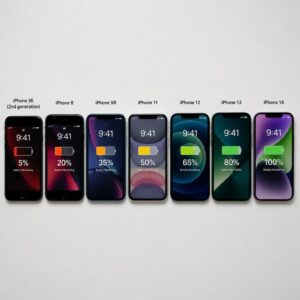
Battery degradation is the most common (and most quietly hidden) problem in used iPhones. A phone that “works great” can be miserable to own if its battery dies by noon.
9. Check Battery Health Percentage
Apple made this easy — go to:
Settings > Battery > Battery Health & Charging
Here’s a simple grading scale:
| Battery Health | What It Means | Should You Buy? |
|---|---|---|
| 100% – 90% | Excellent — nearly new condition | Yes, confidently |
| 89% – 80% | Good — normal wear | Yes, with price consideration |
| 79% – 70% | Fair — noticeable degradation | Only if price reflects it |
| Below 70% | Poor — needs immediate replacement | Negotiate hard or avoid |
Battery replacement at Apple costs $49–$99 depending on the model. Factor that in if the health is below 80%.
Also check the Cycle Count if possible — you can view this in Battery Health on iOS 17 and later, or by accessing a battery diagnostic from a third-party app.
10. Test Charging Speed and Port Integrity
Bring a charger with you. Plug it in and observe:
- Does the phone recognize the charger immediately?
- Does it show the charging indicator?
- Is the cable seating tightly or does it wobble?
If you have access to a USB-C power meter or a known fast charger, verify that the phone charges at the expected wattage (MagSafe or USB-C fast charging speeds vary by model).
A port that charges intermittently or requires you to wiggle the cable is either full of debris (sometimes fixable with a toothpick) or has hardware damage (expensive repair).
Network and Carrier Checks
11. Confirm the iPhone Is Unlocked (or Compatible With Your Carrier)
A locked iPhone only works on one carrier. If it’s locked to AT&T and you’re on T-Mobile, you’ve got a problem.
How to check:
- Go to Settings > General > About > Carrier Lock
- “No SIM restrictions” means it’s unlocked ✅
- Any other message means it’s carrier-locked ❌
You can also insert your own SIM card and see if calls and data work. If the phone shows “Invalid SIM” or “No Service,” it’s locked to another carrier.
Unlocking options:
- The original carrier can unlock it (usually after the installment plan is paid off)
- Third-party unlocking services exist but vary in reliability
🔴 If the seller claims it’s unlocked but your SIM doesn’t work, that’s a lie. Walk away.
12. Test Cellular Signal, Wi-Fi, and Bluetooth
Pop in your SIM (or ask to test with the seller’s SIM still installed):
- Make a phone call and confirm voice quality
- Check 4G LTE or 5G signal strength in the status bar
- Connect to a nearby Wi-Fi network and run a speed test (use Fast.com or Speedtest.net)
- Go to Settings > Bluetooth, enable it, and scan for nearby devices — confirm it discovers them
Wi-Fi and Bluetooth antenna problems are relatively rare but can occur after drops. They’re also expensive to repair.
Camera, Face ID, and Touch ID Tests
13. Test Every Camera Mode and Flash
Open the Camera app and systematically test:
- Rear wide camera — Take a photo in normal light
- Ultra-wide camera (if applicable) — Switch to 0.5x and verify image quality
- Telephoto camera (if applicable) — Zoom to 2x or 3x
- Portrait mode — Check background blur accuracy
- Video recording — Record a 30-second clip and check for audio sync issues or autofocus problems
- Front camera (selfie) — Take a photo and check sharpness
- Flash — Test both the rear flash and front flashlight (on supported models)
Look for: blurry spots (dust behind lens), autofocus that hunts endlessly, lens flare from cracked internal elements, or camera failures.
On iPhones with non-genuine cameras, you may see the “Important Message” warning in Settings > General > About.
14. Verify Face ID or Touch ID Works Properly
- Face ID (iPhone X and later): Go to Settings > Face ID & Passcode and test recognition in different angles and lighting conditions. Face ID that fails constantly may indicate a damaged TrueDepth camera system — a very expensive repair
- Touch ID (older models): Go to Settings > Touch ID & Passcode, add your fingerprint temporarily, and test responsiveness. A Touch ID sensor that “doesn’t recognize fingerprints well” may have physical damage to the home button
These features are deeply integrated into Apple’s security hardware. Non-functional Face ID or Touch ID is not just inconvenient — it affects Apple Pay, secure app logins, and overall device security.
Privacy and Security Red Flags
15. Factory Reset Confirmation and MDM Profile Check
Before you finalize the purchase, the phone needs to be completely wiped.
Check for MDM (Mobile Device Management) profiles:
Go to Settings > General > VPN & Device Management
If you see any profiles listed here, this phone was previously enrolled in a corporate or institutional device management system. That profile may restrict what apps you can install, monitor device activity, or even remotely wipe the phone after you buy it.
Ask the seller to remove all profiles before selling. If they can’t — because it requires IT administrator access — this phone was a corporate device and should never be sold to the general public without being properly deprovisioned.
After verifying everything:
- Watch the seller erase the device: Settings > General > Transfer or Reset iPhone > Erase All Content and Settings
- Go through the initial setup yourself, using your own Apple ID
- Confirm activation completes successfully
This is your proof of a clean, unencumbered device.
Tools and Apps That Help You Inspect a Used iPhone
You don’t have to rely on your eyes alone. These tools make the process faster and more thorough:
| Tool | Purpose | Cost |
|---|---|---|
| Phone Diagnostics (App Store) | Runs hardware tests on screen, sensors, cameras | Free / Freemium |
| TestM Hardware Test | Comprehensive device health report | Free |
| iMazing (Mac/PC) | Deep device diagnostics via USB | Freemium |
| IMEI.info | IMEI and blacklist check | Free (basic) |
| CheckMEND | Full device history report | ~$2–$5 |
| Apple Diagnostics (via Apple Store) | Official hardware testing | Free (in-store) |
If you have the opportunity, take the phone to an Apple Store or authorized service provider and ask for a diagnostic check before purchase. Some sellers will allow this — and a seller who refuses is telling you something important.
Where to Buy Used iPhones Safely (And Where to Avoid)
Not all used iPhone marketplaces are created equal.
Higher Trust Platforms:
- Apple Certified Refurbished — Comes with full warranty, genuine parts guarantee, and Apple-certified quality. The gold standard.
- Swappa — Requires IMEI verification before listing, has a dedicated fraud team, and has buyer protection
- Best Buy Certified Refurbished — Geek Squad inspected with return policy
- Back Market — Certified refurbishers, graded condition system, warranty included
Proceed With Caution:
- eBay — Buyer protection exists but disputes can be complicated; verify seller ratings carefully
- Facebook Marketplace / Craigslist — Zero buyer protection; always meet in person at a public location (many police departments offer “Safe Trade” spots in their lobbies)
Avoid:
- Random WhatsApp or Telegram deals
- Sellers who only communicate via email with no other contact
- Deals that require you to pay before seeing the device
Red Flags That Should Make You Walk Away Immediately
No amount of negotiating fixes these:
- 🚨 Seller refuses to share the IMEI
- 🚨 Activation Lock is on and seller “forgot” their Apple ID password
- 🚨 The IMEI comes back blacklisted
- 🚨 MDM profiles present that the seller can’t remove
- 🚨 Serial number doesn’t match Apple’s records
- 🚨 Seller insists the phone is “unlocked” but won’t let you test your SIM
- 🚨 The price is dramatically below market value with no explanation
- 🚨 Seller won’t meet in person or insists on shipping only (for a Craigslist/Marketplace deal)
- 🚨 The phone “just needs a charge” but won’t turn on during inspection
Trust your gut here. A good deal that feels wrong usually is wrong.
How to Negotiate the Price Based on What You Find
Knowledge is leverage. Every issue you discover gives you room to negotiate.
Quick reference pricing guide (U.S. estimates):
| Issue Found | Estimated Repair Cost | Negotiation Deduction |
|---|---|---|
| Battery below 80% | $49–$99 | Deduct full cost |
| Cracked rear glass | $99–$299 | Deduct 50-75% of cost |
| Third-party screen | $150–$299 | Deduct 40-60% of cost |
| Carrier locked | Variable | Deduct $30–$50 |
| Light scratches/scuffs | $0 (cosmetic) | Deduct 5–10% of asking |
Start by establishing what the phone should be worth in its stated condition. Sites like SellCell and Decluttr offer instant value estimates by model and condition. Use those numbers as your baseline, then subtract repair costs for every issue you find.
Be direct but respectful: “I found the battery is at 74% — that’s a $79 Apple replacement. I’m happy to buy it today if we can reflect that in the price.”
Most honest sellers will negotiate. Scammers will get defensive.
🔗 Recommended External Resources
- 🔍 Apple’s IMEI & Coverage Checker — Official Apple serial number verification
- 📱 Swappa IMEI Check — Free IMEI blacklist verification
- 🛡️ Apple Certified Refurbished Store — Safest place to buy a used iPhone
- 📊 Back Market Refurbished iPhones — Graded, warranted used iPhones
- 🔒 Consumer Reports: Buying a Used Smartphone — Independent buyer guidance
FAQs: How to Check a Used iPhone Before Buying
Q1: What is the first thing I should check when buying a used iPhone?
A: Check the Activation Lock status before anything else. If the phone is still linked to the previous owner’s Apple ID and they can’t remove it, you cannot use the device as your own — period. This is the single issue that turns a working iPhone into a very expensive brick. Ask the seller to sign out of iCloud in front of you before you hand over any money.
Q2: How do I check if a used iPhone is stolen?
A: Run the IMEI number through a checking service like IMEI.info or CheckMEND. These databases cross-reference reports from carriers and law enforcement. A blacklisted IMEI often indicates the phone was reported stolen or lost. Also, if the Activation Lock can’t be removed, that’s another strong indicator of a stolen device.
Q3: Is it safe to buy a used iPhone from Facebook Marketplace?
A: It can be, but it requires extra caution. Facebook Marketplace offers zero buyer protection for in-person cash transactions. Always meet in a public, well-lit location — many police stations have designated “Safe Trade” spots. Run your IMEI check beforehand, and do your full inspection checklist in person before paying. Never send payment before receiving and verifying the device.
Q4: What battery health percentage is acceptable for a used iPhone?
A: 80% or above is generally considered acceptable for everyday use. Below 80%, Apple considers the battery “degraded” and may display a service recommendation. Below 70%, you’ll notice significant battery drain — often charging multiple times per day. Factor in the cost of a battery replacement ($49–$99 at Apple) when negotiating the price if health is below 80%.
Q5: Can I check if an iPhone is carrier unlocked before buying?
A: Yes. Go to Settings > General > About > Carrier Lock. If it says “No SIM restrictions,” the phone is unlocked and will work with any compatible carrier. You can also insert your own SIM card and attempt to make a call. If you get a “SIM not supported” or “Invalid SIM” error, the phone is locked to a specific carrier.
Q6: What is an MDM profile, and why is it dangerous on a used iPhone?
A: MDM stands for Mobile Device Management. It’s software typically used by corporations, schools, and institutions to manage devices remotely. An active MDM profile on a used iPhone means a third party could potentially monitor the device, restrict app installations, or remotely wipe it after you buy it. Check under Settings > General > VPN & Device Management. If profiles exist that the seller cannot remove, do not buy the phone.
Q7: Does Apple offer any warranty on used iPhones?
A: Only if you buy directly from Apple’s Certified Refurbished Store, which includes a one-year warranty and the option to purchase AppleCare+. Third-party refurbishers like Back Market offer their own warranties (typically 12 months). Private seller transactions come with no warranty unless explicitly stated in writing. Always check warranty status by entering the serial number at checkcoverage.apple.com.
Q8: What if the seller won’t let me run diagnostics or check settings?
A: That’s a serious red flag. Any honest seller with a legitimate, problem-free device has nothing to hide. If they won’t let you check the battery health, verify the IMEI, or sign out of iCloud, they’re protecting information that would likely stop you from buying. Thank them for their time and walk away. There are plenty of legitimate sellers out there.
Q9: Are refurbished iPhones from Apple as good as new?
A: Apple Certified Refurbished iPhones undergo full testing, receive genuine Apple parts (including a new battery and outer shell), come in new packaging, and include a one-year warranty — exactly the same as a new iPhone. They typically sell for 15–25% less than new. From a technical standpoint, they’re indistinguishable from new devices. For most buyers, they represent the best value in the iPhone market.
Q10: Should I ask for the original box and accessories when buying used?
A: It’s a nice bonus but not essential. The original box contains the serial number (useful for verification), and original accessories ensure compatibility. However, plenty of legitimate sellers no longer have the original box. Focus your energy on the 15 checks in this guide rather than on packaging. If the seller does have the box, confirm the serial numbers match.
Final Thoughts
Buying a used iPhone doesn’t have to be a gamble. Armed with this checklist, you’re no longer walking in blind — you’re walking in prepared.
The 15 checks in this guide take roughly 20–30 minutes in person, and that time investment can save you from buying a blacklisted brick, an MDM-controlled corporate device, or a phone with a battery that won’t survive your morning commute.
Here’s your quick action plan:
- Get the IMEI before you even agree to meet
- Run a blacklist check the same day
- Do the full 15-point inspection in person, in a well-lit space
- Use your findings to negotiate — or walk away when red flags appear
- Watch the factory reset happen before money changes hands
If you want zero stress, buy from Apple’s Certified Refurbished store or a reputable platform like Swappa or Back Market. Pay a little more upfront and skip the detective work entirely.
And if you’re going the private seller route — now you know exactly what to look for. Go get that deal.
Have a used iPhone buying horror story, or a tip we missed? Drop it in the comments below — our community would love to hear it.
Disclosure: This article contains affiliate links to external platforms. CyberTechNerd.com may earn a commission if you make a purchase through these links, at no additional cost to you. All recommendations are based on genuine research and editorial judgment.
Published on CyberTechNerd.com | Category: Mobile Technology | Reading Time: ~14 minutes